Hey, let’s be real, you’ve probably been spending on a Google Sheets connector for Contact Form 7 just to get your Contact Form 7 submissions flowing into Google Sheets. Only to realize it’s basically an overpriced bridge.
Yep, that’s the standard annual cost for many popular CF7-to-Sheets add-ons that unlock full features beyond the basics.
Kontakt-Formular 7 powers over 10 million sites (and counting), but it doesn’t store your form submissions by default.
So you’re left refreshing your inbox endlessly or manually copying data into spreadsheets. Frustrating, right? And many connectors out there?
They promise a quick, easy setup. then glitch after a WordPress update, lose authentication out of nowhere, or sneak in limits that force you to upgrade.
If this all sounds way too familiar and you just want the straight recommendation right now: here it is.
You’d think by now, Contact Form 7 would store every submission neatly inside WordPress.
It doesn’t.
By default, Contact Form 7 only sends submissions via email and does not store them in the database.
If your mail/SMTP server fails, hits spam filters, or gets misconfigured, those messages can disappear. Even the official ecosystem recommends using a storage solution if you do not want to risk losing important submissions.
That alone is reason enough to connect CF7 to something more reliable, like a Google Sheets connector for Contact Form 7.
Now think about teams. Not everyone in your company should have WordPress dashboard access. Sales interns, remote assistants, and marketing coordinators. Giving them admin access just to view form entries is not ideal.
A shared Google Sheet solves that.
Leads land in a spreadsheet. Everyone who needs access gets it. No backend logins. No accidental edits to your site. Just clean rows of data your team can sort, filter, and follow up on.
That is why CF7 to Sheets is still relevant in 2026. It is simple. It is practical. And it protects your leads.
Okay, let’s connect it. Without paying for yet another add-on.
Let’s pause for a second and look at how “free” usually works.
Many Google Sheets connectors for Contact Form 7 are free to install, yes. But once you actually try to use them for production, you discover limits. Sometimes, the spreadsheet sync feature itself is locked behind a paid add-on.
Sometimes you get basic functionality, but advanced mapping, multiple forms, or priority support require an upgrade. There are many solutions in the market. Most of them hide features under the pro version.
In this category, it’s common to see annual pricing around $40 per year just to unlock the contact form to spreadsheet syncing with all essential features. That may not sound expensive at first.
But think about the stack most WordPress sites already use:
One small yearly fee quickly turns into a recurring stack of subscriptions.
Then there’s stability.
When a connector fails, it’s not just a missing row in a spreadsheet. There are documented cases in support forums where forms stop submitting entirely.
The page keeps spinning. Visitors cannot send messages. The issue often disappears only after the connector is disabled.
That is not just inconvenient. It directly impacts leads and revenue.
This is why we prefer using one WordPress plugin integration hub that covers Google Sheets integration now. It does not require another renewal next year just to keep the same basic connection alive.
You may be wondering why Bit Integrations stands out as the strongest truly free option for Contact Form 7 in 2026. Let’s explain:
You can send as much data as your website generates. Completely free.
Bit Integrations also comes with strong trust signals:
Users frequently describe it as reliable, simple to configure, and a cost-effective alternative to the paid Google Sheets connector.
People love it because it just works, is reliable, no-code, and genuinely unlimited for CF7 submissions flowing into Sheets.
Before you start, make sure Contact Form 7 is already installed and active on your WordPress site. You also need admin access to your WordPress dashboard. The kostenlose Version von Bit Integrations works for this.
Follow these steps to set it up.
Head over to your WordPress dashboard to get the plugin running. This is the foundation for the whole integration.
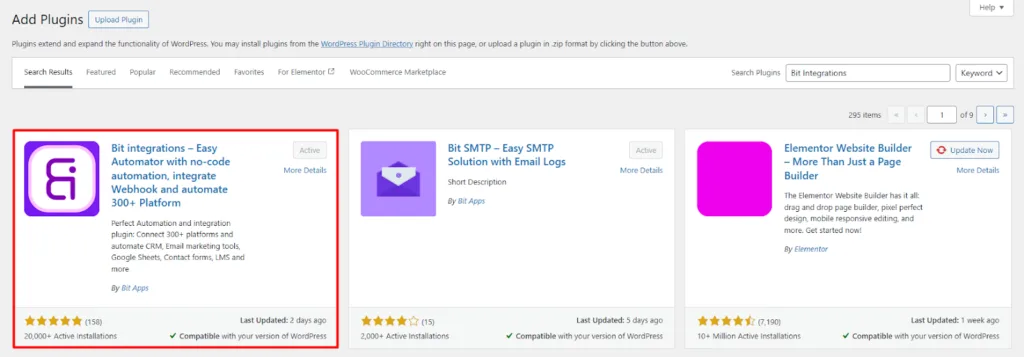
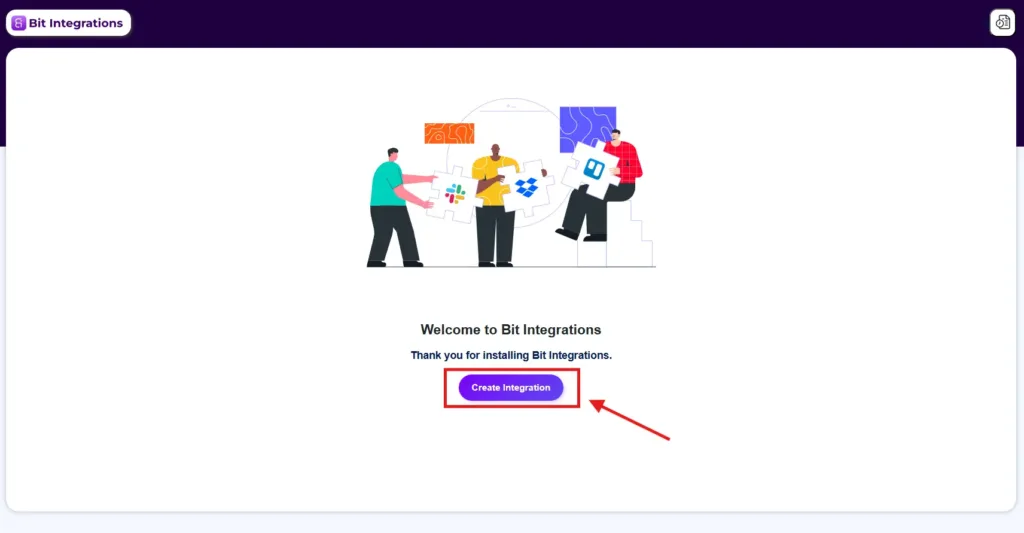
Now that the plugin is active, open the Bit Integrations dashboard to start building the connection. Think of this as naming your automation project.
The trigger is what kicks off the process. Here, you tell Bit Integrations to watch for new submissions from your Contact Form 7.

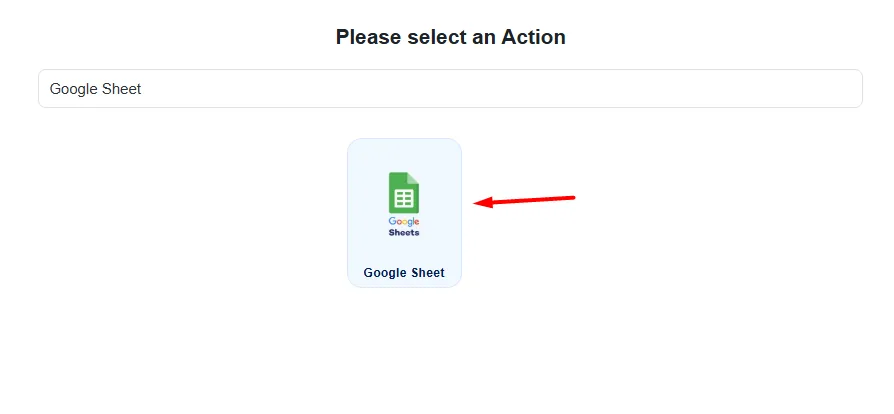
This is where you decide what happens after a form submission. You point it to Google Sheets to add the data there.
Before setting up Google Sheets, follow these steps:
Head to your Google account (the one you plan to authorize in Bit Integrations) and create a new spreadsheet in Google Drive.
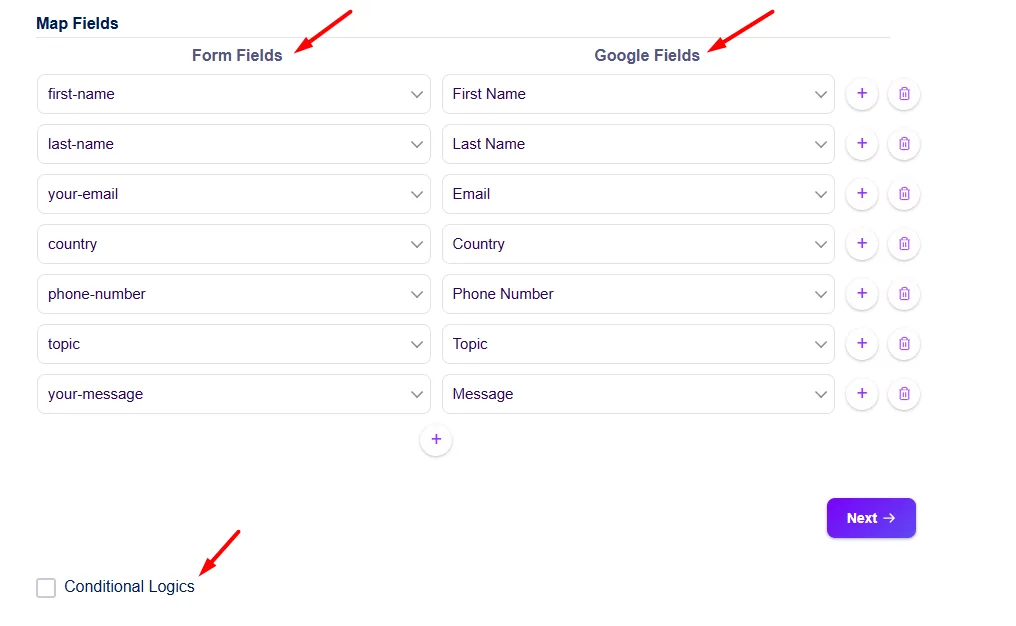
In the first row of the sheet, add header columns that match your Contact Form 7 fields. For example, use labels like First Name, Last Name, Email, Country, Phone Number, Topic, and Message.
Bit Integrations needs permission to access your spreadsheets. This involves setting up credentials in Google Cloud Console, but you only do it once.
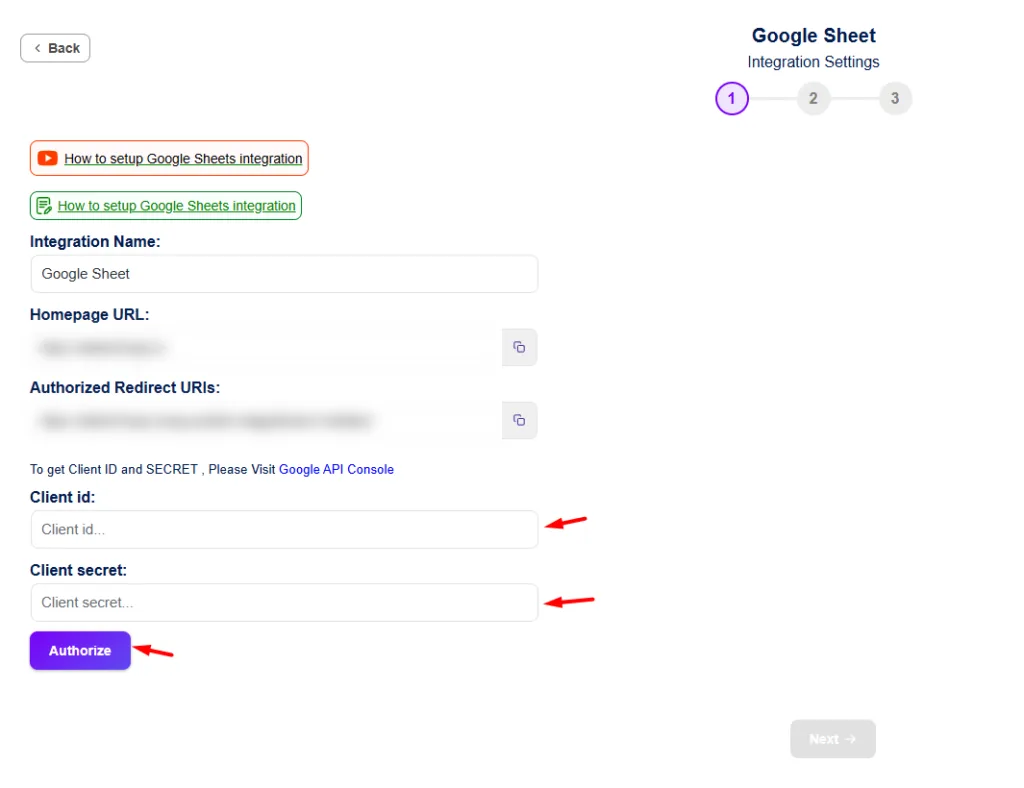
Check out the official Bit Integrations documentation for detailed instructions on Integration von Google Sheets
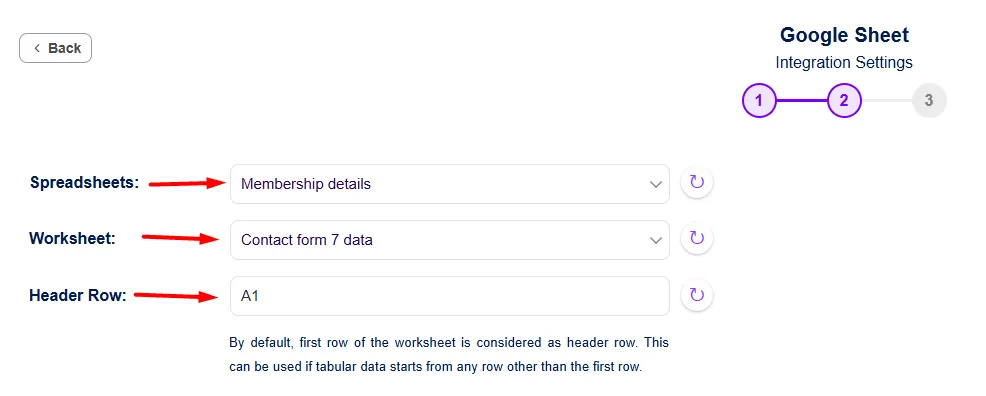
With authorization done, specify where the data goes in Google Sheets.
This step links the form fields from Contact Form 7 to columns in your Google Sheet. Get this right to make sure data lands in the correct spots.
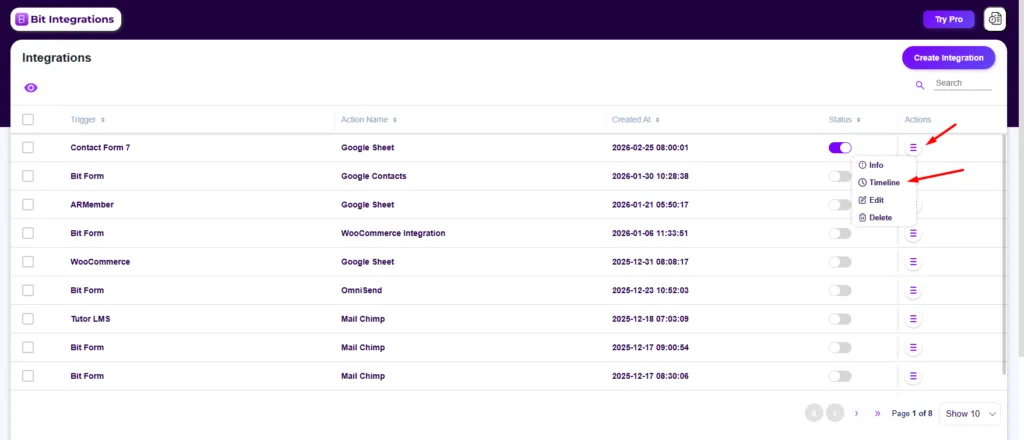
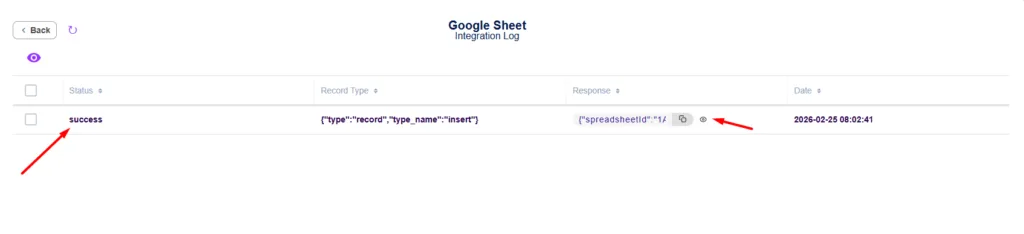
Time to wrap it up and check if it works. This confirms everything flows as expected.
Instead of thinking about this as “just send CF7 to Google Sheets,” zoom out a bit.
Bit Integrations positions itself as a connector for 166-plus external platforms.
Today, you may only need Google Sheets.
But tomorrow, you might want to:
With one setup, you are not locked into a single spreadsheet sync plugin. You have room to grow.
Bit Integrations is not only a Google Sheet connector, but it’s also a complete automation plugin. That means you are not just mapping fields from CF7 to Sheets. You also get:
So instead of buying a one-purpose Google Sheets connector for Contact Form 7, you are installing a flexible toolkit with more opportunities as your business grows.
You can route certain form submissions to different Sheets. Or send data to multiple apps at once. Or log activity so you know what happened when.
That matters if you run a business site, not just a hobby blog.
Whenever you evaluate a plugin, WordPress itself teaches you what to look at:
Bit Integrations performs well on those signals. It has over 20000 active installs, strong user ratings, and consistent updates. Those indicators tell you people are using it in real environments, not just testing it once and abandoning it.
And here is a small but important detail.
The listing mentions that telemetry is opt-in and confirmation-based. For users who worry about automation plugins sending data without permission, that is reassuring.
At the end of the day, connecting Contact Form 7 to Google Sheets is not about chasing a trend.
It is about protecting leads, sharing data safely with your team, and choosing a solution that still makes sense a year from now.
If you are already using CF7, this is not just a convenience upgrade. It is basic infrastructure. Let’s dive into the step-by-step tutorials:
You’ve set up the connection, and now your Kontakt-Formular 7 submissions flow into Google Sheets. That’s a solid start. With Bit Integrations, you can easily build on this and Contact Form 7 automatisieren further. It connects to many apps, so think of it as opening doors to even more actions with the same form data.
If you are a Bit Integrations user, you can connect your Contact Form 7 with 166+ external apps totally free.
Here are a few ideas to get you going; no full guides needed here.
Not only Contact Form 7, but you can automate your Bit Form, Elementor Formular, WPForms, with 166+ platforms, totally free.
Connecting Contact Form 7 to Google Sheets does not have to cost you money every year or come with headaches from brittle plugins. Bit Integrations gives you a reliable, no-code way to handle this in 2026 as the top Google Sheets Connector for Contact Form 7.
The free version lets you send unlimited submissions straight to your spreadsheet, plus it opens up connections to over 166 platforms without forcing upgrades for the basics.
You protect your leads from email mishaps, share data easily with your team, and set up room to grow into things like CRM syncs or team notifications.
If you are tired of lost entries, spinning forms, or another subscription renewal notice, give Bit Integrations a try as your Google Sheets connector for Contact Form 7. Install it from the WordPress directory, follow the steps we covered, and test a submission. Most people get it running in under 10 minutes once the Google authorization is sorted.
Your form data belongs where you can actually use it. This setup puts it there for free with the universal Google Sheets connector for WordPress site & Contact Form 7.
No, it only sends them via email. If emails get lost in spam, misconfigured SMTP, or server issues, those messages vanish.
Yes, the free version supports Contact Form 7 as a trigger and Google Sheets as an action. You get unlimited submissions and active integrations for this workflow with no hidden paywall for the core setup.
If you use the free version, you can connect Contact Form 7 to over 166 external apps and platforms at no cost, including Google Sheets, Mailchimp, Slack, CRMs, and more.
Yes, conditional logic is included free. You can filter or route submissions based on field values, like sending only certain inquiries to one Sheet or app.
No, Bit Integrations free version handles unlimited entries from Contact Form 7 to Google Sheets without limit or forced upgrades for this specific flow.
Double-check that Google Drive API and Google Sheets API are enabled, your OAuth consent screen includes the right scopes, and the redirect URI matches exactly what Bit Integrations shows.





 DE
DE  EN
EN  ES
ES  NL
NL  FR
FR