If you’ve searched for a way to connect Gravity Forms to Google formulieren, you’ve likely landed on Gravity Connect, Gravity Wiz’s official integration suite, and that costs almost $59/year for one site.
It works, but its pricing model creates a real constraint: each plan limits the number of platforms you can connect, and Google Sheets counts as one of those slots.
But what if I tell you there is a plugin named Bit Integrations, an automation plugin that takes a different approach? It connects Gravity Forms to Google Sheets and even more 173+ action platforms, including CRM, email platforms, LMS, etc., for $35/year.
You don’t even need to upgrade your Gravity Forms plan to connect more platforms like CRMs and email platforms, etc., with Gravity Forms. Through the Bit Integrations automation and integration plugin, you can connect your Gravity Forms to hundreds of platforms easily without switching to any other tools.
Gravity Connect limits you to 1 active connection on its Basic plan, pick Google Sheets, and that’s your entire account. Bit Integrations costs $35/year, uses Gravity Forms as a trigger, and gives you access to all 173+ action, including Google Sheets platforms with no slot restrictions. This guide covers the pricing difference and walks through the full setup.
Before anything else, here’s what you’re actually paying for with each tool:
| Kenmerken | Gravity Connect Basic | Gravity Connect Advanced | Gravity Connect Pro | Bit Integrations Starter |
| Price | $59/year | $169/year | $199/year* | $35/year |
| Available Integrations | 8 total | 8 total | 8 total | 173+ |
| Integrations You Can Use | 1 only | 3 only | 8 total | 335+ included |
| Sites | 1 | 3 | Onbeperkt | Unlimited sites start at $99/year And 1 site, $35/year |
| Onbeperkte gegevensoverdracht | Ja | Ja | Ja | Ja |
| Google formulieren | Yes, (uses your 1 slot) | Ja | Ja | Ja |
| CRM + Email + Other Apps | Need upgrade | Limited to 2 more | Ja | All Included |
| Voorwaardelijke logica | Geen | Geen | Geen | Ja |
| Webhooks | Geen | Geen | Geen | Ja |
Gravity Connect Pro is $199 for the first year only, and renews at $349/year.
The core difference is structural. Gravity Connect prices are based on the number of connections you activate. Bit Integrations gives you access to all 173+ action platforms on every plan, with no slot system.
Gravity Connect’s Basic plan ($59/year) gives you one active connection from a library of 8 platforms: Airtable, API Alchemist, Drip, Google Calendar, Google Sheets, MailPoet, Notion, and OpenAI.
If you choose Google formulieren, that’s your one connection; adding a CRM or email tool requires upgrading.
De Advanced plan ($169/year) raises that to 3 connections across 3 sites. Still the same 8 platforms, still capped. To use Google Sheets, a CRM, and an email tool simultaneously, you’re at $169/year minimum.
The Pro plan removes the connection cap, but at $349/year on renewal, it’s a significant jump for what remains an 8-platform library.
This model is predictable if your needs are static. It becomes expensive the moment they’re not.
Bit Integraties connects form plugins and other triggers to external apps. When Gravity Forms is set as the trigger, it can route submission data to any of its 173+ action platforms, all on the same $35/year Starter plan.
What’s included on the Starter plan:
Connect Google Sheets today. Add your CRM tomorrow. Set up email marketing next week. No upgrade needed. No extra cost. No limits.
Before you start: The setup involves generating Google API credentials from Google Cloud Console. If you haven’t done this before, budget 15–20 minutes for that step specifically. The rest of the configuration takes about 5 minutes.
Go to your WordPress dashboard → Plugins → Add New → search “Bit Integrations” → Install and Activate.
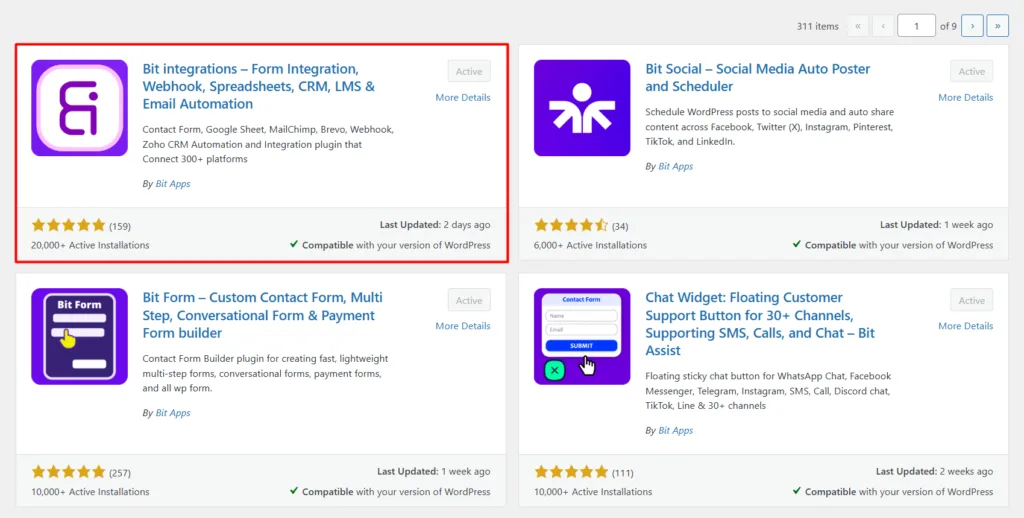
Opmerking: A free version is available on WordPress.org. The Pro version ($35/year) unlocks all integrations, including the full Gravity Forms trigger.
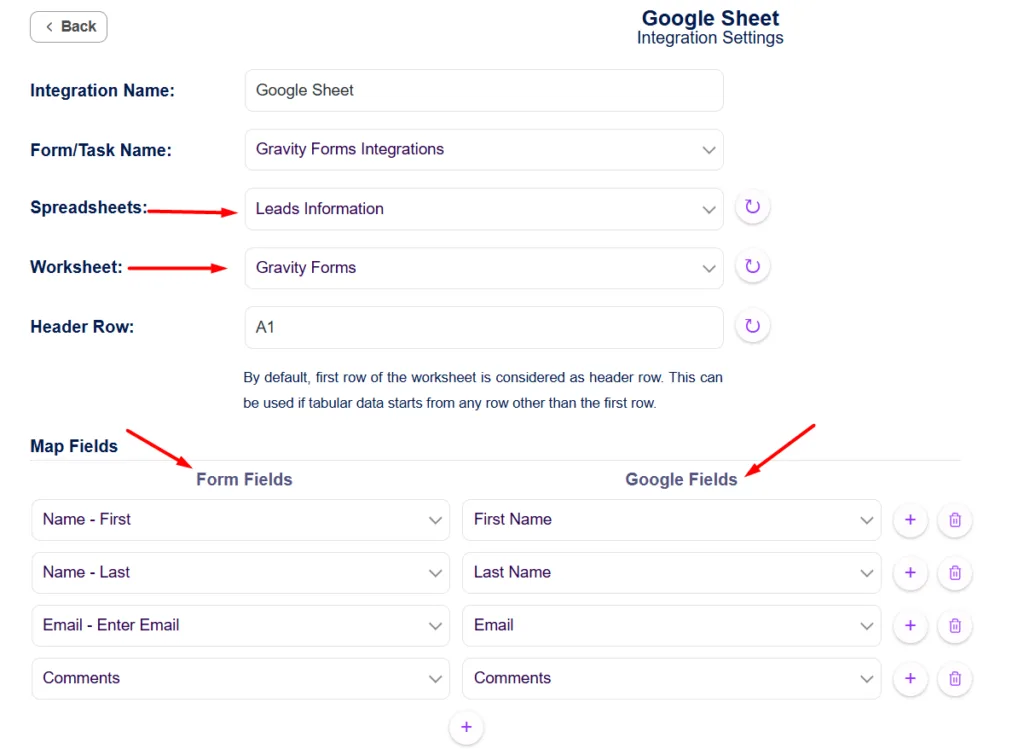
Before configuring the integration, set up your destination spreadsheet first. Bit Integrations maps to your column headers during setup, so they need to exist beforehand.
Open Google Sheets and create a new spreadsheet. In the first row, add column headers that match your form fields, for example, First Name, Last Name, Email, and Message.
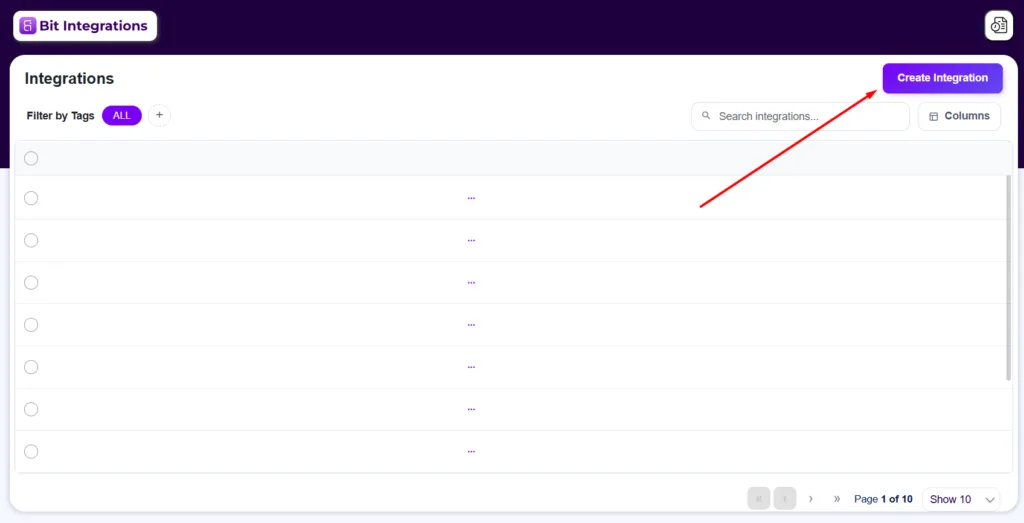
In your WordPress dashboard, go to Bit Integrations → Create Integration.
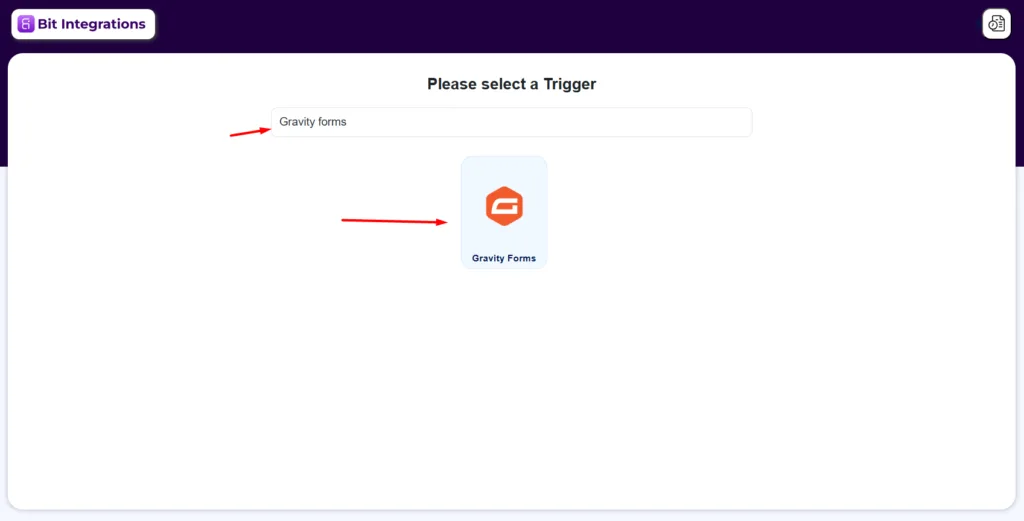
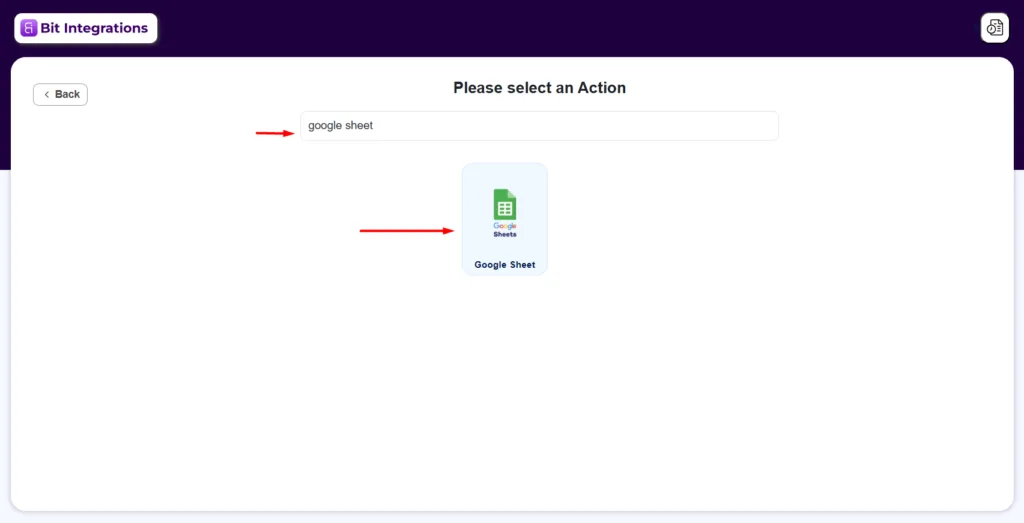
Search for and select Zwaartekracht Formulieren as the trigger. Then choose the specific form you want to connect from the dropdown, and click Volgende.
Search for and select Google formulieren als de actie.
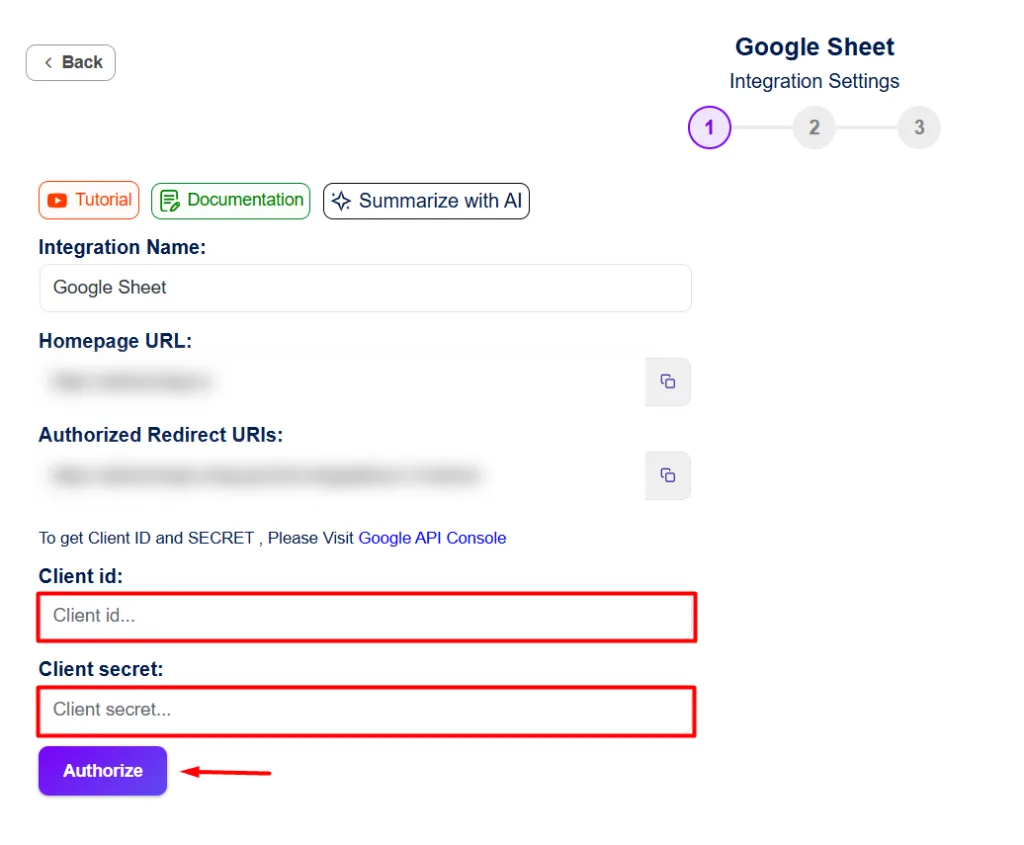
To connect your Google account, you’ll need a Google klant-ID en Google Client Secret. Here’s how to get them:
Paste both values into Bit Integrations and click “Authorize.” Complete the Google account sign-in prompt that follows, then click Volgende.
For more details about Google Sheets-integraties, please check the official documentation.
Pro tip: If you see a “This app isn’t verified” warning during authorization, click Advanced → Go to [your app name] to proceed. This is standard for self-configured OAuth apps.
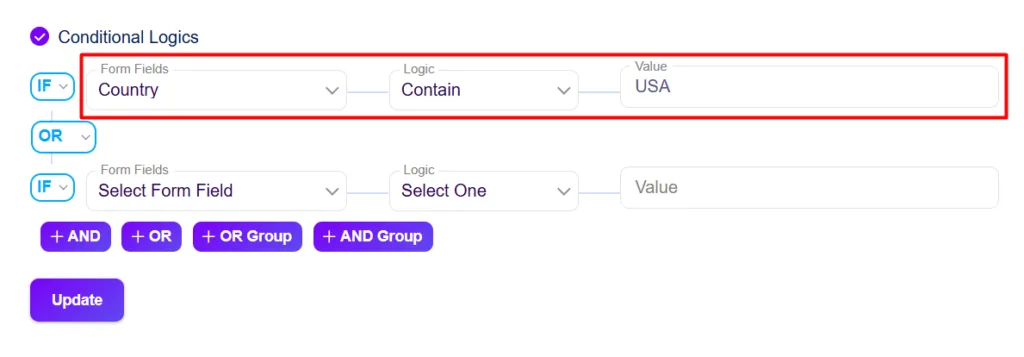
Want to filter which submissions get sent? Enable voorwaardelijke logica and set your rules, for example, only send data to Google Sheets if “Country” equals “USA.”
Click Save Integration, submit a test form entry, and check your Google Sheet. Data should appear in real time. That’s it. Done.
Choose Gravity Connect if:
Choose Bit Integrations if:
Connecting Gravity Forms to Google Sheets should be a simple decision, not a pricing puzzle. The real question was never can you do it, but what’s the most sensible way to do it without locking yourself into a model that charges you every time your needs grow?
If Gravity Connect fits your workflow and budget, it does what it does well. But if you’ve been hesitant because of the per-connection limits, now you know there’s a straightforward alternative worth considering.
Either way, the goal is the same: your form data flows where it needs to go, automatically, without the manual work.
It supports most standard Gravity Forms fields, text, email, phone, dropdown, checkbox, radio button, date, and file upload. Complex fields like Signature or Chained Selects may have limitations depending on how the receiving platform handles that data type. Test with your specific field configuration before going live.
Bit Integrations appends new rows; it does not overwrite or modify existing data. Each form submission creates a new row below the last entry, leaving any pre-existing rows untouched.
No. A standard free Google account works. You do need access to Google Cloud Console to generate OAuth credentials, but that’s available on any Google account at no cost.
Yes. You can create multiple integrations using the same form as the trigger, each pointing to a different spreadsheet or worksheet. This is useful for routing submissions to separate sheets based on form type or conditional logic rules.
No. Bit Integrations only captures submissions made after the integration is saved and active. Historical entries are not retroactively synced. If you need past data in Google Sheets, you’d have to export it manually from Gravity Forms and import it separately.
Google OAuth tokens can expire or be revoked if you change your Google account password, revoke app access from your Google Account security settings, or leave the token inactive for an extended period. If submissions stop arriving, check the connection status under Bit Integrations → Settings and re-authorize if needed.



 NL
NL  EN
EN  ES
ES  DE
DE  FR
FR