
Are you still exporting CSV files from your WordPress site and manually copying data into Google Sheets?
Every day, new form submissions, WooCommerce orders, and course enrollments come in. But instead of seeing everything neatly organized in one live spreadsheet, you waste time downloading files, cleaning rows, and fixing mistakes.
It gets worse when you use multiple plugins. One form builder needs an add-on. Your LMS needs another tool. WooCommerce needs something else. Each one costs money. Each one adds complexity. And nothing feels fully connected.
What if every lead, order, and signup could appear instantly in your chosen Google Sheet tab? Automatically. In real time. Without buying separate connectors for every plugin.
Imagine opening Google Sheets and seeing your data already there. Clean. Organized. Updated the moment someone clicks submit.
In this guide, you will discover a simple way to connect your entire WordPress site to Google Sheets from one place. No technical confusion. No juggling multiple addons. Just a clear setup that works.
By the end of this article, you will know exactly how to automate your WordPress data in under 5 minutes and finally stop managing spreadsheets the hard way.
Managing a WordPress site in 2026 often means juggling multiple tools: contact forms capturing leads, e-commerce platforms processing orders, learning management systems tracking student progress, and more.
The real headache comes when you need that data centralized for analysis, reporting, or team collaboration.
The result? Disorganized data, missed insights, and frustration when scaling your site.
Most people assume their favorite form plugin comes with easy Google Sheets support right out of the box. The truth is different. Popular form builders usually lock that feature behind a paywall or require an extra add-on.
Take a look at some common ones:
WooCommerce doesn’t help much either. It gives you manual CSV exports for orders, but nothing automatic for live Google Sheets updates.
The same goes for LMS tools. Plugins such as LearnDash, LifterLMS, and Tutor LMS. You usually face manual exports or yet another add-on purchase.
Depending on the number of plugins and add-ons used, costs can easily reach several hundred dollars per year just to piece together Google Sheets connections across forms, orders, enrollments, and more.
On top of the money, you deal with ongoing issues: updates that break things, compatibility conflicts between addons, and the time spent troubleshooting or reauthorizing connections.
It turns into a constant maintenance burden that pulls focus away from growing your site.

The good news is there’s a better way. Bit Integrations stands out as the true universal, no-code WordPress Google Sheets connector tool designed specifically for this challenge.
As a powerful WordPress plugin, it connects hundreds of popular plugins and platforms, including 45+ WordPress form builder plugins, e-commerce plugins, and LMS plugins, directly to Google Sheets (and over 300 other apps) from one dashboard.
No matter if you’re using WPForms, Contact Form 7, Gravity Forms, WooCommerce, LearnDash, Tutor LMS, Elementor Forms, or any other platform, Bit Integrations makes it simple to connect everything.
If you’re a WPForms, Formulario de contacto 7, Formulario Elementor, Bit Form, o WooCommerce user, you can enjoy Bit Integrations for free. With just 7 free triggers, you can access over 160 integrations at no cost. It’s a perfect solution for anyone looking to enhance their WordPress site without any extra fees.
This makes the WordPress to Google Sheets connection easy and scalable, turning scattered data into a live, actionable spreadsheet without any coding required.
Users praise its ease, with hundreds of 5-star reviews highlighting quick setups and reliable performance as the top-rated automation plugin in its category.
By the end of this guide, you’ll know exactly why Bit Integrations is the number #1 choice for a universal Google Sheets connector in 2026 and how to set it up in under 5 minutes.
Let me tell you straight up: most people get stuck buying separate addons or paying per connection elsewhere. Bit Integrations changes that completely.
With just this one plugin, you cover more than 45 form builders, plus WooCommerce, over a dozen LMS options, membership sites, and over Más de 300 integraciones. You pick your trigger from almost any popular WordPress tool, point it to Google Sheets, map the fields once, and everything flows in real time.
No per-integration pricing here. Unlike other automation tools, which charge based on tasks, or those individual addons that nickel-and-dime you for each plugin. Bit Integrations gives you access to all those connections in a single purchase. You pay once (or go with their free tier to start), and you get unlimited sends in the pro version without extra fees popping up.
The sync happens right away. When someone submits a form, places an order, or enrolls in a course, the data hits your Google Sheet immediately. No waiting around for batches or delays that mess up your reporting.
The team behind it stays active. They push regular updates to keep things compatible with the latest WordPress versions and plugins. Support gets good feedback from users, too, which helps when you hit a question during setup.
Bit Integrations supports Google Sheets integration for more than 45 WordPress form plugins. You can connect popular builders like Contact Form 7, WPForms, Elementor Forms, Gravity Forms, Bit Form, Formidable Forms, Ninja Forms, and Forminator without needing separate add-ons for each one.
The setup process is simple. You need to choose your form as the trigger, select Google Sheets as the action, and map your fields. Once saved, every submission is sent to your selected spreadsheet automatically.
This helps you keep all leads, inquiries, and registrations organized in one place. You do not need multiple connectors or extra tools. Everything works from one dashboard and updates in real time.
What really sets Bit Integrations apart is the smart control it gives you over your data. It is not just about connecting to Hojas de cálculo de Google. You get real tools to decide exactly what happens and when.
Here are the key features that make it stand out:
By using conditional logic, Set rules to send data only when it matches what you need. For example:
Bit Integrations connects your WordPress site to over 320 platforms and tools. All from one dashboard. Examples include:
Map any field from your form, order, or enrollment to the right column. Add custom values, basic formulas, or dynamic tags.
See a full record of what was sent successfully and what failed, with clear reasons. Fix problems quickly instead of guessing.
Works with new user registrations, post creation, custom post types, and almost any WordPress event you want to use as a starting point.
Send and receive webhooks without limits. Pull or push data freely with no platform caps.
For anything unique integration, hook up directly via custom API endpoints.
All these together make Bit Integrations feel built for actual site owners. You get real control, solid reliability, and space to grow without ongoing extra costs or daily fixes.
Okay, let’s walk through this together like we’re sitting side by side at your computer. The best part? The free version of Bit Integrations handles Google Sheets connections perfectly for 7 triggers, and the whole setup usually takes less than 5 minutes once you’re in. I’ll keep it straightforward so you can follow along easily.
Head to your WordPress dashboard, go to Plugins > Add New, search for “Bit Integrations,” install it, and hit Activate.
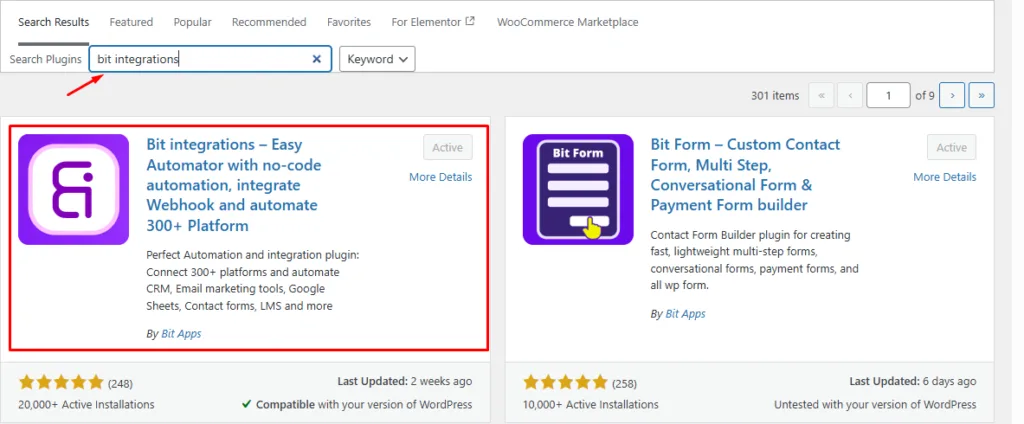
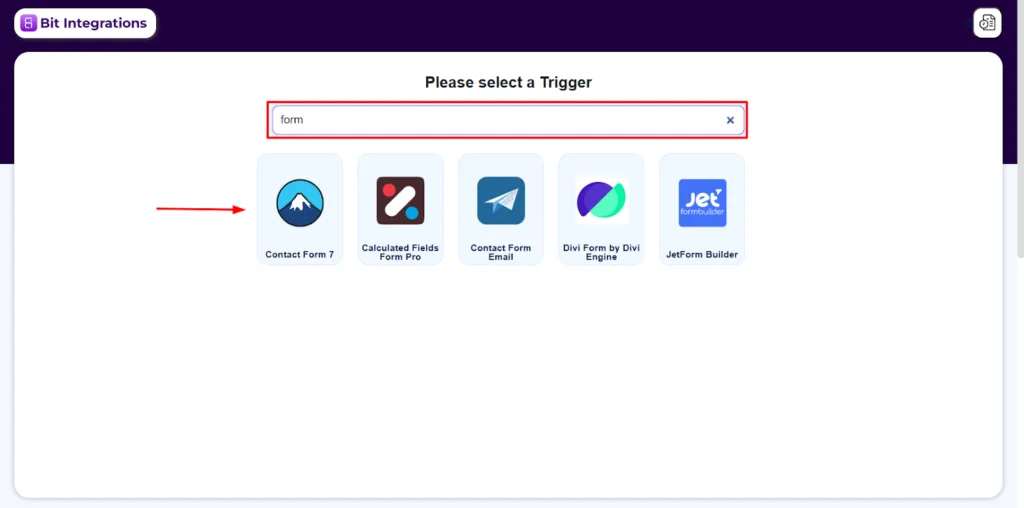
After installing the Bit Integrations, in your WordPress dashboard, navigate to the Bit Integrations plugin. Then hit the “create integration” button. Search and select your desired form builder plugin in the trigger section. And select your desired form.
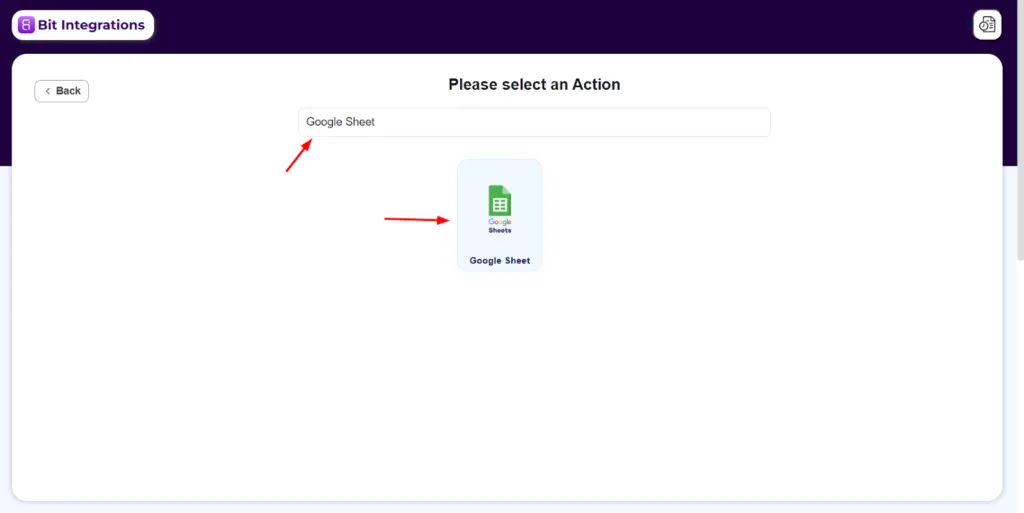
After picking the trigger, move to the action side. Search for “Hojas de cálculo de Google” and select it. Before selecting Google Sheets, create a worksheet in the Google account you are using for authentication. Make sure to include the required form field names in the worksheet.
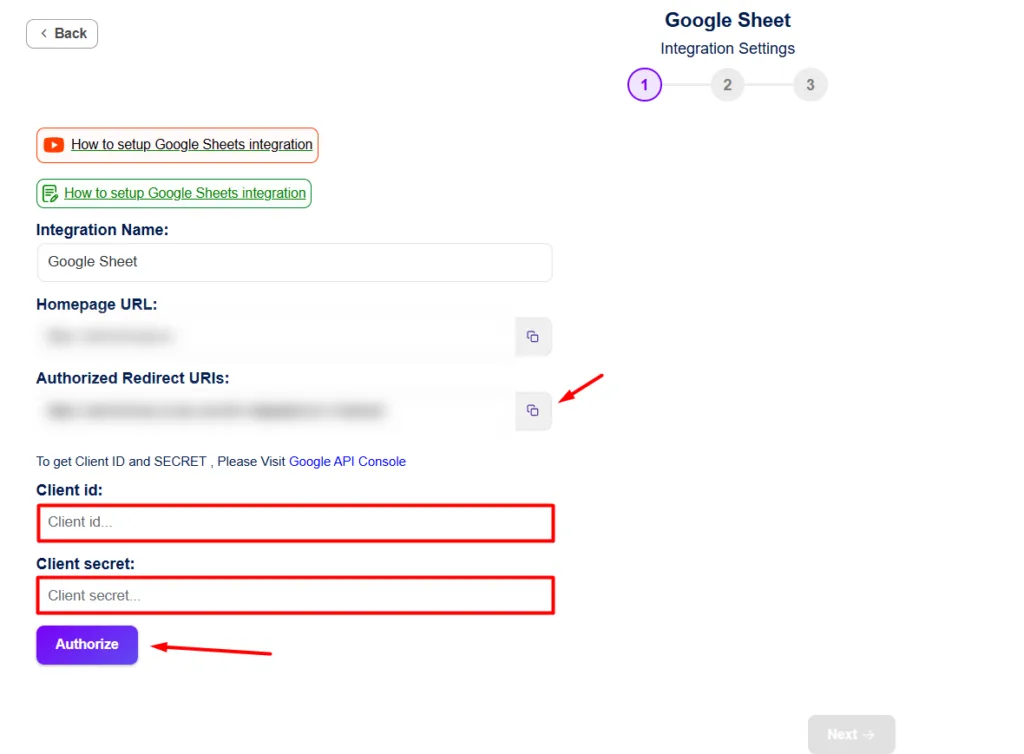
After picking Google Sheets as your action, now provide the Google client id and client secret and authorize your Google account. And click on next.
Learn more about integrating Google Sheets and generating your Google Client ID and Client Secret.
Once connected, you’ll see a dropdown to choose your desired spreadsheets, worksheet, and header row. After this, you’ll see fields from your trigger (form fields) on one side and columns in your Google Sheet on the other. And match them with each other.

Want to send only leads from the USA to a dedicated “USA Leads” sheet, or route job applications with “Developer”? Just head to the conditional logic section.
This keeps your data super organized automatically. For instance, if your form has a country dropdown or field, set a rule like: if the country contains “USA,” then send the data to your USA-specific spreadsheet or tab. Everything else can skip that route or go somewhere different. No manual sorting needed later.
Skip this step for basic setups, but it’s one of the things that makes Bit Integrations feel way more powerful than simple connectors.

Most important: run a quick test! Enviar un formulario de prueba, or trigger whatever event you chose. Jump to your Google Sheet, and the new row should appear almost instantly.
If something doesn’t show up, check the timeline or logs in Bit Integrations for any errors (it tells you exactly what went wrong, like a missing field map).

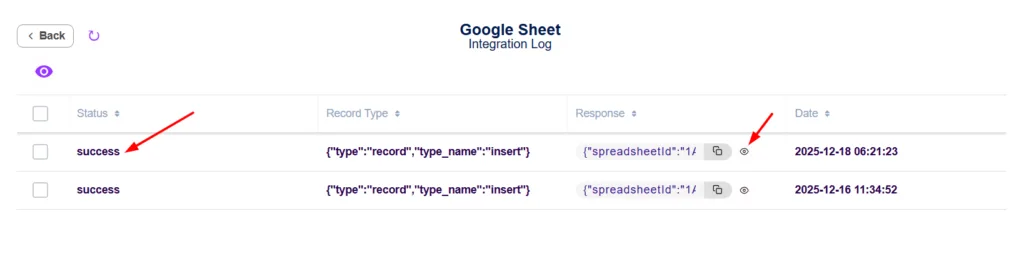
And that’s it. In under 5 minutes, you’ve got live, automatic data flowing from your WordPress site straight into Google Sheets. No more manual exports or piecing together addons. Play around with a couple more triggers if you want; the dashboard makes duplicating or tweaking easy.
You no longer have to export files, manage multiple add-ons, or worry about missing important data. Now you know there is a smarter way to connect your entire site to Google Sheets in real time.
With one setup, you can turn forms, orders, enrollments, and registrations into organized, live spreadsheets. No coding. No complex tools. Just clean automation that works.
Bit Integrations gives you the universal Google Sheets connector for WordPress that replaces scattered plugins with one reliable solution.
Stop juggling connectors and start automating with confidence. Install the Bit Integrations Google Sheet connector plugin today and make your WordPress to Google Sheets workflow more efficient.
Yes! The free version allows you to connect popular form builders (such as Contact Form 7, WPForms, Elementor Forms, and Bit Form), WooCommerce, Bit Social, and Bit Assist directly to Google Sheets with unlimited data sync.
Yes, it fully supports multisite setups. You can manage automations across your entire network from one dashboard (Pro plans unlock unlimited sites for even easier scaling).
Yes! as a separate (but super simple) action. Bit Integrations allows you to upload form files directly to Google Drive folders while sending other data to Google Sheets. Perfect for resumes, orders with attachments, or course certificates.
No problem! The Bit Integrations team actively adds new integrations monthly based on user requests. Just reach out via support; Or post on Bit Apps Comunidad Facebook for many popular ones (like new LMS or page builder forms) get added quickly. Or you can connect your desired form via incoming webhook or action hook.
None in the free version for supported triggers, send unlimited entries without caps. Pro plans remove any remaining restrictions and unlock all integrations.
Very secure. Bit Integrations uses official Google OAuth authentication (no storing passwords), encrypted connections, and follows best practices; your data stays private and compliant.
Yes, Bit Integrations includes detailed logs and a timeline view for every automation. Check which entries succeeded, failed (with reasons like API limits or field mismatches), and retry individually if needed. Great for debugging without guesswork.





 ES
ES  EN
EN  DE
DE  NL
NL  FR
FR