

 FR
FR  EN
EN  ES
ES  DE
DE  NL
NL  PT
PT  IT
IT  JA
JA WPForms HubSpot Integration Without Elite: Connect WPForms to HubSpot for Free
Most businesses use WPForms to collect leads, inquiries, and customer information from their WordPress websites. But when those leads need to move into HubSpot automatically, things get confusing.
WPForms does not include a native HubSpot integration in every plan. The official WPForms HubSpot addon requires the Elite license, which means some users consider upgrading only to connect their forms with HubSpot.
But upgrading is not the only option.
There are multiple ways to connect WPForms to HubSpot, including automation tools, HubSpot’s own WordPress plugin, and third-party WordPress automation plugins like Bit Integrations. Each method has different requirements, pricing, and available HubSpot actions.
In this guide, we will compare 4 different ways to integrate WPForms with HubSpot, explain what each method can do, and show how to create a real-time WPForms HubSpot connection using Bit Integrations without upgrading to the Elite plan.
TL;DR
- WPForms does not provide HubSpot integration on all plans. The official WPForms HubSpot addon requires the Elite license.
- You do not need to upgrade to Elite just to send WPForms data to HubSpot.
- There are 4 ways to connect WPForms with HubSpot, including Zapier, the HubSpot WordPress plugin, the WPForms addon, and Bit Integrations.
- Bit Integrations lets you connect WPForms with HubSpot directly from WordPress without additional automation costs.
- You can automatically create and update HubSpot records like contacts, companies, deals, and tickets based on WPForms submissions.
- The guide includes a complete step-by-step setup process with screenshots.
The four ways to connect WPForms to HubSpot
WPForms builds forms in WordPress. HubSpot stores contacts, companies, deals, and tickets. Neither one talks to the other on its own, so every method below sits in the middle.
They differ in where the code runs and which HubSpot records you can create.
| Méthode | Plan needed | External account needed | What it creates in HubSpot |
| WPForms HubSpot addon | Élite | HubSpot | Contacts, plus association with an existing company |
| WPForms Zapier addon | Pro or Elite | HubSpot and Zapier | Whatever the HubSpot app on Zapier supports, billed as tasks |
| HubSpot WordPress plugin | N'importe laquelle, y compris Lite | HubSpot | Contacts only, captured by browser tracking |
| Bit Integrations | Any, including the free version | HubSpot | Contacts, companies, deals, and tickets |
What each method requires and what it creates in HubSpot
1. The native WPForms HubSpot add-on
The HubSpot add-on is official WPForms software, and it unlocks at the Elite licence. After you install it, you connect your HubSpot account under WPForms, Settings, Integrations, then add a HubSpot connection inside a form.
Read the action list before you upgrade. WPForms documents four actions: Create or Update Contact, Delete Contact, Company Connect, and Company Disconnect.
Company Connect links a contact to a company that already sits in your HubSpot account, and it does not create the company. Nothing here creates a deal or a ticket.
A quote request form cannot open a deal, and a support form cannot open a ticket.
Elite also includes the Webhooks add-on. With it, you can post form data straight to the HubSpot API, though you build and maintain that request yourself.
For a breakdown of which add-ons unlock at which tier, see our Guide des intégrations WPForms.
2. WPForms with Zapier
Les Zapier add-on needs a Pro license or higher. Zapier also needs your site running on HTTPS with a valid SSL certificate, which catches people out on staging sites. Once you connect the two, a new form entry fires a Zap, and the Zap calls HubSpot.
You reach HubSpot objects; the native add-on skips. You also send submissions off your own server, spend a task on every run, and keep two accounts in sync.
That trade makes sense when one submission has to land in several services or when the data needs reshaping on the way through.
3. The HubSpot WordPress plugin
People mix up the two jobs this plugin does, so take them one at a time.
- Embedding HubSpot forms. You build a form inside HubSpot and place it on a WordPress page or post. What loads on your site is a HubSpot form. Your WPForms forms stay exactly as they were.
- Collecting non-HubSpot forms. The plugin installs the HubSpot tracking code, which powers the non-HubSpot forms tool.
Switch that tool on, and HubSpot spots forms on your site by their HTML form tag, then collects what visitors submit, WPForms entries included.
So yes, the HubSpot plugin does capture WPForms submissions. Six conditions come with it:
- The tracking code has to load. A script conflict or a blocker in the visitor’s browser means nothing reaches HubSpot.
- The form has to sit on the page at first load. Forms injected afterwards get skipped.
- Hidden field values never come through.
- Collection fires on every click of the submit button, so a visitor who trips validation once and then submits sends you a partial record and a complete one.
- Only single-line text properties can receive the data. A dropdown, a date picker, or a number field in your WPForms form has nowhere to land unless you built a matching single-line text property in HubSpot first.
Without one, the value never reaches the contact record, though you can still read it in the raw submission.
- Submissions create or update a contact matched on email address. No deals, no tickets, no companies.
For a newsletter signup or a basic contact form, where a contact record and page-view history cover what you need, that works.
For a form that collects anything structured—a budget range, a service dropdown, a preferred date—those values drop on the way in.
4. Bit Integrations
Bit Integrations est un WordPress integration plugin that runs the connection on your own server.
WPForms comes as a free trigger, HubSpot as a free destination platform, and you build the whole thing inside the WordPress admin.
Votre WPForms license never comes into play, because Bit Integrations reads the submission through WordPress instead of through a WPForms add-on.
It creates contacts, companies, deals, and tickets, so it covers the two record types the native addon leaves out. You map every field yourself, custom properties included. Reference details for this pairing live on the WPForms Intégration HubSpot page.
That combination—any WPForms plan and all four HubSpot record types—is why the rest of this guide uses it.
How to connect WPForms to HubSpot with Bit Integrations gratuitement
| Before you start WordPress administrator access. WPForms installed with at least one published form. WPForms Lite is fine. A HubSpot account and a private app access token. Notre HubSpot integration documentation walks through generating one. |
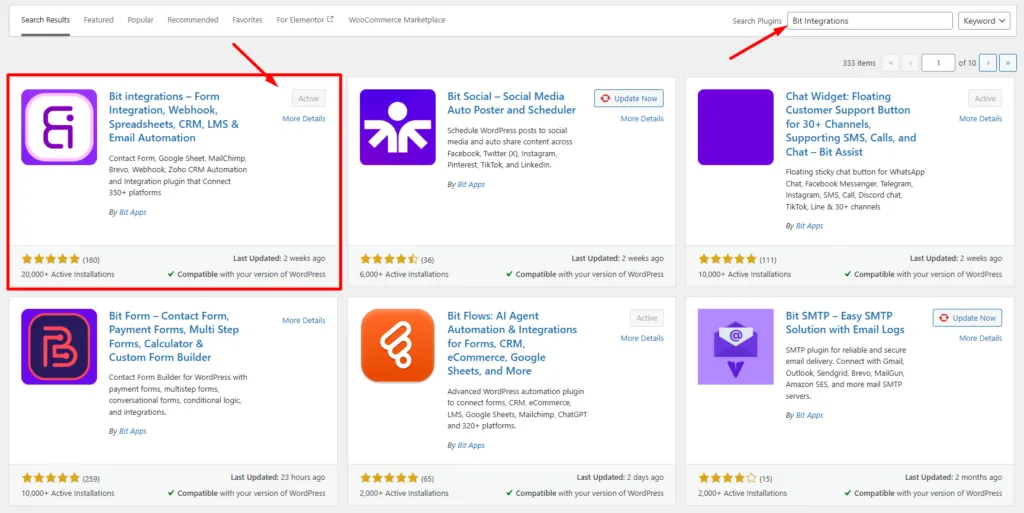
Step 1. Install and activate Bit Integrations.
In your WordPress dashboard, open Plugins, add New, search for Bit Integrations, and then install and activate it.
Step 2. Create a new integration.
Ouvrir le Bit Integrations dashboard from the WordPress admin menu and click Create Integration. That opens the trigger and action builder.

Step 3. Select WPForms as the trigger.
The trigger is what starts the automation. Search the trigger list for WPForms and select it. WPForms sits among the free triggers.

Step 4. Choose the form to connect.
Pick the form whose entries should reach HubSpot, then click Next. Connect one form per integration. Field mapping stays clean that way, and a failed run points straight at the form behind it.

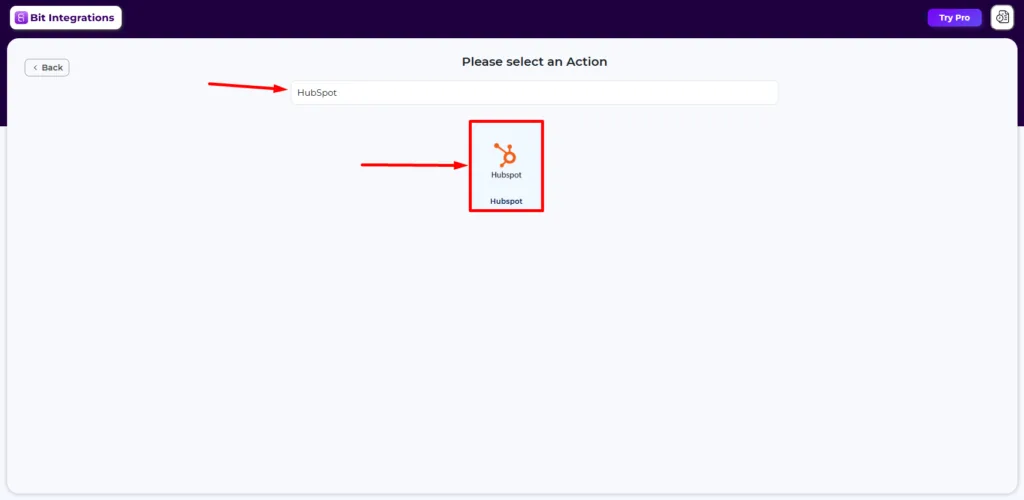
Step 5. Select HubSpot as the action.
The action is what happens after someone submits the form. Search the action list for HubSpot and select it.
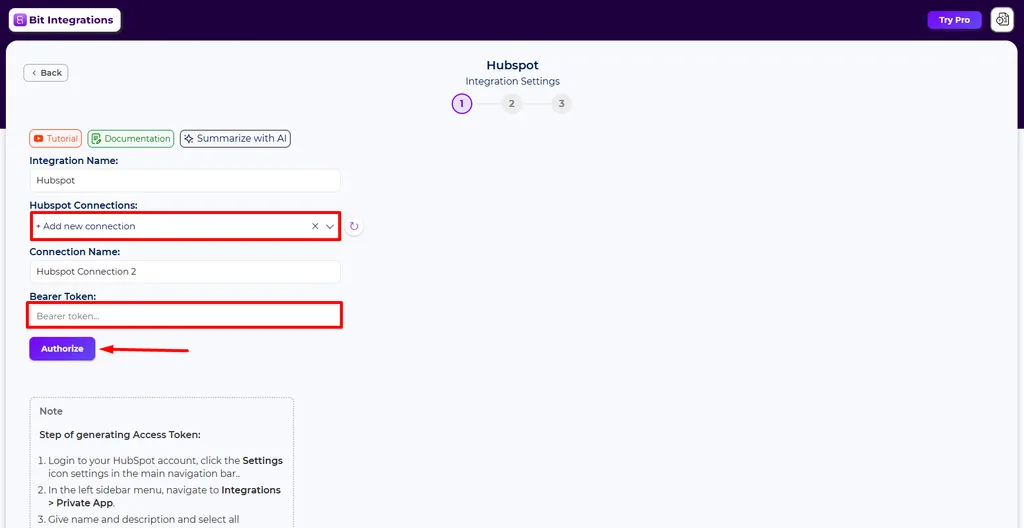
Step 6. Authorize your HubSpot account
Name the connection, paste your HubSpot bearer token into the token field, and click Authorize.
The token comes from a HubSpot private app, and our HubSpot integration documentation covers the full process. Click Next once the connection is verified.
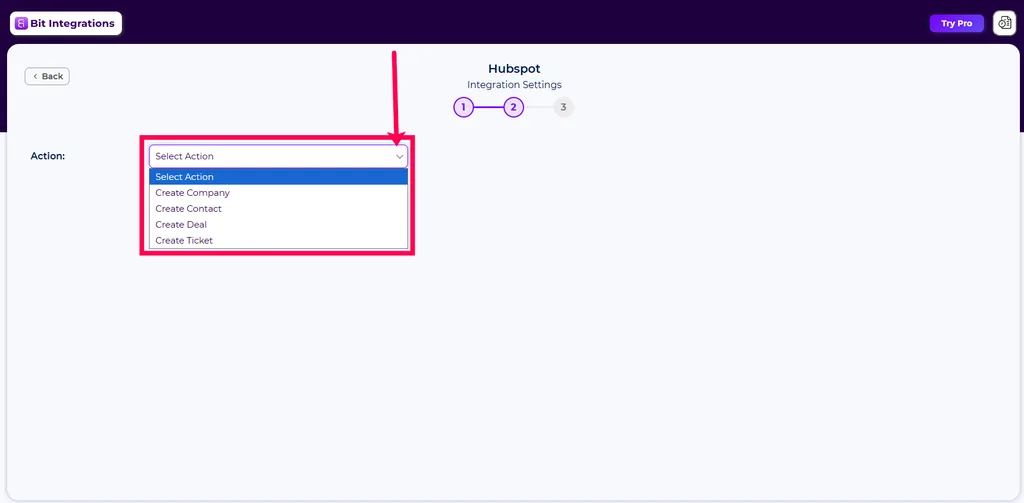
Step 7. Choose the HubSpot action event.
Pick what the submission should create in HubSpot. Four HubSpot actions are available:
- Create contact for lead capture, newsletter signups, and general contact forms.
- Create a company for B2B forms that collect an organization rather than a person.
- Create a deal for quote requests, demo bookings, and anything that belongs in a sales pipeline at a set stage.
- Create a Ticket for support and complaint forms that belong in a service pipeline.
Deal and ticket actions ask for a pipeline and a stage before the field map opens, so the record lands where your team goes looking for it.
Step 8. Map WPForms fields to HubSpot fields.
Les field map has two columns: your WPForms fields on the left and the matching HubSpot properties on the right.
Email is required for contact creation and comes pre-selected. Add a row for every other field you want to carry over, such as first name, last name, phone, or a message field mapped to a HubSpot note or custom property.
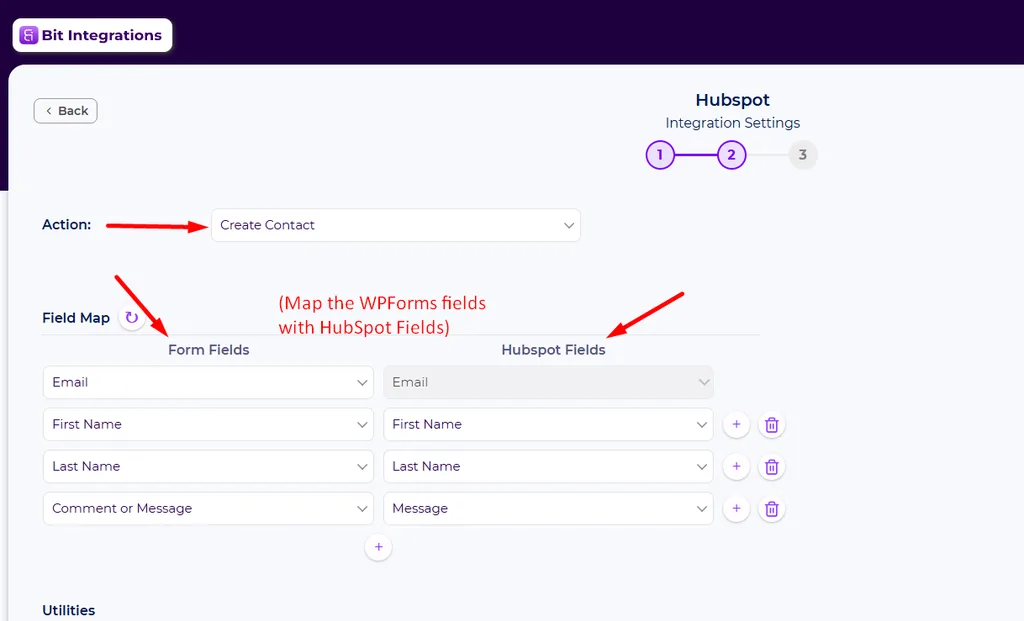
A HubSpot property has to exist before it shows up in the right-hand column, so create your custom properties in HubSpot first, then hit the refresh icon beside Field Map to pull them in.
The left column also takes a custom value, which lets you send a fixed string such as a campaign name or a source label that the form itself never asks for.
Step 9. Add utilities and logique conditionnelle
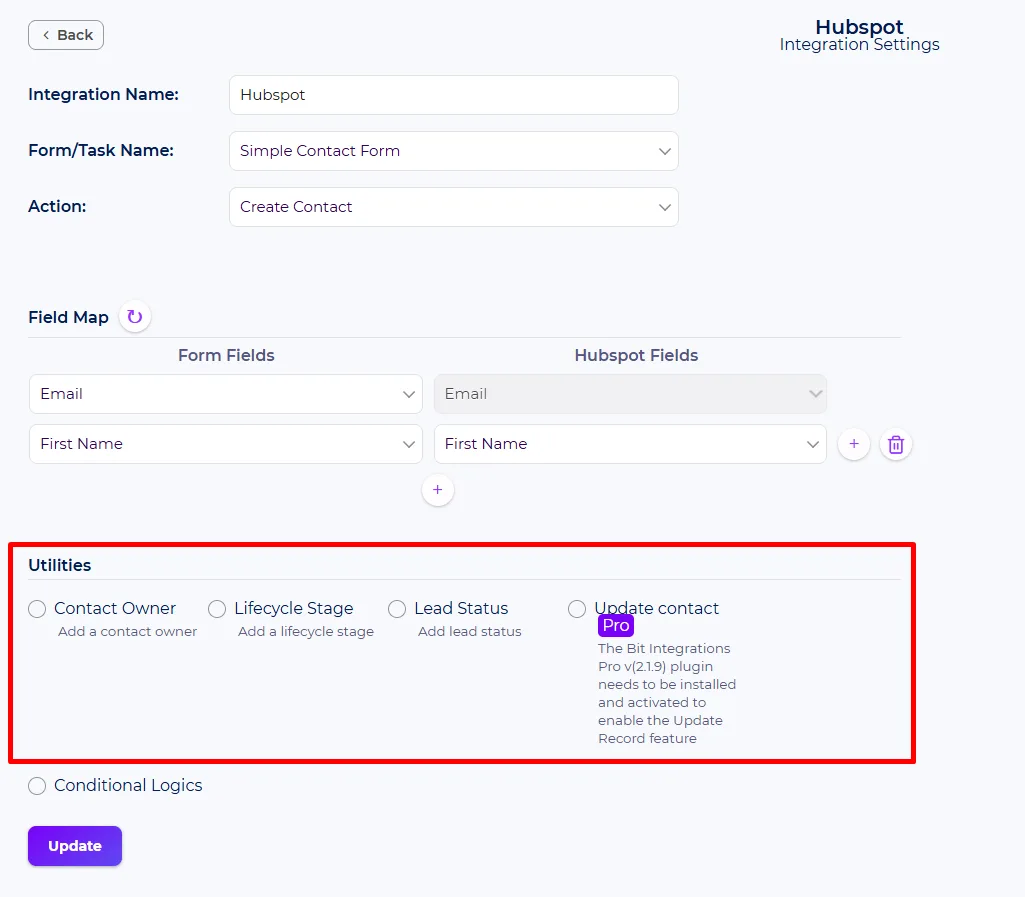
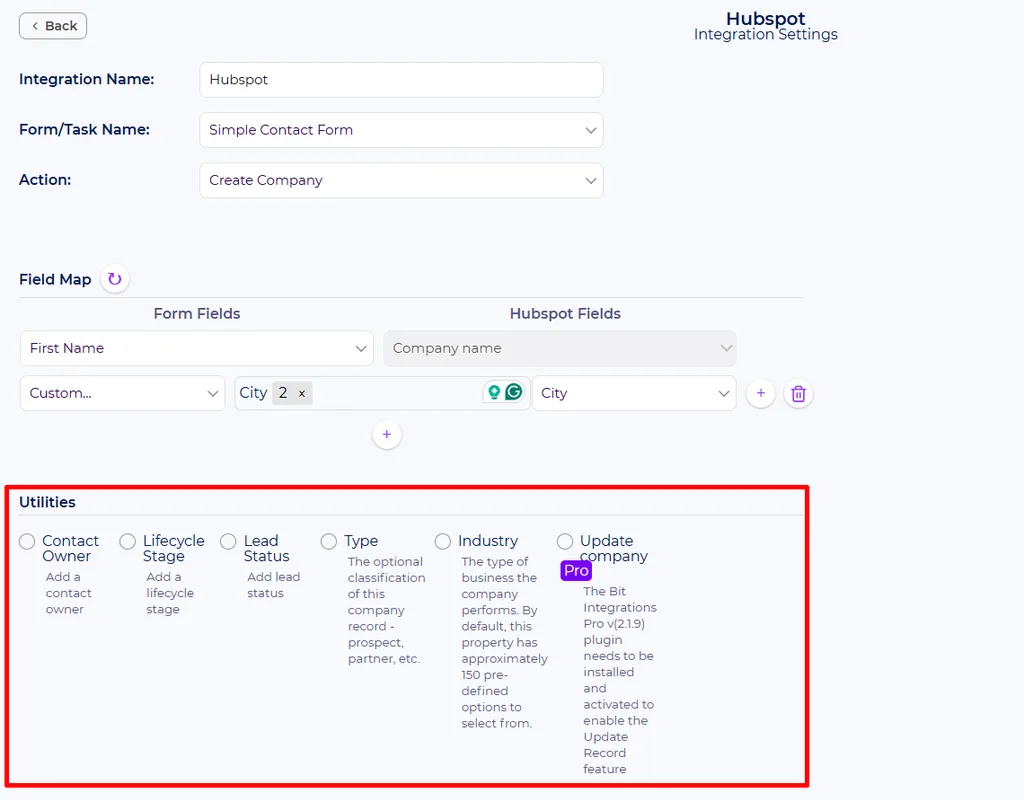
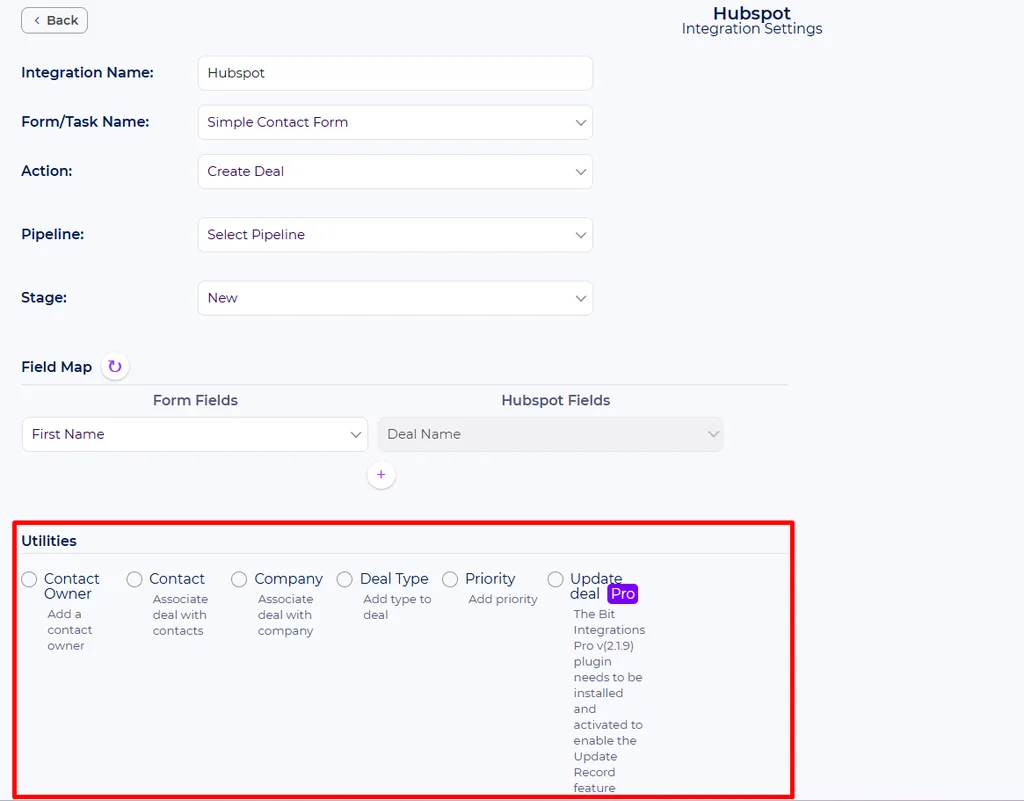
Utilities are optional HubSpot settings that appear below the field map, and they change with the action you picked.
Créer un contact offers contact owner, lifecycle stage, and lead status. Set them here, and a submission arrives already assigned and already staged.
Créer une entreprise adds type and industry on top of the owner and lifecycle options.
Create deal links from the new deal to contacts and to a company, and set deal type and priority. Skip that step, and someone on your team stitches those records together by hand later.
Créer un ticket sets the owner and the ticket priority inside the service pipeline you chose.
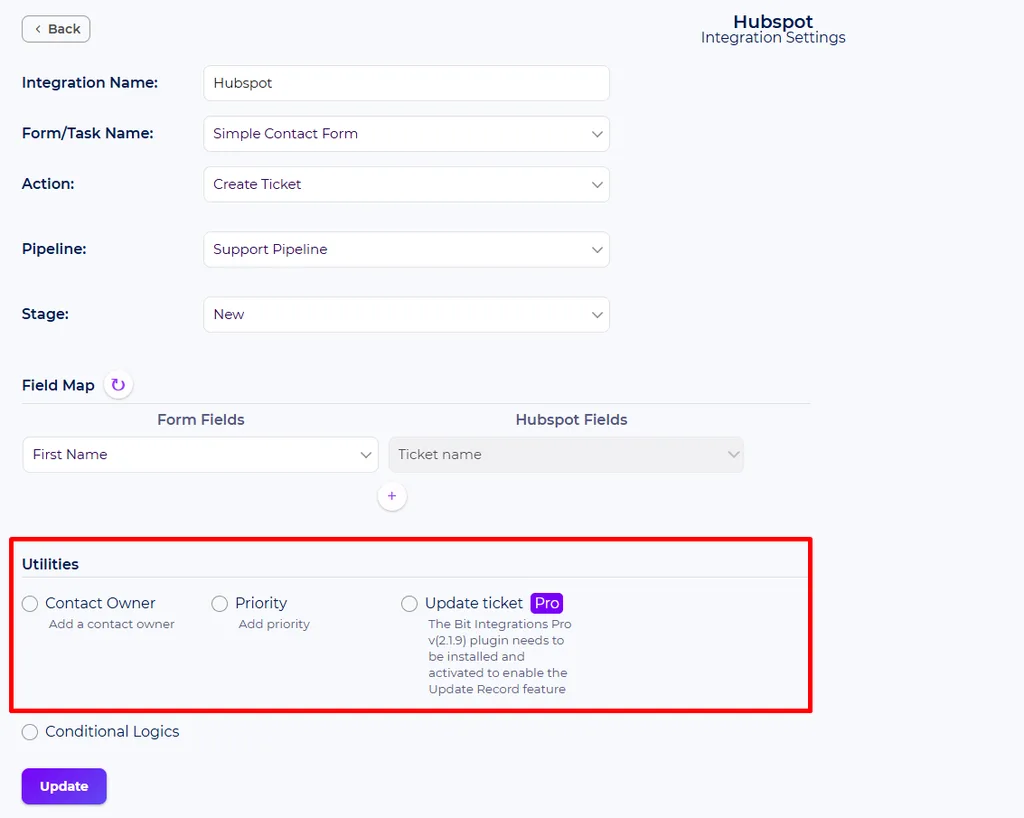
Conditional logic sits at the bottom of the same screen and filters which submissions go through.
One form can feed two integrations: entries where the budget field clears your threshold create a deal, and the rest create a contact. Click Next to save and finish.
Step 10. Submit a test entry and check the log.
Open the form on your site, submit a test entry, then look for the record in HubSpot.
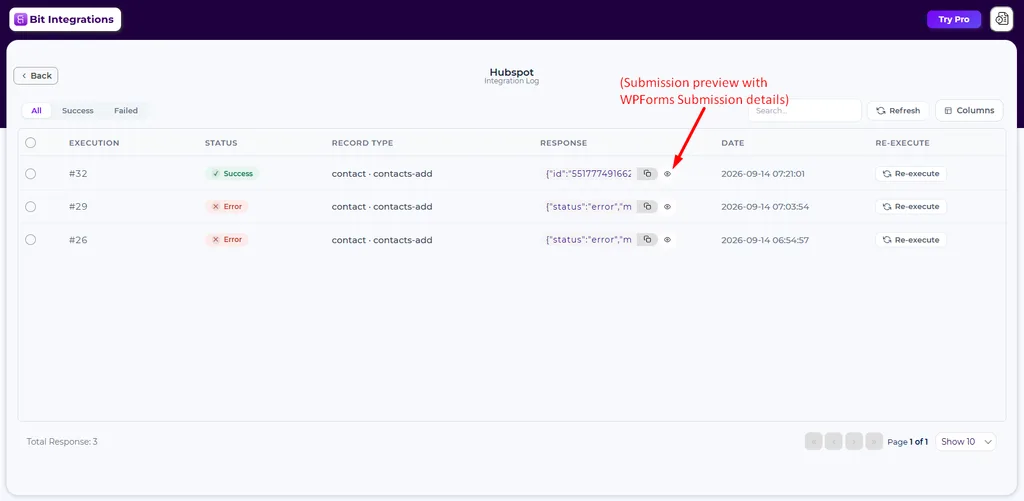
Back in WordPress, the integration log lists every execution with its status, trigger input, the record type, the raw API response, and a preview of the submission behind it.
You can re-execute a failed run from the same screen once you fix the cause, so a token that expires overnight does not cost you the leads that came in while it was down.
The same builder handles the rest of your stack, which is the argument for a general integration plugin over a single-purpose one.
Our guide to automatiser les entrées WPForms covers other destinations, and the outils d'intégration de marketing par e-mail WPForms gratuits roundup covers the email side.
Which method fits your WPForms plan?
WPForms Lite, Basic, or Plus. The native HubSpot add-on and the Zapier add-on are both out of reach. That leaves HubSpot’s tracking code for basic contact capture. Only Bit Integrations creates deals and tickets with full field mapping.
The same license wall sits in front of the other CRM add-ons, and WPForms CRM integration without Elite covers those.
WPForms Pro. You can use Zapier, and it fits when a submission has to reach several services with transformation along the way.
For a straight WPForms to HubSpot connection, that external hop adds a task meter and a second account without adding capability.
WPForms Elite. You already own the native add-on. For contact sync, it is the obvious choice: one plugin, one vendor, one support channel. Look elsewhere when you need the HubSpot records it does not create, which means deals and tickets.
Conclusion
Pick your WPForms Intégration HubSpot method by what you need inside HubSpot. The native add-on suits Elite users who need contacts.
HubSpot’s own plugin handles basic contact capture on any plan, with browser-side tracking as its weak spot. Zapier fits a submission that has to fan out to several services.
Bit Integrations covers what the other three leave open: contacts, companies, deals, and tickets, created on your own server from any WPForms plan, Lite included.
FAQS
Is HubSpot integration available in WPForms Lite?
Not natively. The WPForms HubSpot add-on requires the Elite license, and WPForms Lite cannot install premium add-ons. A WordPress integration plugin such as Bit Integrations still sends WPForms Lite entries to HubSpot because it treats WPForms as a free trigger.
Which WPForms plan includes the HubSpot add-on?
WPForms Elite. The Zapier add-on sits a tier lower at Pro, which is why some users can reach HubSpot through Zapier while the HubSpot add-on itself stays locked.
Can WPForms create a HubSpot deal?
Not through the native add-on. Its documented actions cover contact creation, contact deletion, and company association. A deal needs Zapier or a WordPress integration plugin. Bit Integrations has a Create Deal action with pipeline and stage selection, plus contact and company association.
Does the HubSpot WordPress plugin work with WPForms?
Partly. It installs the tracking code that lets HubSpot collect submissions from forms it did not build, WPForms included, and those submissions create or update contacts. You get no field-level mapping control and no deals, tickets, or companies.
Do I need Zapier to connect WPForms to HubSpot?
No. Zapier is one option, and it needs WPForms Pro or higher plus a Zapier account. A WordPress integration plugin makes the same connection on your own server, with no external automation account and no per-task metering.
Is there a free way to connect WPForms to HubSpot?
Yes. WPForms is a free trigger in Bit Integrations, and HubSpot is a free action platform, so contact, company, deal, and ticket creation work without a paid WPForms add-on or a Zapier subscription. See the full list of free WPForms integration options for the other destinations on the same tier.
Does this work with other WordPress form plugins?
Yes. Bit Integrations lists each form plugin as its own trigger, so the only step that changes is trigger selection. Everything after it—the HubSpot action, the field map, the utilities—stays the same. Our guide to connecting any WordPress form to HubSpot covers the other form builders.

Blog connexe
Need WPForms Elite for CRM Integration? The Cost-Saving Alternative Most Users Miss
WPForms Salesforce Integration for Free: Send Form Entries to Salesforce Without Elite