DE
DE  EN
EN  ES
ES  NL
NL  FR
FR  PT
PT  IT
IT Top 10 ClickUp- & Asana-Integrationen für WordPress + Einrichtungsanleitung
ClickUp and Asana integrations for WordPress connect form submissions, WooCommerce orders, and CRM leads directly to project tasks by eliminating manual data entry between your website and your project management tool.
If your team runs projects on ClickUp or Asana but your business runs on WordPress, you already know the disconnect. When a new visitor submits your form, a customer places a WooCommerce order or registers an account, or a student enrolls in your LMS course, immediately a task appears in your ClickUp list or Asana project with the name, due date, notes, and custom fields already filled in.
This guide covers the most popular ClickUp and Asana integrations WordPress users rely on in 2026 and shows how to set up both platforms using Bit Integrations. This WordPress automation plugin connects ClickUp, Asana, and more apps directly from your WordPress dashboard without third-party middleman subscriptions.
TL;DR
How do you connect ClickUp or Asana to WordPress? Neither tool has an official WordPress plugin. You connect them using a native integration plugin using Bit Integrations.
This creates a task in ClickUp or Asana automatically whenever a chosen WordPress event happens, such as a form submission, WooCommerce order, or new user registration.
- What it does: turns WordPress events (form submissions, orders, signups, post status changes, course enrollments) into tasks with the name, due date, and notes already filled in.
- How it connects: Bit Integrations authorizes via your ClickUp API key or Asana Personal Access Token, no code required.
- The 10 most popular integrations covered: WPForms → ClickUp, Fluent Forms → Asana, Contact Form 7 → ClickUp, Elementor Forms → Asana, WooCommerce → ClickUp, WooCommerce Subscriptions → Asana, User Registration → ClickUp, WP Post → Asana, LearnDash → ClickUp, and MemberPress → Asana.
- Where tasks land: a ClickUp List (Team > Space > Folder > List) or an Asana Project and Section (To do, Doing, Done).
- Setup: a 4-step wizard, choose trigger, authorize, choose destination, and map fields.
- Cost: free version available; no per-task fees or monthly automation quota, unlike Zapier or Make.
- ClickUp vs Asana: ClickUp suits teams needing deep hierarchy and rich custom fields; Asana suits simpler, board-based workflows.
Three Ways to Connect ClickUp & Asana to WordPress
Before the list, it helps to know the three realistic options, because they differ in cost and effort.
- Custom code via the REST API: Both ClickUp and Asana have well-documented APIs, and a developer can wire either one to any WordPress hook. It’s the most flexible route, but you’re paying for development time up front and again every time the API changes.
- A native WordPress integration plugin: Bit Integrations runs inside WordPress itself, so data goes directly from your site to the ClickUp or Asana API without a metered quota. Setup follows a short wizard: pick a trigger, pick the action, and map the fields.
- Zapier or Make: These cloud automation platforms support both tools and are easy to start with. The tradeoff is task-metered pricing: every form submission or order consumes a task from your monthly quota, so cost climbs with traffic. Your data also passes through a third-party cloud between WordPress and your project management tool.
The rest of this guide uses the second approach.
What You Can Automate: Trigger to Action
With Bit Integrations, both ClickUp and Asana work as Aktionen, specifically to create tasks. The variety comes from the WordPress side, where almost anything can act as the Auslöser:
| WordPress trigger | What happens in ClickUp | What happens in Asana |
| Form submitted (WPForms, Fluent Forms, Contact Form 7, Elementor Form, Gravity Forms, Ninja Forms, Formidable, Everest Form, or any Form builder plugins) | Task created in your chosen List | Task created in your chosen Project & Section |
| WooCommerce event (new order, customer created, product created/edited) | Task created for fulfillment or ops | Task created for fulfillment or ops |
| WooCommerce Subscriptions / Bookings (new subscription, renewal, booking confirmed) | Task created | Task created |
| New WordPress user registration | Onboarding task created | Onboarding task created |
| WP Post event (post created, updated, status changed, new comment) | Editorial task created | Editorial task created |
| LMS event (LearnDash, LifterLMS enrollment/completion) | Instructor task created | Instructor task created |
| Membership/donation event (MemberPress, GiveWP, EDD, AffiliateWP) | Follow-up task created | Follow-up task created |
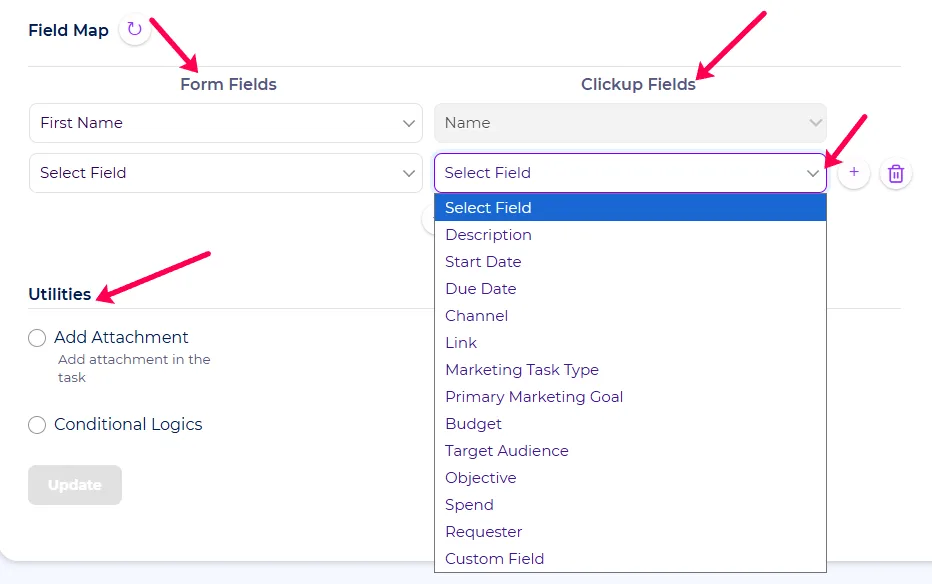
During setup, you map your WordPress data to task fields. In ClickUp, that means Name (required), Description, Start Date, Due Date, and any custom fields already defined on your list, such as budget, target audience, or requester.
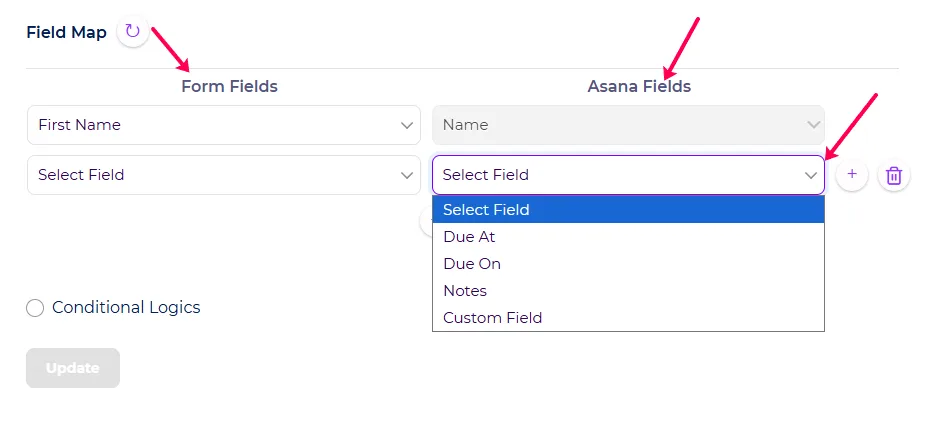
In Asana, you map Name (required), Due At, Due On, Notes, and custom fields through a Custom Field Key.
Both support bedingte Logik, so tasks are only created when conditions are met, for example, orders over $500 or forms where “Priority” equals “Urgent.”
The ClickUp action also supports an Add Attachment option, which attaches uploaded files, like a client brief, directly to the task.
How to Set Up a ClickUp or Asana Integration to WordPress using Bit Integrations
The wizard below is the same as the four steps for every pairing above. Only the trigger and the field map change.
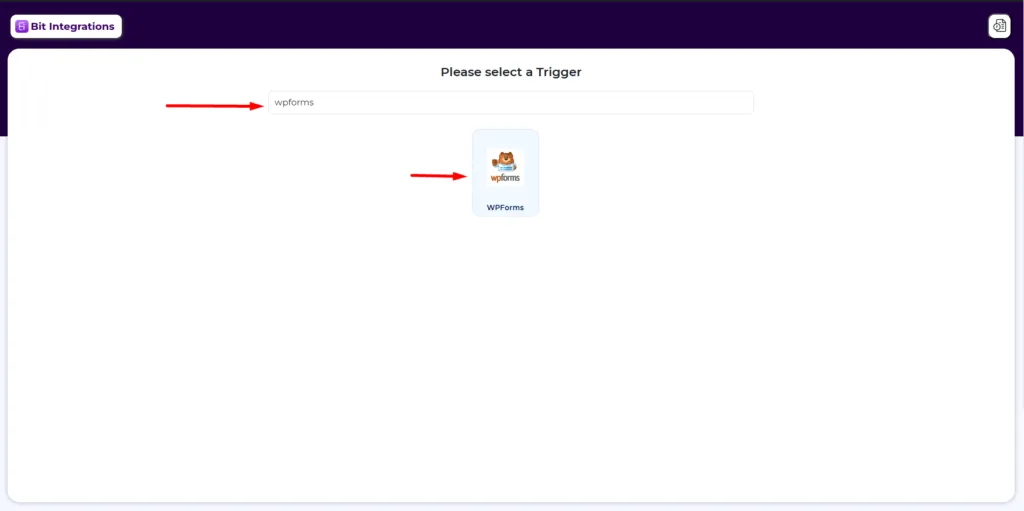
Step 1: Install Bit Integrations and choose your trigger. In your WordPress dashboard, go to Plugins, Add New, search for “Bit Integrations,” then install and activate it. Open the Bit Integrations dashboard and click Create Integration. On the trigger page, select the plugin that should start the automation, for example, WPForms, and choose the specific form or event.
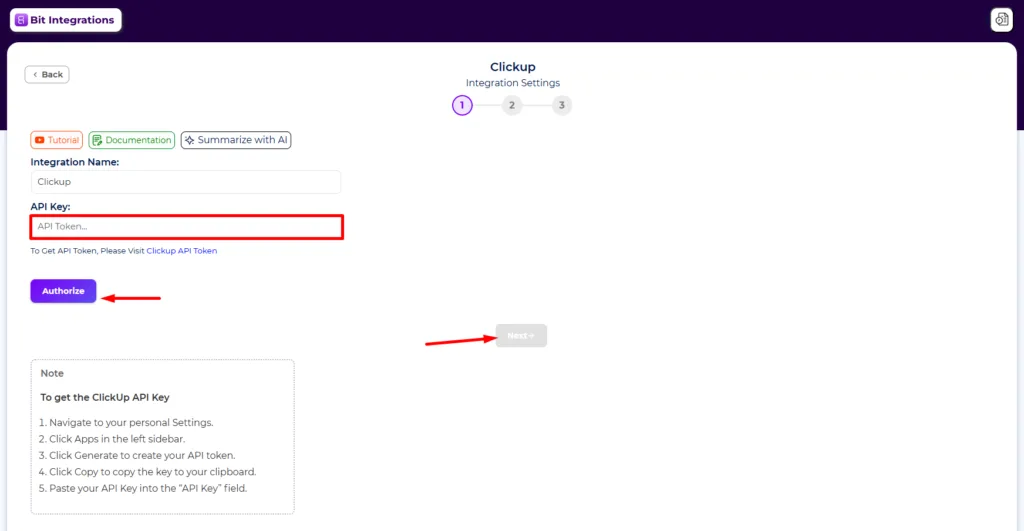
Step 2: Select ClickUp or Asana as the action and authorize. On the action page, search for and select ClickUp or Asana, give the integration a name, and connect your account.
For ClickUp: log in to ClickUp, click your profile icon, go to Settings, then Apps, and generate your API key under API Token. Paste it into Bit Integrations and click Authorize.
For Asana: log in to Asana, open your profile icon, go to Settings, then the Apps tab, open the developer console, and under Personal Access Tokens, click Create New Token, name it, and copy it. Paste it into Bit Integrations and click Authorize.
Step 3: Choose where tasks are created. This is where the two tools differ, reflecting how each organizes work.
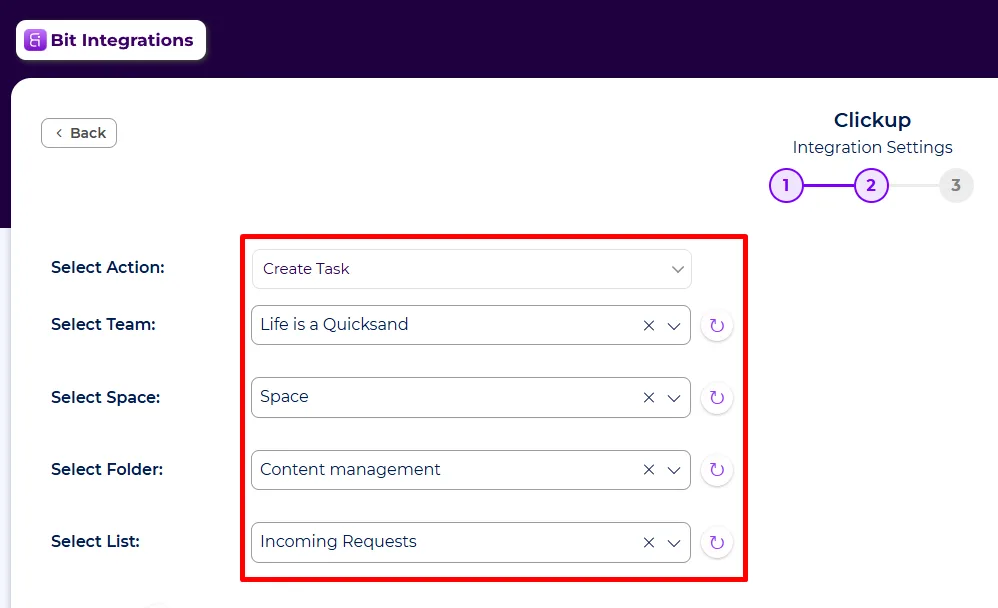
In ClickUp, set the action to “Create Task,” then select your Team, Space, Folder, and finally the List where tasks should appear, for example, an “Incoming Requests” list inside a “Content Management” folder.
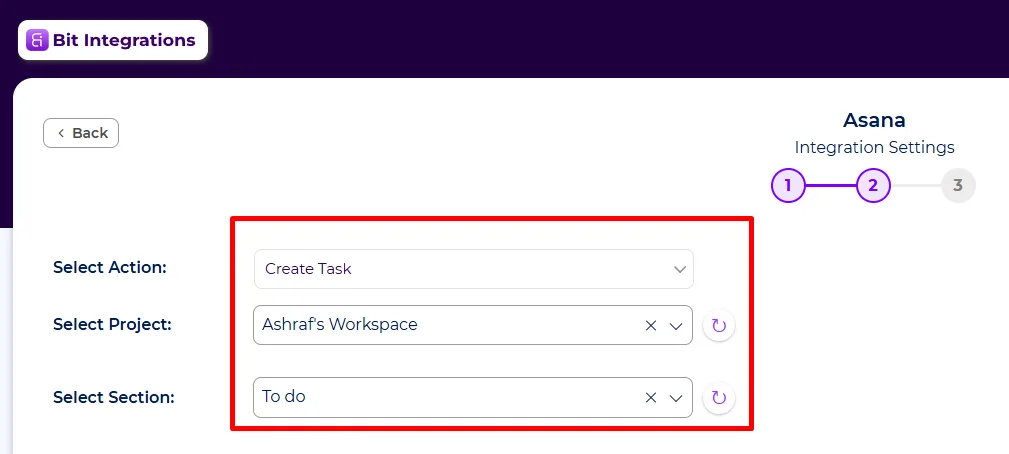
In Asana, set the Action to Create Task, select your Project, then the Section within it, such as “To do,” “Doing,” or “Done,” so tasks land in the right column of your board automatically.
Step 4: Map fields, set conditions, and test. In the Field Map section, match your WordPress fields to task fields. The task Name is required in both tools, so map it first, usually your form’s name or subject field. Then map the rest.
For ClickUp: Description, Start Date, Due Date, plus any custom fields defined on your list, such as budget, requester, or channel. Enable Add Attachment under Utilities if your form accepts file uploads, and you want them attached to the task.
For Asana: Due At, Due On, Notes, plus custom fields through the Custom Field Key option.
Optionally toggle Conditional Logics to create tasks only when your conditions are met. Save the integration, submit a test entry on your site, and confirm the task appears in ClickUp or Asana with the fields populated correctly.
The 10 Most Popular ClickUp & Asana Integrations for WordPress
1. WPForms ClickUp Integration: Turn Form Submissions into Tasks
Geeignet für: agencies and sales teams capturing leads.
Every WPForms submission becomes a ClickUp task in your leads or sales list. Map the visitor’s name to the task Name, their message to the Description, and a follow-up deadline to the Due Date. Your team sees a ready-to-work task the moment the lead arrives, instead of an email buried in an inbox.
Setup: Choose WPForms as the trigger, select your form, choose ClickUp as the action, authorize with your ClickUp API key, pick the Team, Space, Folder, and List, map fields, and save.
2. Fluent Forms Integration with Asana: Client Inquiries Become Project Tasks
Geeignet für: freelancers and agencies running client intake forms.
When a prospective client fills out your Fluent Forms intake form, a task appears in your Asana project, and you can route it to a specific section like “To do” so new inquiries land where your kanban board expects them. Map the project brief to the Notes field and the client’s requested deadline to Due On.
Setup: Fluent Forms trigger, Asana action, authorize with your Asana Personal Access Token, select Project and Section, map fields, save.
3. Contact Form ClickUp Integration: Support Requests into a Support Queue
Geeignet für: anyone on a free or budget stack.
Contact Form 7 is free, and this integration turns its plain email notifications into a trackable queue. Each submission becomes a task in a “Support” or “Incoming Requests” list, so nothing slips through, and you can see response status at a glance. Use conditional logic to create tasks only for submissions marked as support issues, keeping general inquiries out of the queue.
4. Elementor Form Asana Integration: Landing Page Leads for Your Marketing Team
Geeignet für: marketers running campaign landing pages built in Elementor.
Campaign leads flow into the marketing team’s Asana project. Because Asana’s field map supports custom fields through a Custom Field Key, you can pass along the campaign name or lead source so your team knows which landing page generated each lead without opening WordPress.
5. WooCommerce Integration with ClickUp: Every Order Becomes a Fulfillment Task
Geeignet für: store owners with a fulfillment or ops team.
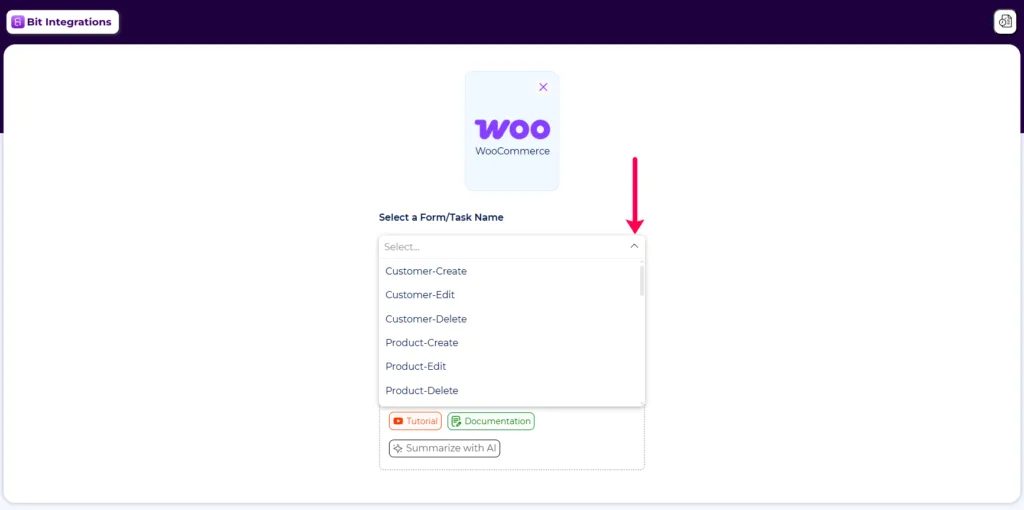
When a customer places an order, a task lands in your fulfillment list with the order details mapped into the Description. WooCommerce triggers in Bit Integrations extend beyond orders, too: customer-created or edited and product-created or edited events can also generate tasks, useful for onboarding new customers or reviewing new product listings.
6. WooCommerce Subscriptions + Asana Integration: Recurring Revenue, Recurring Tasks
Geeignet für: subscription businesses and booking-based services.
New subscription sign-ups, renewals, and confirmed bookings each create an Asana task for your ops team. A renewal task in your “Doing” section is a natural prompt for a check-in email, and a confirmed booking task carries the appointment details your service team needs to prepare.
7. WordPress User Registration ClickUp: Automated Onboarding Checklists
Geeignet für: membership sites, SaaS companion sites, and communities.
Every new user registration creates an onboarding task: send the welcome email, set up the account, and add them to the community. Map the registration date to Start Date and set a Due Date so onboarding stays close behind sign-up.
8. WP Post Integration with Asana: An Editorial Workflow on Autopilot
Geeignet für: content teams and multi-author blogs.
WP Post triggers cover post created, post updated, post status changed, and new comments. A common setup: when a draft moves to “Pending Review,” an Asana task appears in the editorial project’s “To do” section for the editor.
A second integration can create a promotion task for the social media team when a post publishes, so one trigger plugin covers both handoffs.
9. LearnDash ClickUp Integration: Course Enrollments Instructors Can Act On
Geeignet für: course creators and e-learning sites (also works with LifterLMS).
New enrollments become tasks for instructors or admins: grade the placement quiz, add the student to the cohort, and schedule the kickoff call. Completion events can also trigger tasks, such as issuing a certificate or requesting a testimonial.
10. MemberPress Asana Integration: Member and Donor Follow-Ups That Actually Happen
Geeignet für: membership sites and nonprofits (the same pattern works with GiveWP donations and Easy Digital Downloads sales).
A new member or donation creates a follow-up task: send the thank-you note, mail the welcome kit, and log the donor for the annual report. With conditional logic, you can create tasks only above a donation threshold, so your team’s attention goes where it matters most.
ClickUp vs Asana for WordPress Users: Which Should You Pick?
ClickUp gives you a deeper hierarchy (Team, Space, Folder, List) and heavier custom-field usage, which suits agencies and teams that want granular, data-rich tasks. The WordPress integration reflects this by letting you map into any of your list’s custom fields and attach files.
Asana is simpler and board-centric. Its project-to-section structure maps naturally onto Kanban workflows like To do, Doing, Done, which makes it a comfortable fit for editorial calendars and straightforward team task boards.
From the WordPress side, the decision barely matters. The trigger options, setup wizard, and field-mapping workflow are identical for both, so switching later is inexpensive: you’d recreate the integration with a different action, and the rest of your WordPress setup stays untouched.
Some teams run both, sending sales leads to ClickUp and editorial tasks to Asana from the same site.
If you’re weighing the two tools beyond WordPress, our full ClickUp vs Asana comparison breaks down pricing, features, and team fit in more depth.
Einpacken
The three patterns WordPress users set up most often are forms-to-tasks for leads and support, WooCommerce-to-tasks for fulfillment, and WP Post-to-tasks for editorial workflows.
All ten integrations above follow the same wizard: pick a trigger, authorize ClickUp or Asana, and map your fields. Since neither tool has an official WordPress-Plugin, a native integration plugin is the shortest path between your site and your team’s task board.
To try it, install the free version of Bit Integrations from the WordPress plugin directory, or check the ClickUp integration docs und Asana integration docs for the full field-by-field reference.
Häufig gestellte Fragen About Clikup and Asana Integrations
Kann ich Contact Form 7 oder WPForms kostenlos mit ClickUp oder Asana verbinden?
Ja. Bit Integrations bietet eine kostenlose Version das beliebte Formular-Trigger beinhaltet, sodass Sie mit ClickUp oder Asana Aufgaben aus Formularübermittlungen erstellen können, ohne einen kostenpflichtigen Plan zu benötigen. Die Pro-Version fügt weitere Trigger und erweiterte Optionen hinzu.
Kann ich Fälligkeitsdaten, Bearbeiter und benutzerdefinierte Felder an Aufgaben senden?
Ja. Die Feldzuordnung ermöglicht es Ihnen, Startdatum und Fälligkeitsdatum in ClickUp oder "Fällig am" und "Fällig am" in Asana zusammen mit Notizen, Beschreibungen und benutzerdefinierten Feldern zu senden. ClickUp-benutzerdefinierte Felder erscheinen automatisch aus Ihrer Liste, während Asana-benutzerdefinierte Felder über einen Schlüssel für benutzerdefinierte Felder zugeordnet werden. ClickUp-Integrationen können auch hochgeladene Dateien an Aufgaben anhängen.
Kann eine Form Aufgaben in ClickUp und Asana gleichzeitig erstellen?
Ja. Erstellen Sie zwei Integrationen mit demselben Trigger, eine mit ClickUp als Aktion und eine mit Asana, und beide Aufgaben werden aus einer einzigen Einreichung erstellt. Sie können unbegrenzt viele Integrationen erstellen.
Was passiert, wenn eine Integration fehlschlägt, zum Beispiel, wenn ClickUp oder Asana vorübergehend nicht erreichbar ist?
Bit Integrations logs every data submission and automated action, and has an Admin Alerts feature that emails you when an integration fails. So a failed task isn’t silently lost, it shows up in the logs and triggers a notification you can act on.
Unterstützt die Feldzuordnung Dropdown- oder benutzerdefinierte Felder vom Typ "Zuweisung" und nicht nur Text?
Ja. Dropdown- und benutzerdefinierte Felder vom Typ „Zuweisung“ werden in der Feldzuordnung unterstützt, nicht nur einfacher Text.

Verwandter Blog

Webhooks in Bit Integrations: Keine Plattformbeschränkungen mehr
Alternative zu MC4WP: Verwenden Sie Bit Integrations, um Tags, Segmente und bedingte Daten an Mailchimp zu senden