

WPForms Google Calendar Integration: Connect WPForms to Google Calendar (Free & Paid Methods)
Connecting form submissions to your calendar should not mean copying names, dates, and event details by hand.
Com WPForms Google Calendar integration, a submission can create a Google Calendar event automatically. The method you choose, however, depends on your WPForms plan and what you need the calendar to do.
WPForms has its own Google Calendar add-on for Pro and Elite users. There is also a WordPress-based route using Bit Integrations, including for WPForms Lite.
Below, we compare the options, walk through the actual Bit Integrations screens, and show how to check whether an event was created.
We will also cover an important distinction: creating a calendar event is not the same as running a full appointment-booking system.
TL;DR: Can You Connect WPForms to Google Calendar?
Yes, you can automatically create Google Calendar events from WPForms submissions. Here are your options:
- WPForms Pro or Elite: Use the built-in Google Calendar add-on to create events directly from form submissions.
- WPForms Lite, Basic, Plus, Pro, or Elite: Use the free Bit Integrations plugin to connect WPForms with Google Calendar without Zapier or Make.
- Setup requirement: Bit Integrations requires Google Cloud OAuth credentials (Client ID and Client Secret) to connect your Google account.
- WPForms Lite limitation: Lite doesn’t include a native Date/Time field, so you’ll need a way to collect valid event dates and times.
What Does WPForms Google Calendar Integration Do?
The basic workflow is easy: someone submits a WPForms form, the integration receives the entry, and Google Calendar creates an event using the information you mapped.
A name might become the event title; an email or message might go into the description; and a start and end date define when the event appears.
For an event registration form, that can mean adding a record to a team calendar whenever someone registers. For an enquiry form, it can create a follow-up reminder.
It does not automatically reserve a slot for the visitor, send booking confirmations, or synchronize cancellations back to WPForms. Those behaviors need their own supported features and testing.
For other workflows built around form entries, see our guide to automatizando envios do WPForms.
3 Ways to Connect WPForms to Google Calendar
There is no single method that fits every site. If you already subscribe to WPForms Pro, its add-on may be the shortest route. If you use Lite, Basic, or Plus and mainly want event creation, Bit Integrations is worth considering.
If you’re exploring other ways to connect WPForms with your WordPress tools, see our Guia de integrações do WPForms.
| Método | WPForms requirement | What you need | Melhor ajuste |
|---|---|---|---|
| WPForms Google Calendar add-on | Pro or Elite | Included first-party add-on; Google account | Users who already have Pro/Elite and prefer native setup |
| Bit Integrations | Lite, Basic, Plus, Pro or Elite | Free Bit Integrations plugin; Google Cloud OAuth | Users seeking form-to-event automation without a WPForms upgrade |
| Zapier ou Make | WPForms Pro or Elite for the official add-ons | External automation account; service limits and pricing may apply | Sites already using these services across multiple workflows |
Option 1: WPForms Built-in Google Calendar Add-on
The official Google Calendar add-on is available with WPForms Pro and Elite plans. You connect Google in WPForms settings, select a calendar in the form builder, and configure the event details.
The documentation also covers guests, recurring events, permissions, and conditional logic. It does not require a separate WordPress connector.
At the time of this draft, the WPForms pricing page shows $199.50/year for Pro e $299.50/year for Elite as introductory prices. Listed regular annual prices are $399 and $599, respectively; promotional pricing can change.
Those subscriptions include more than Google Calendar functionality, so compare them based on the full features you need.
Option 2: Bit Integrations with WPForms
Bit Integrations lists WPForms as a free trigger e Google Calendar as a free action. After you configure a Google account connection, it can send submission data into calendar event fields.
This route does not require a Bit Integrations Pro license for the core event-creation workflow or a Zapier/Make account.
The tradeoff is that the Google connection needs a Google Cloud project and OAuth configuração. See the free-plugin feature listing.
For more examples, explore our integrações gratuitas do WPForms página.
Option 3: Zapier or Make
Both platforms can automate calendar actions, but using WPForms’ official Zapier or Make add-on requires WPForms Pro or higher. You must also account for the automation service’s limits and pricing.
They are sensible choices if your business already runs broader workflows there, rather than purchasing or configuring a new system solely for this connection.
How to Connect WPForms to Google Calendar Using Bit Integrations
The steps below follow the Bit Integrations screens shown in the accompanying screenshots. The integration is created in WordPress; Google Calendar is the destination, not the trigger. You can also consult the WPForms trigger guide for the current interface.
Passo 1: Instalar e ativar o Bit Integrations
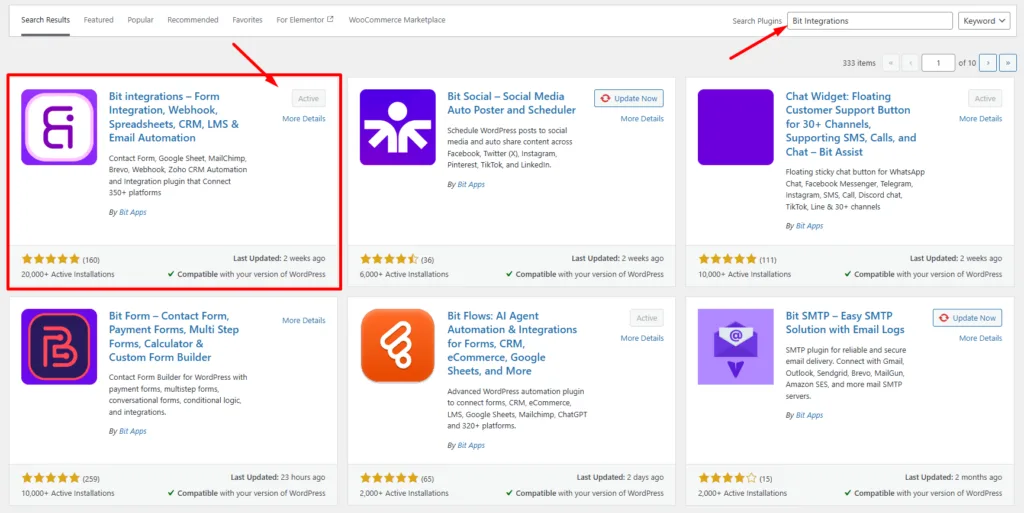
In your WordPress admin area, open Plugins → Add New Plugin, buscar Bit Integrations, and select Instalar agora. When installation finishes, click Ativar.
The Bit Integrations menu will then appear in your dashboard. You can use the free plugin for the core WPForms-to-Google Calendar event action.
Step 2: Create an Integration
Open Bit Integrations e clique Criar Integração. This starts a workflow in which you choose the application that sends information (the trigger) and the application that receives it (the action).

Step 3: Select WPForms and the Specific Form
On the Please select a Trigger screen, search for WPForms and select its tile. The next screen shows Select a Form/Task Name.

Open that dropdown, choose the form you want to connect, and click Próximo. Only submissions from the selected form should drive this integration, so double-check the selection if your site has several forms.

Step 4: Choose Google Calendar as the Action
You will see Please select an Action. Type Google Agenda into the search field, then select the Google Calendar card. This sets the destination for the form data. The next screens handle account authorization and event-field mapping.

Step 5: Authorize Your Google Account
Embaixo Google Calendar Connections, click + Add new connection and enter a connection name.
Bit Integrations will display a URL da página inicial e Callback / Redirect URL. Use these details to create your Google Cloud OAuth credentials.
Once you have your Client ID e Segredo do Cliente, enter them in Bit Integrations and click Autorizar.
Sign in to your Google account and grant the requested permissions to complete the connection.
For detailed instructions, follow our official Google Calendar integration documentation.
Once the connection is authorized, click Próximo. Keep the client secret private; it should not appear in published screenshots.

Step 6: Choose a Calendar and Map Event Details
Embaixo Calendar Lists, select the calendar where you want to create events. Then choose your preferred Fuso horário. For example, you can select Asia/Dhaka if that’s your local time zone.
Ir para Mapa de Campo and match your WPForms fields with the corresponding Google Calendar fields.
O Data e hora de início e Data/Hora de Término fields are required. You can add other fields using the + button.
You can also adjust these settings based on your requirements:
- All Day Event: Create an event that lasts the entire day.
- Skip If Slot Not Free: Skip event creation if the selected time slot is already occupied.
- Description Editor: Customize the event description.
- Set Reminders: Configure event reminders.
- Lógica Condicional: Create events only when a submission meets your specified conditions.
Some optional features may depend on your Bit Integrations plan.
Once you’ve mapped the fields and configured your preferred settings, click Próximo, review your configuration, and select Save & Finish to complete the integration.

Step 7: Submit a Test Form and Verify the Event
Open your WPForms form and submit a test entry with sample event details.
Next, go to Bit Integrations → Integration Timeline and check the execution status. A Success status means the action completed successfully.
Finally, open your connected Google Calendar and check the selected calendar. Confirm that the event was created with the correct title, date, time, and description.


Once the integration is active, each new submission to the selected form can trigger calendar event creation. If you enable rules or occupied-slot checks, qualifying submissions may be skipped according to those settings.
When Is This Workflow Useful?
Event registrations. Add a calendar entry for each registration, along with the attendee name and submitted notes. This helps an internal team see requests on a shared calendar, but it is not a substitute for managing ticket inventory or attendance limits.
Consultation requests. Turn a submitted request into a calendar item for staff to review. If you need participants to pick from genuinely available appointments and receive confirmations, evaluate a booking system rather than relying on event creation alone.
Team follow-ups. Map an enquiry date and a contact description into a reminder event for a team calendar. Use conditional logic where supported to avoid creating events for submissions that do not require follow-up.
Troubleshooting: Why Didn’t WPForms Create an Event?
Start with the integration log. It narrows the problem down to whether the workflow ran, the Google account accepted the request, or the event appeared in the expected place.
| Problem | What to check |
|---|---|
| No event appears | Confirm that the correct WPForms form and Google Calendar are selected, the integration is saved, and a new test submission was made. |
| Authorization error | Check the Client ID, Client Secret, redirect URI, enabled Google Calendar API, OAuth consent, and current Google authorization. |
| Invalid event date | Review Start Date Time / End Date Time mapping, submitted values, and recognized date-time format; test with a known valid value. |
| Wrong time or missing event | Compare the integration time zone with Google Calendar and check the authorized account and selected calendar. |
| Repeated or missing events | Look for multiple integrations, repeated submissions, conditional filters, and the Skip If Slot Not Free setting. |
Google’s Calendar Events API reference describes start and end date-time values and time-zone offsets.
If a connection worked previously but starts returning authentication errors, review the OAuth app status and reauthorize using the Google Calendar integration troubleshooting guidance.
Avoid repeatedly resubmitting failed entries without checking whether a calendar event was already created.
Veredito Final
For existing WPForms Pro ou Elite users, the native Google Calendar add-on is a good choice: it is built into the WPForms ecosystem and offers documented event settings without an additional WordPress connector.
If you use WPForms Lite, Basic, or Plus, Bit Integrations provides a free event-creation route without requiring Zapier or Make. Its main tradeoff is the Google Cloud OAuth setup, plus the need to supply usable start and end values.
Choose based on the workflow, not just the plugin price. Simple form-to-calendar automation is different from offering live appointment availability, confirmations, rescheduling, or cancellations.
Perguntas Frequentes
Can I connect WPForms Lite to Google Calendar for free?
Yes, the free Bit Integrations plugin lists WPForms as a free trigger and Google Calendar as a free action for event creation. You still need to set up Google OAuth credentials and supply valid event date/time data. WPForms Lite does not include the native Date / Time field, so that piece may need a tested alternative.
Does WPForms have a native Google Calendar integration?
Yes. The first-party Google Calendar add-on is available to WPForms Pro and Elite users. It connects Google Calendar within WPForms and can create events from form submissions. It is not included with WPForms Lite, Basic, or Plus.
Do I need Zapier or Make to create Google Calendar events?
No. WPForms’ own Google Calendar add-on and Bit Integrations can both create events without Zapier or Make. Those external services remain options if you already use them for other workflows, but the official WPForms add-ons for Zapier and Make require Pro or higher.
Can a submission automatically create a Google Calendar event?
Yes. Once you connect the form, authorize Google Calendar, map the required fields, and save the integration, new submissions can trigger event creation. Submit a test form and confirm that the event appears in the correct calendar with the intended date and details.
Will this stop double bookings or manage appointments?
Not by itself. Bit Integrations has a Skip If Slot Not Free setting, but event creation and checking occupied slots do not replace a complete booking system. For real-time availability, visitor confirmations, cancellations, and rescheduling, use a solution that explicitly supports those processes.

Blog Relacionado
Zoom Integration in WordPress: Auto Register Attendees for Meetings and Webinars
WPForms Trello Integration for Free: Create Trello Cards Via Form Submissions