If you’re running a WordPress site and also managing a Discord server, you’ve probably wondered how to integrate Discord and WordPress without requiring significant effort.
Picture this: A visitor fills out a form on your site, and that info pops up right in your Discord channel for your team or community to see and discuss. This eliminates the need for copying and pasting information or checking multiple locations. That’s the kind of WordPress Discord integration setup we’re talking about here.
In this guide, I will show you the benefits of integrating Discord with WordPress, particularly when a plugin like Bit Integrations handles the technical aspects. We’ll cover the basics, dive into real-world examples like form submissions, and expand to other areas, such as e-commerce orders or membership updates.
By the end, you’ll have a clear path to get the Discord integration running on your site. Let’s jump in.
Running a WordPress site requires managing various types of data, such as forms, sales, user sign-ups, and more. And if you’re using Discord for your community, team chats, or even customer support, keeping everything in sync can feel like a constant back-and-forth. Why not make it automatic with a seamless Discord integration?
Discord is ideal for real-time talks, whether it’s gamers sharing tips, educators discussing courses, or businesses handling quick queries. WordPress, on the other hand, powers your website with plugins for everything from contact forms to online stores. Connecting them means data from your site flows straight to Discord, sparking conversations or actions right away.
For example, when someone signs up through a form, your Discord server automatically receives their information. When an order arrives, your sales team receives an instant notification. It saves time and keeps everyone on the same page.
And with Bit Integrations, you don’t need to code anything; it’s all point-and-click. Stick with me, and I’ll show you how to set up Discord integration to WordPress, plus some handy examples. If you’re itching to try it, grab the free version of Bit Integrations from our site and follow along.
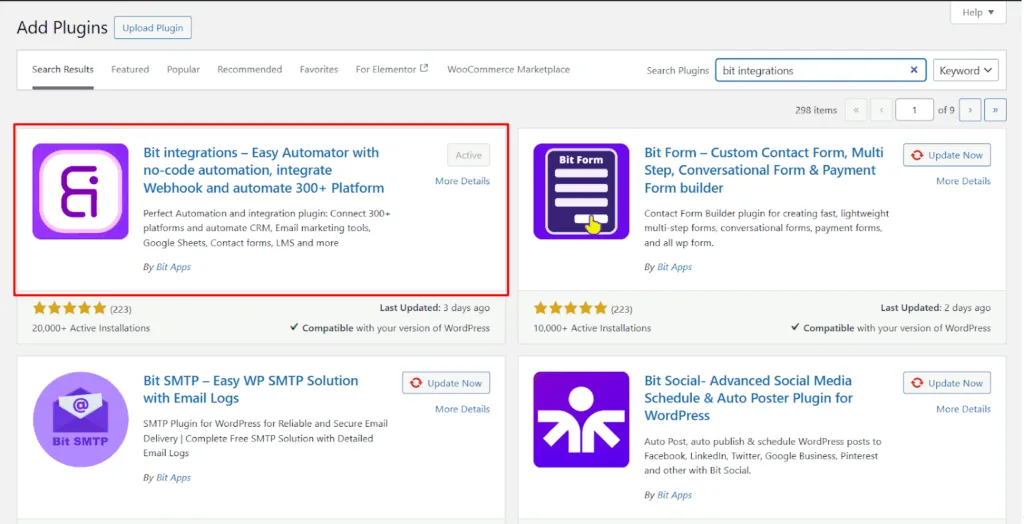
Before we get into the how-to, let’s talk about what Bit Integrations actually is. It’s a WordPress plugin designed to integrate your site with over 316+ platforms, including Discord. This makes Discord integration effortless and accessible.
The best part? You don’t need to know coding to use Bit Integrations. It works by letting you pick “triggers” from your WordPress plugins, like a form being submitted or a new user joining, and then “actions” in another app, like posting a message in a Discord server.
It comes with a free tier that includes 5 triggers, allowing you to test things out without incurring any costs. Anyone can use those free triggers along with features like conditional logic right from the start. If you need more, the pro version unlocks all triggers so you can handle as many automations as you want (we’ll get to those conditional rules later).
What sets it apart from other tools is that it’s built right for WordPress, so it plays beautifully with popular plugins like WooCommerce, Forms, or LMS. No need for extra accounts or complicated setups; just install it, and you’re ready to go with your Discord Integration.
Whether you’re sending form data, course updates, or order details to Discord, this plugin handles it all in one place. It’s like having a direct line between your site and your server.
Alright, let’s start connecting Discord with Bit Integrations. It’s easier than you might think, and I’ll walk you through each step so you can follow along.
First, make sure you have:
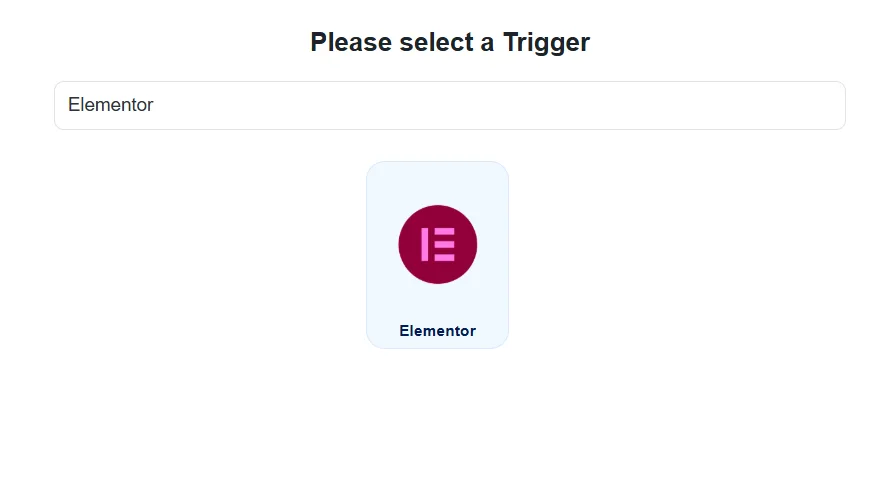
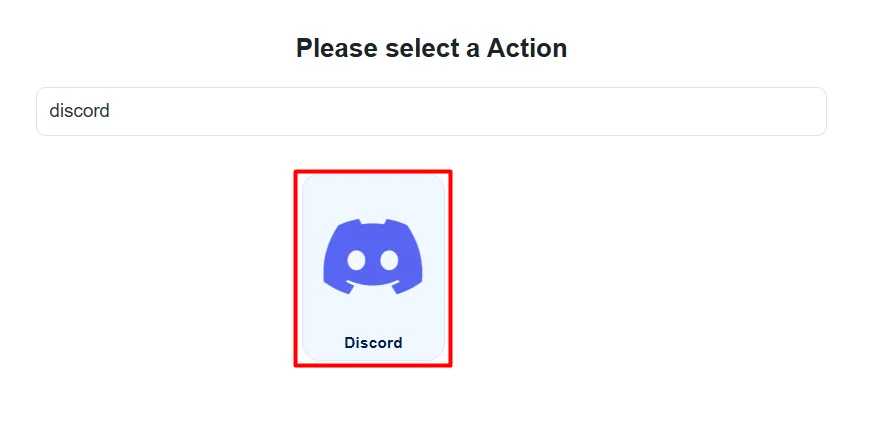
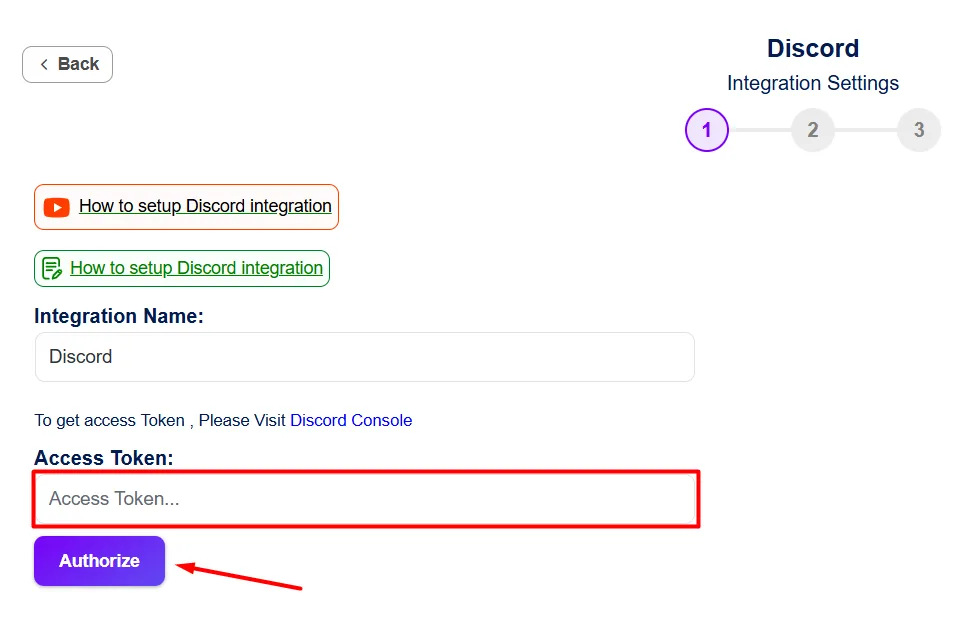
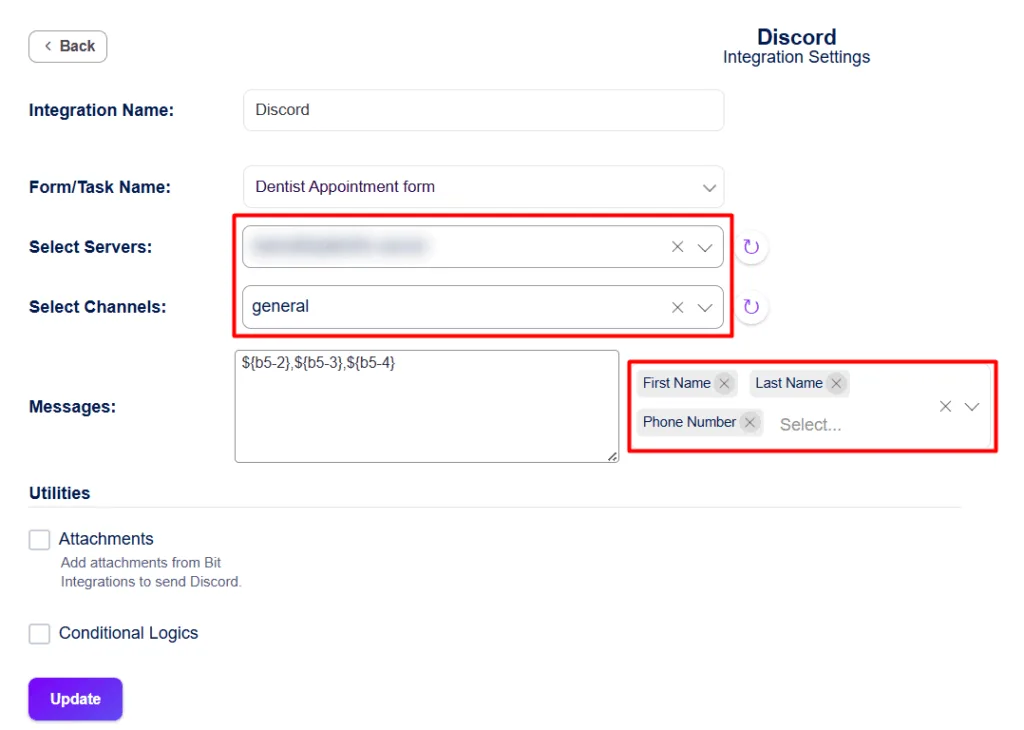
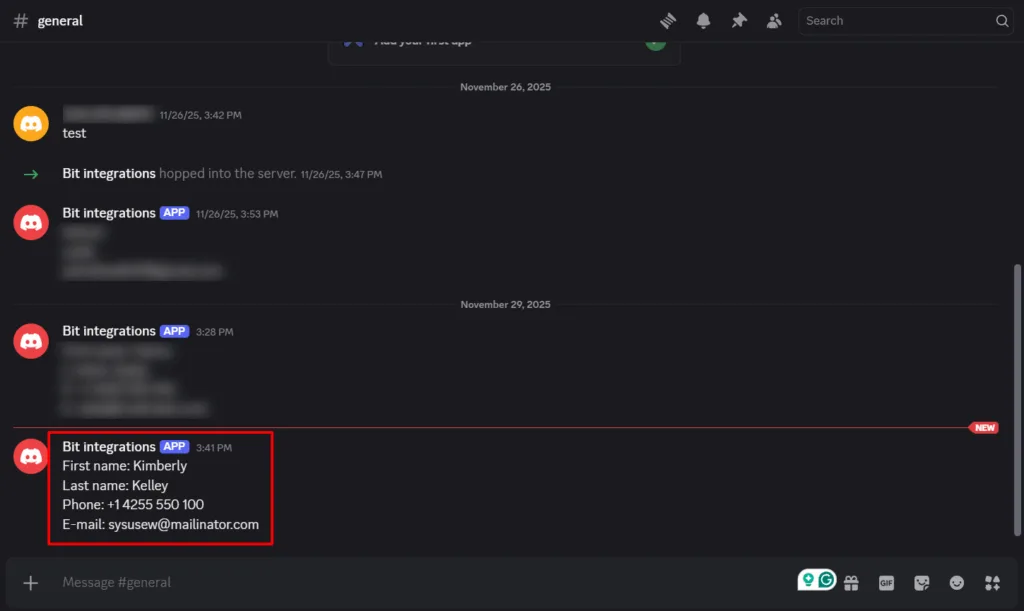
Forms make a solid entry point since they’re so common on WordPress sites; think contact pages, sign-ups, or feedback spots. With Bit Integrations, you can automate and integrate your favorite WordPress plugin data straight to your Discord server.
You can send data from any of your preferred plugins directly to Discord. If you’re using an e-commerce store like WooCommerce or SureCart, a form builder like Elementor Forms or Contact Form 7, or an LMS plugin, it works smoothly.
This Discord integration turns static data into dynamic conversations. For a community site, a user’s question from a form could be directly posted to your #support channel, allowing moderators or members to respond immediately. In a business setup, lead forms might ping your sales team right away.
Here’s a brief look at how it plays out:
Bit Integrations lets you add conditional logic to your setups, even in the free version, so you can route data based on specific conditions.
For example, if a form submission mentions “urgent support” in the topic field, it could automatically go to a dedicated moderator channel for immediate response, while regular queries head to the general one. This keeps things organized and ensures high-priority stuff gets attention fast.
Forms are just the beginning. With Bit Integrations, you can pull data from over 152 WordPress plugins and send it directly to Discord. Let’s dive into a few examples of how this Discord integration can work for you.
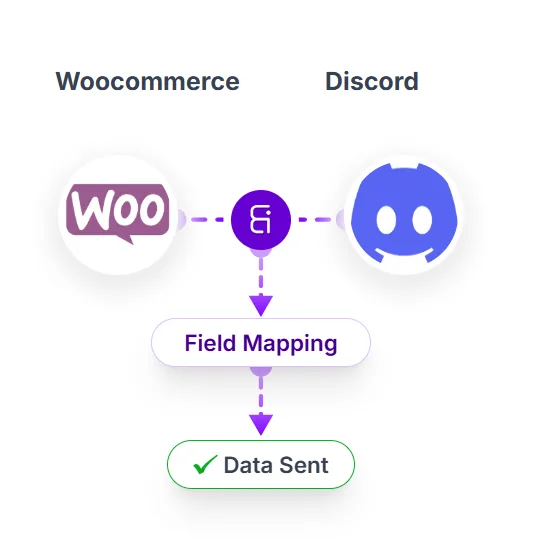
For e-commerce with WooCommerce: When a new order hits, send details like customer name, items bought, shipping details, and total to a #orders channel. Your team can confirm stock or follow up without logging into the site.
For Course Selling Site (LMS): If you’re into online learning with LMS plugins like LearnDash or Tutor LMS, Track enrollments or quiz results. “New student enrolled in Course X” could be posted to your education server, letting instructors chime in or welcome them.
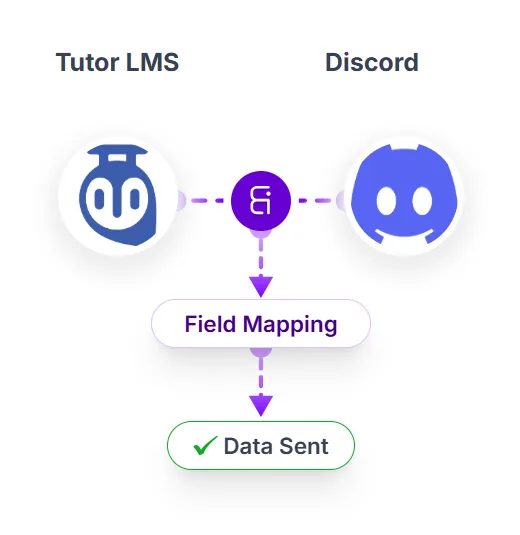
Membership sites using MemberPress or similar: New sign-ups or renewals? Auto-post to Discord to assign roles or send greetings. It keeps your community engaged from the start.
In each case, the setup is similar: Choose the plugin as your trigger, Discord as the action, map what you want to send, and done. It’s flexible enough for whatever you’re running on WordPress.
With Bit Integrations, capturing WordPress data is made effortless with our incoming webhooks and Action hooks. What happens if our trigger options don’t include your favorite plugin?
No worries! You can still connect it to your Discord server easily by using incoming webhooks or action hooks. It’s a simple way to keep everything in sync, even if the plugin you want isn’t directly integrated with Bit Integrations.
Things don’t always go perfectly, right? If your messages aren’t showing up, please verify the bot token to ensure it hasn’t expired or lacks the necessary permissions. Double-check field mapping, too; sometimes a mismatch means blank info.
Permission errors in Discord? Please ensure the bot is added to the channel with the necessary send rights.
Check out our support docs for additional fixes, or contact our team if you encounter any issues.
And there you have it! By integrating Discord with your WordPress site using Bit Integrations, you can automate communication and ensure that your team or community remains informed. Whether you’re sending form submissions, e-commerce orders, or membership updates, having this seamless connection between your site and Discord can save you a ton of time and reduce the back-and-forth.
With just a few simple steps, you can set it up and start receiving real-time notifications, keeping everything organized and efficient. And if your favorite plugin isn’t in the list of triggers, you can always use incoming webhooks or action hooks to connect it to Discord.
If you haven’t already, give Bit Integrations a try. It’s free to start, and you can quickly see how it can make your workflow smoother. Happy integrating!
Yep, by enabling utilities features, you can send attachments or files directly to your Discord server.
Yes! Bit Integration supports many WordPress plugins as the trigger.
Data goes directly via APIs, so keep your tokens private, but it’s as safe as standard web connections
You need to create separate integrations for each account.
Yes! Bit Integration supports a wide range of subscription plugins as triggers.
Yes! Bit Integrations offers a free version that includes up to 5 triggers with 164+ actions, so you can test out the plugin and see how it fits your needs.






 EN
EN  ES
ES  DE
DE  NL
NL  FR
FR