

 JA
JA  EN
EN  ES
ES  DE
DE  NL
NL  FR
FR  PT
PT  IT
IT 
If you’ve searched for a way to connect Gravity Forms to Google Sheets, you’ve likely landed on Gravity Connect, Gravity Wiz’s official integration suite, and that costs almost $59/year for one site.
It works, but its pricing model creates a real constraint: each plan limits the number of platforms you can connect, and Google Sheets counts as one of those slots.
But what if I tell you there is a plugin named Bit Integrations, an automation plugin that takes a different approach? It connects Gravity Forms to Google Sheets and even more 374+ platforms, including CRM, email platforms, LMS, etc., for $35/year.
You don’t even need to upgrade your Gravity Forms plan to connect more platforms like CRMs and email platforms, etc., with Gravity Forms. Through the Bit Integrations automation and integration plugin, you can connect your Gravity Forms to hundreds of platforms easily without switching to any other tools.
長文要約
Gravity Connect limits you to 1 active connection on its Basic plan, pick Google Sheets, and that’s your entire account. Bit Integrations costs $35/year, uses Gravity Forms as a trigger, and gives you access to all 374+ integration, including Google Sheets platforms with no slot restrictions. This guide covers the pricing difference and walks through the full setup.
Gravity Connect vs Bit Integrations: Pricing Comparison
Before anything else, here’s what you’re actually paying for with each tool:
| 特徴 | Gravity Connect Basic | Gravity Connect Advanced | Gravity Connect Pro | Bit Integrations Starter |
| Price | $59/year | $169/year | $199/year* | $35/年 |
| Available Integrations | 8 total | 8 total | 8 total | 374+ |
| Integrations You Can Use | 1 only | 3 only | 8 total | All integrations included |
| Sites | 1 | 3 | Unlimited | Unlimited sites start at $99/year And 1 site, $35/year |
| 無制限のデータ転送 | Yes | Yes | Yes | Yes |
| Google Sheets | Yes, (uses your 1 slot) | Yes | Yes | Yes |
| CRM + Email + Other Apps | Need upgrade | Limited to 2 more | Yes | All Included |
| 条件分岐 | No | No | No | Yes |
| Webhook | No | No | No | Yes |
Gravity Connect Pro is $199 for the first year only, and renews at $349/year.
The core difference is structural. Gravity Connect prices are based on the number of connections you activate. Bit Integrations gives you access to all 374+ platforms on every plan, with no slot system.
How Gravity Connect’s Per-Connection Model Works in Practice
Gravity Connect’s Basic plan ($59/year) gives you one active connection from a library of 8 platforms: Airtable, API Alchemist, Drip, Google Calendar, Google Sheets, MailPoet, Notion, and OpenAI.
If you choose Google Sheets, that’s your one connection; adding a CRM or email tool requires upgrading.
The Advanced plan ($169/year) raises that to 3 connections across 3 sites. Still the same 8 platforms, still capped. To use Google Sheets, a CRM, and an email tool simultaneously, you’re at $169/year minimum.
The Pro plan removes the connection cap, but at $349/year on renewal, it’s a significant jump for what remains an 8-platform library.
This model is predictable if your needs are static. It becomes expensive the moment they’re not.
The Solution: Bit Integrations – All Integrations, No Restrictions, At $35/Year Only
Bit 統合 connects form plugins and other triggers to external apps. When Gravity Forms is set as the trigger, it can route submission data to any of its 374+ natively supported platforms, all on the same $35/year Starter plan.
What’s included on the Starter plan:
- Broader integrations – 374+
- No restriction on how many integrations you actively use
- Unlimited data transfers – no cap on form submissions sent
- 条件ロジック – send data only when specific conditions are met
- Webhook – incoming and outgoing
- Custom field mapping
- Custom Api
- No-code setup – ready in minutes
- Dedicated support and updates
Connect Google Sheets today. Add your CRM tomorrow. Set up email marketing next week. No upgrade needed. No extra cost. No limits.
How to Connect Gravity Forms to Google Sheets Using Bit Integrations
Before you start: The setup involves generating Google API credentials from Google Cloud Console. If you haven’t done this before, budget 15–20 minutes for that step specifically. The rest of the configuration takes about 5 minutes.
Step 1: Install Bit Integrations
Go to your WordPress dashboard → プラグイン → 新規追加 → search “Bit Integrations” → Install and Activate.
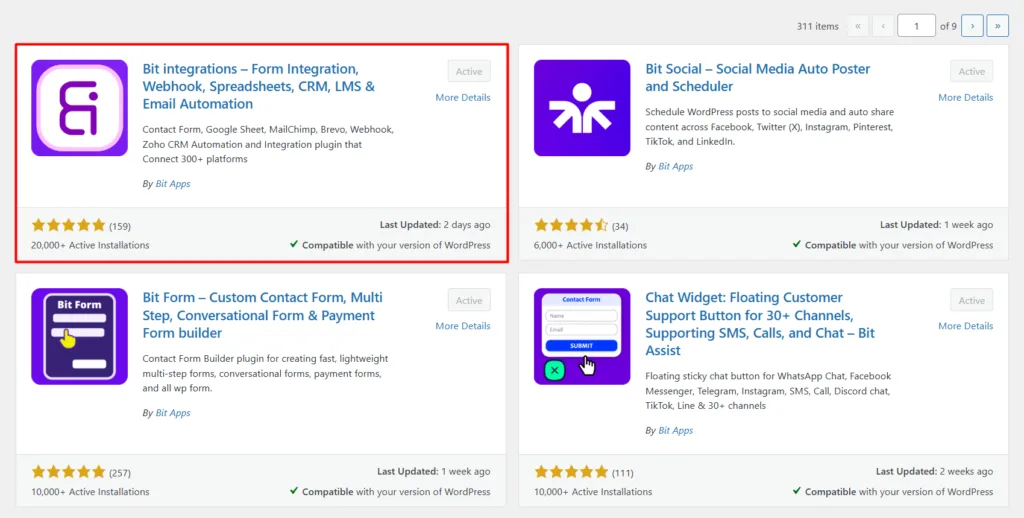
Note: A free version is available on WordPress.org. The Pro version ($35/year) unlocks all integrations, including the full Gravity Forms trigger.
Step 2: Prepare Your Google Sheet
Before configuring the integration, set up your destination spreadsheet first. Bit Integrations maps to your column headers during setup, so they need to exist beforehand.
Open Google Sheets and create a new spreadsheet. In the first row, add column headers that match your form fields, for example, First Name, Last Name, Email, and Message.
Step 3: Create a New Integration
WordPressのダッシュボードで、 Bit Integrations → Create Integration.
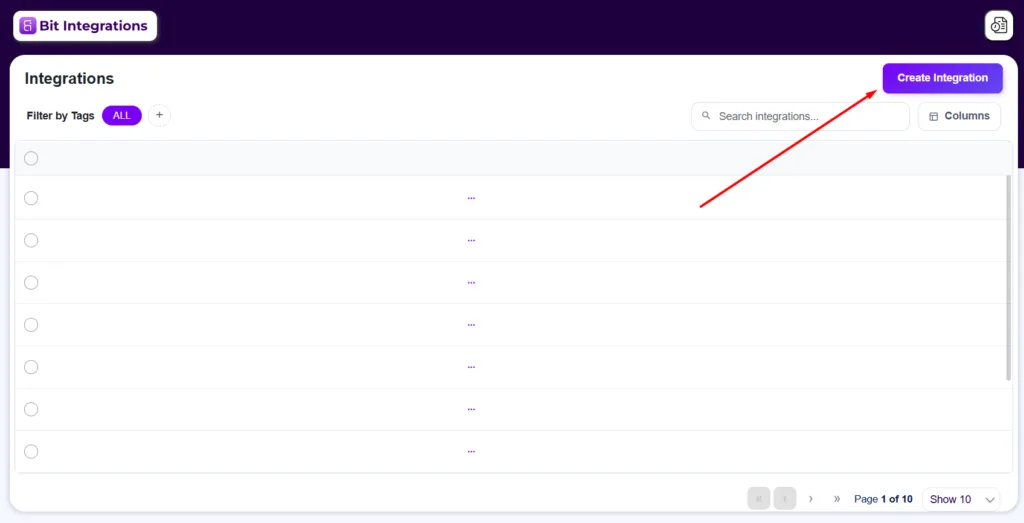
Step 4: Set Gravity Forms as the Trigger
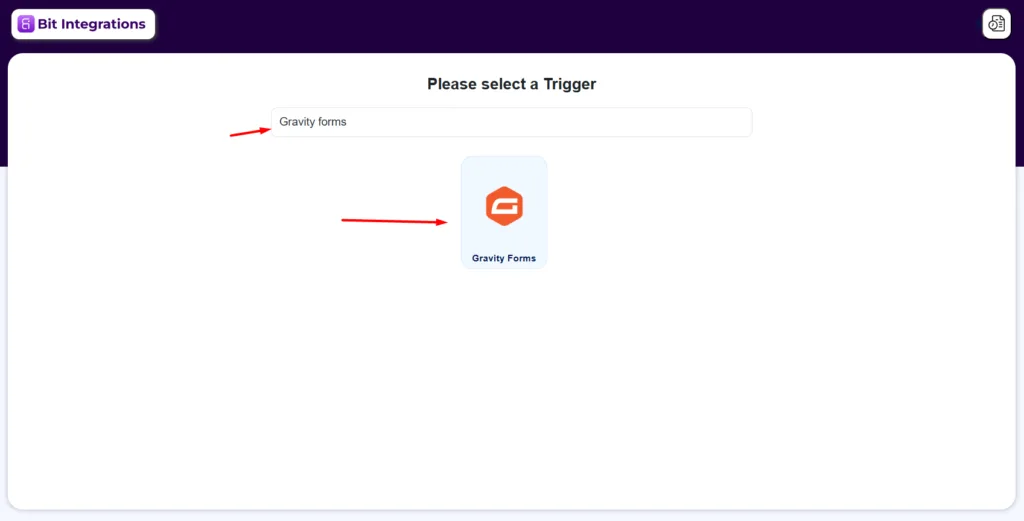
Search for and select グラビティフォーム as the trigger. Then choose the specific form you want to connect from the dropdown, and click 次.
Step 5: Authorize Google Sheets
Search for and select Google Sheets as the action.
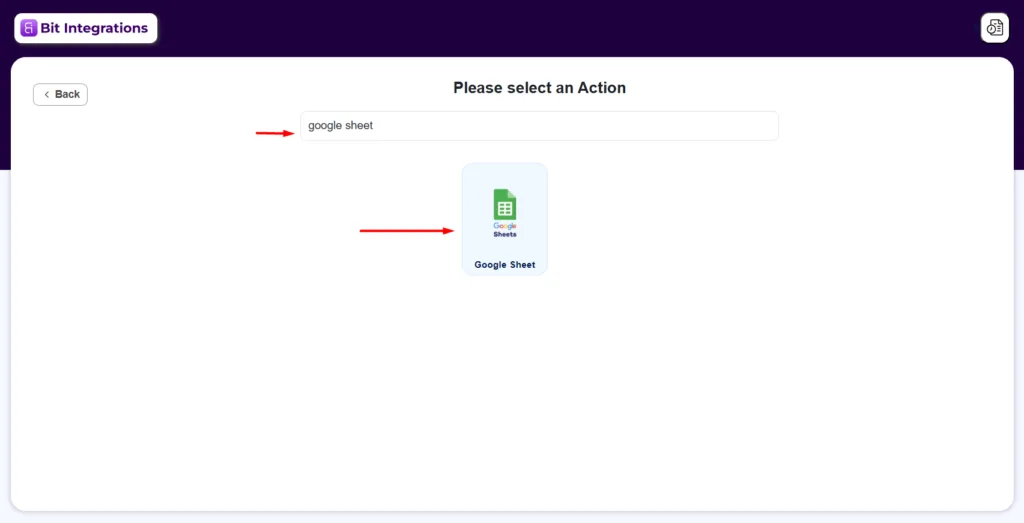
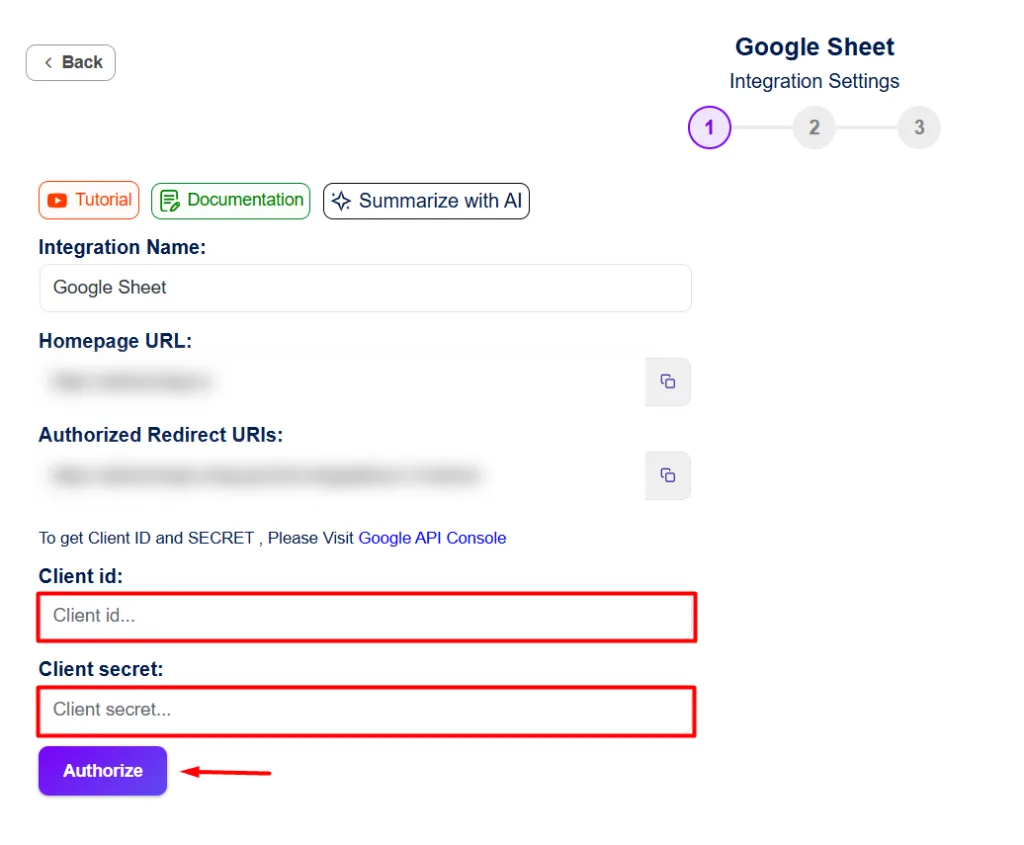
To connect your Google account, you’ll need a Google Client ID そして Google Client Secret. Here’s how to get them:
- Go to Google Cloud Console
- Create a new project (or select an existing one) そして enable Google Sheets and Drive API
- Navigate to APIs & Services → Credentials
- クリック Create Credentials → OAuth client ID
- Set the application type to Web application
- Copy the Homepage URL そして Authorized Redirect URI shown in Bit Integrations and paste them into the corresponding fields in Google Cloud Console
- クリック 作成, and Google will generate your Client ID and Client Secret
Paste both values into Bit Integrations and click “Authorize.” Complete the Google account sign-in prompt that follows, then click 次.
For more details about Google Sheets integrations, please check the official documentation.
Pro tip: If you see a “This app isn’t verified” warning during authorization, click Advanced → Go to [your app name] to proceed. This is standard for self-configured OAuth apps.
Step 6: Map Your Fields
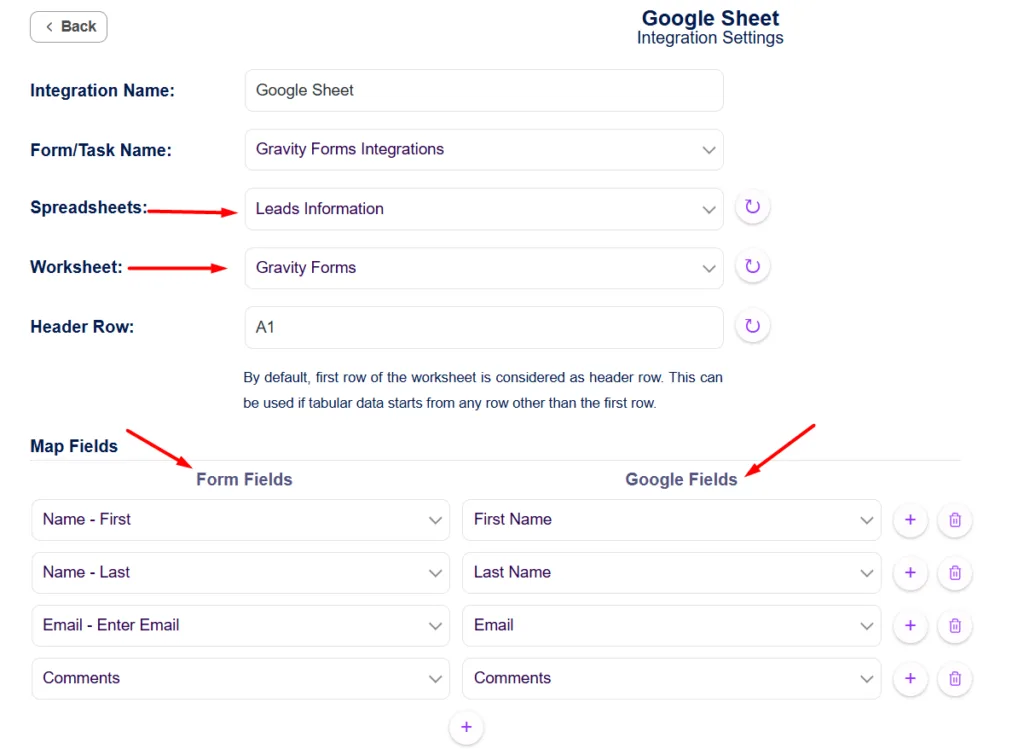
- From the dropdown, select your desired Spreadsheet (the file you prepared earlier)
- Then select the Worksheet (the specific tab inside that file)
- Now, map each Gravity Forms field to its corresponding column in your グーグル Sheet; for example, the “Name” field in your form maps to the “Name” column, “Email” to “Email,” and so on.
- Make sure every field you want captured has a matching column selected
Step 7: (Optional) Add Conditional Logic
Want to filter which submissions get sent? Enable 条件ロジック and set your rules, for example, only send data to Google Sheets if “Country” equals “USA.”

Step 7: Save and Test
クリック Save Integration, submit a test form entry, and check your Google Sheet. Data should appear in real time. That’s it. Done.
Which Tool Is Right for You?
Choose Gravity Connect if:
- You’re already subscribed to Gravity Perks and want native ecosystem integration
- You need only one platform connection and are confident that it won’t change
- You prefer tools that are officially maintained within the Gravity Wiz stack
Choose Bit Integrations if:
- You need to connect Gravity Forms to more than one platform
- You want access to a broader set of external platforms at a lower price point
- You need conditional logic or webhooks, which Gravity Connect doesn’t offer on any plan
- You’re building workflows that may grow over time, and don’t want per-connection upgrade costs
Final Thoughts
Connecting Gravity Forms to Google Sheets should be a simple decision, not a pricing puzzle. The real question was never can you do it, but what’s the most sensible way to do it without locking yourself into a model that charges you every time your needs grow?
If Gravity Connect fits your workflow and budget, it does what it does well. But if you’ve been hesitant because of the per-connection limits, now you know there’s a straightforward alternative worth considering.
Either way, the goal is the same: your form data flows where it needs to go, automatically, without the manual work.
よくある質問
Does Bit Integrations work with all Gravity Forms field types?
It supports most standard Gravity Forms fields, text, email, phone, dropdown, checkbox, radio button, date, and file upload. Complex fields like Signature or Chained Selects may have limitations depending on how the receiving platform handles that data type. Test with your specific field configuration before going live.
What happens to existing Google Sheet data when the integration runs?
Bit Integrations appends new rows; it does not overwrite or modify existing data. Each form submission creates a new row below the last entry, leaving any pre-existing rows untouched.
Do I need a paid Google Workspace account to connect Google Sheets?
No. A standard free Google account works. You do need access to Google Cloud Console to generate OAuth credentials, but that’s available on any Google account at no cost.
Can I connect one Gravity Form to multiple Google Sheets simultaneously?
Yes. You can create multiple integrations using the same form as the trigger, each pointing to a different spreadsheet or worksheet. This is useful for routing submissions to separate sheets based on form type or conditional logic rules.
Will form submissions that happened before the integration was set up appear in Google Sheets?
No. Bit Integrations only captures submissions made after the integration is saved and active. Historical entries are not retroactively synced. If you need past data in Google Sheets, you’d have to export it manually from Gravity Forms and import it separately.
What triggers a re-authorization of the Google account connection?
Google OAuth tokens can expire or be revoked if you change your Google account password, revoke app access from your Google Account security settings, or leave the token inactive for an extended period. If submissions stop arriving, check the connection status under Bit Integrations → Settings and re-authorize if needed.

関連ブログ
Gravity Forms Pro を使わずに Gravity Forms と Trello を連携させる方法($100+を節約)

WordPress用ClickUp&Asana連携トップ10+セットアップガイド


