EN
EN  ES
ES  DE
DE  NL
NL  FR
FR  PT
PT  IT
IT Free Google Sheets Connector for Elementor Forms

You’ve already paid for Elementor Pro. Your forms are built, and submissions are coming in. Now you just want to send those entries straight to Google Sheets.
There’s only one problem: Elementor Forms doesn’t have a built-in Google Sheets integration.
Most solutions force you to install yet another plugin and pay for another subscription, often $40/year or even $20/month just to move data into a spreadsheet. That’s why most user looking for a reliable Google Sheets Connector for Elementor Forms.
This article shows you a clean, completely free way to connect Elementor Forms to Google Sheets without installing extra paid plugins or adding more recurring costs.
Table of Contents
TL;DR:
You can connect Elementor Forms to Google Sheets for free with Bit Integrations. Install the plugin, select Elementor Forms as the trigger, choose Google Sheets as the action, connect your Google account, map the form fields to sheet columns, and test the form. You can also add conditional logic and send the same data to other tools.
Step-by-Step Guide: How to Connect Elementor Forms with Google Sheets Using Bit Integrations
This guide walks you through the complete process of setting up a free Google Sheets Connector for Elementor Forms. The entire setup usually takes 10–15 minutes once you have everything prepared.
Before You Start (Prerequisites)
- Elementor Pro must be installed and activated (Elementor Forms is a Pro feature).
- An active Elementor Form has already been added to a page and set to collect submissions.
- A Google account (Gmail works fine).
- The free Bit Integrations plugin (install it from the WordPress plugin repository if you haven’t already).
Recommended preparation:
- Decide which form fields you want to send (e.g., Name, Email, Message, Phone, etc.).
- Create a new Google Sheet in advance and add clear column headers that match your form fields (for example: Name, Email, Message, Submission Date). This makes mapping much easier later.
Step 1: Install Bit Integrations
Install and activate Bit Integrations. Then, click on ” Create a new integration”.
Step 2: Select Elementor Form as the trigger
Now, from the trigger menu, search and select the Elementor Form as the trigger
Step 3: Pick the Google Sheets
Now, from the action menu, search and select the Google Sheets. You can choose from 374+ external apps in the action menu.
Step 4: Authorize Google Sheets
Before authorizing your Google account, make sure you first create a worksheet in the Google account you plan to connect. The worksheet should include columns that match the fields used in your Elementor form.
Once the worksheet is ready, proceed with the authorization by entering your Google Client ID and Client Secret to connect to Google Sheets. You can find your Google Client ID and Client Secret from Google Cloud Console.
Check out the detailed guide on Google Sheets integration
Step 5: Map form fields to spreadsheet columns
Map your form fields to corresponding spreadsheet columns for smooth data alignment.
Step 6: Test the submission
Test a form submission, verify that a new row appears in Sheets, and check formatting. You can see the integration details in the timeline section of the integrations settings.
Why People Use Google Sheets to Store Form Data
Google Sheets remains one of the most common tools for managing form submissions. It is simple, flexible, and already familiar to most teams.
When Elementor forms send data to Google Sheets, it becomes much easier to organize and review submissions.
Many website owners start looking for a reliable Google Sheets connector for Elementor Forms because spreadsheets make data management far easier.
Here are some common ways people use it.
Lead Tracking
Businesses collect inquiries from website forms and store them in a spreadsheet so the sales team can review and follow up quickly.
Event Registration
Event organizers collect attendee information and manage registrations directly from a shared sheet.
Inquiry logs
Customer support teams keep records of form inquiries and responses in one organized place.
Team collaboration
Multiple team members can access the same sheet. Updates appear instantly, so everyone stays informed.
Another reason Google Sheets works well is visibility. You can filter entries, sort data, and share the sheet with clients or team members using a simple link.
Common Approaches Users Try First (And Why They Fall Short)
Many users start with manual methods like exporting data, copying and pasting entries, or reviewing form submissions directly in the dashboard.
While this can work for small volumes, it quickly becomes error-prone and incredibly time-consuming as the number of submissions grows. The more forms you manage, the harder it is to keep up.
Next, some turn to third-party automation services. These might seem like a quick fix at first, but they often come with an ongoing subscription fee. While they help automate some tasks, they can add complexity, especially when it comes to handling conditions or scaling up usage as your needs increase.
Dedicated connector plugins are another route. These “work,” but they come at a cost, and prices can rise quickly, especially if you’re running a multi-site setup or need advanced features.
These costs stack on top of your Elementor Pro subscription, making it feel like you’re paying for basic functionality that should be included.
This is where Bit Integrations, the free Google Sheets connector for Elementor forms, stands out. Unlike those expensive plugins or services.
Bit Integrations provides a free, simple way to connect Elementor forms directly to Google Sheets and more than 374 other platforms, without ongoing fees or complex setups.
If all you need is a clean row in Google Sheets, this Google Sheets connector for Elementor Forms offers a cost-effective solution.
Features That Matter in an Elementor Forms Google Sheets Connector
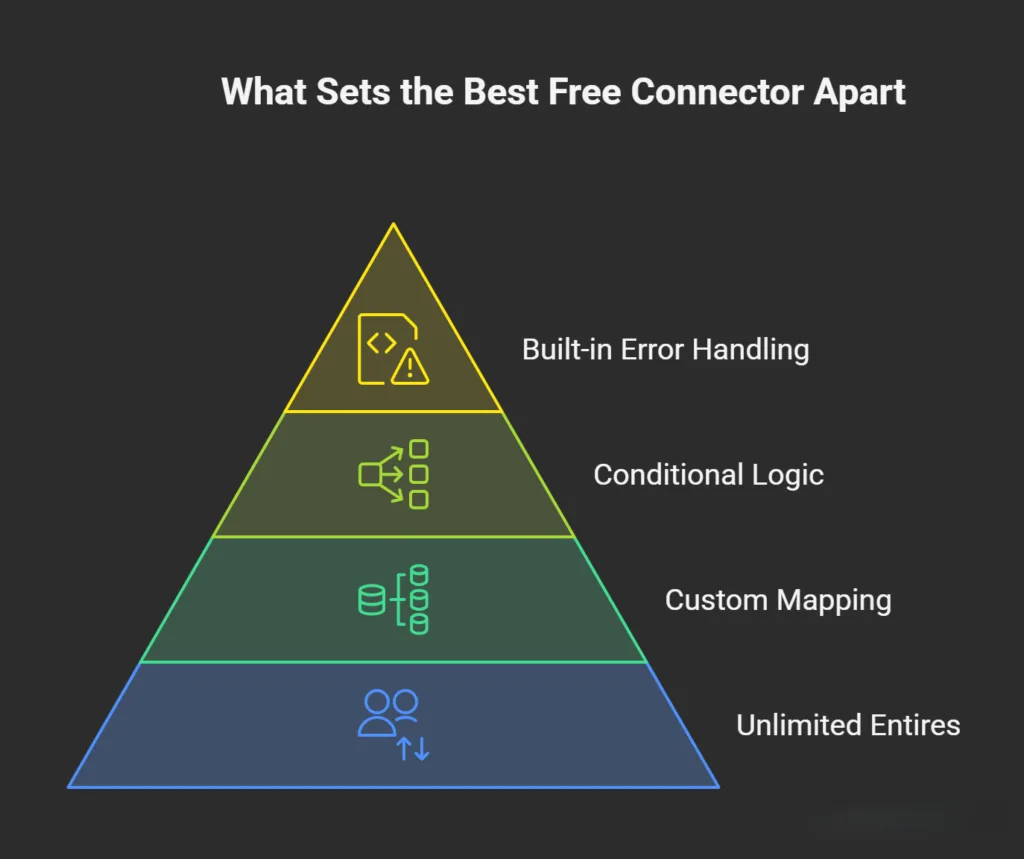
When choosing a connector for your Elementor forms and Google Sheets, there are a few key criteria that separate the best from the rest. Here’s what makes the top choice truly stand out:
- Free Means Truly Unlimited: Unlike other services that limit your tasks or submissions or offer only a “trial” version with hidden restrictions, the Google Sheets connector ensures no caps on usage. You can run unlimited automations without worrying about hitting a limit or being forced to upgrade.
- Custom Field Mapping: A good connector should make it easy for your form data to match perfectly with your Google Sheets columns. Field mapping is necessary, ensuring that each form submission goes directly to the right place in your sheet without any manual intervention.
- Built-in Conditional Logic: The Google Sheets connectors offer conditional logic to refine your entries. This feature helps avoid cluttered spreadsheets by filtering data or ensuring only relevant entries are added, allowing you to stay organized as your form submissions grow.
- Clear Error Handling and Awareness of Sheets API Quotas: Handling errors gracefully is essential for keeping things running smoothly. A great connector is aware of Google Sheets API quotas, so you can address them immediately, ensuring consistent performance even as your submission volume increases.
With Bit Integrations, you get all these features and more. It’s designed to make your workflow efficient, ensuring that you can focus on what matters while your forms and Google Sheets stay in perfect sync.
Why Use Bit Integrations to Connect Elementor Forms to Google Sheets
If you’ve ever tried to connect Elementor Forms to Google Sheets, you know it’s often a hassle. The process can be confusing, expensive, and time-consuming.
But what if there was a free, simple solution that allowed you to connect Elementor Forms to Google Sheets, and then some?
Enter Bit Integrations. This automation tool lets you connect Elementor Forms to Google Sheets with no cost, no restrictions, and no hassle.
It’s not just about syncing form data; Bit Integrations gives you unlimited data sending, powerful conditional logic, and real-time syncing, all for free.
That’s right: all the features you need to keep your data organized and up to date, without worrying about any hidden fees or limits.
More Than Just Google Sheets
Bit Integrations doesn’t stop at Google Sheets. While it’s good for connecting Elementor Forms to your spreadsheets, this tool unlocks over 374 integrations with other apps such as CRMs, email marketing, helpdesks, and notifications.
So, if your needs evolve, you won’t have to rebuild your whole workflow. You can add new connections and keep everything running smoothly without starting from scratch.
Privacy and Compliance
Unlike some tools that rely on third-party servers or cloud services, Bit Integrations processes everything locally on your own WordPress server. This means you don’t have to worry about your data being stored elsewhere, giving you more control and confidence when it comes to privacy and compliance.
Ready to Automate?
With Bit Integrations, you can connect your first Google Sheet in just a few clicks and say goodbye to the frustration of managing spreadsheets manually.
Install Bit Integrations today and start using a reliable Google Sheets connector for Elementor Forms that removes the need for extra subscriptions.
Use Conditional Logic to Keep Google Sheets Data Clean
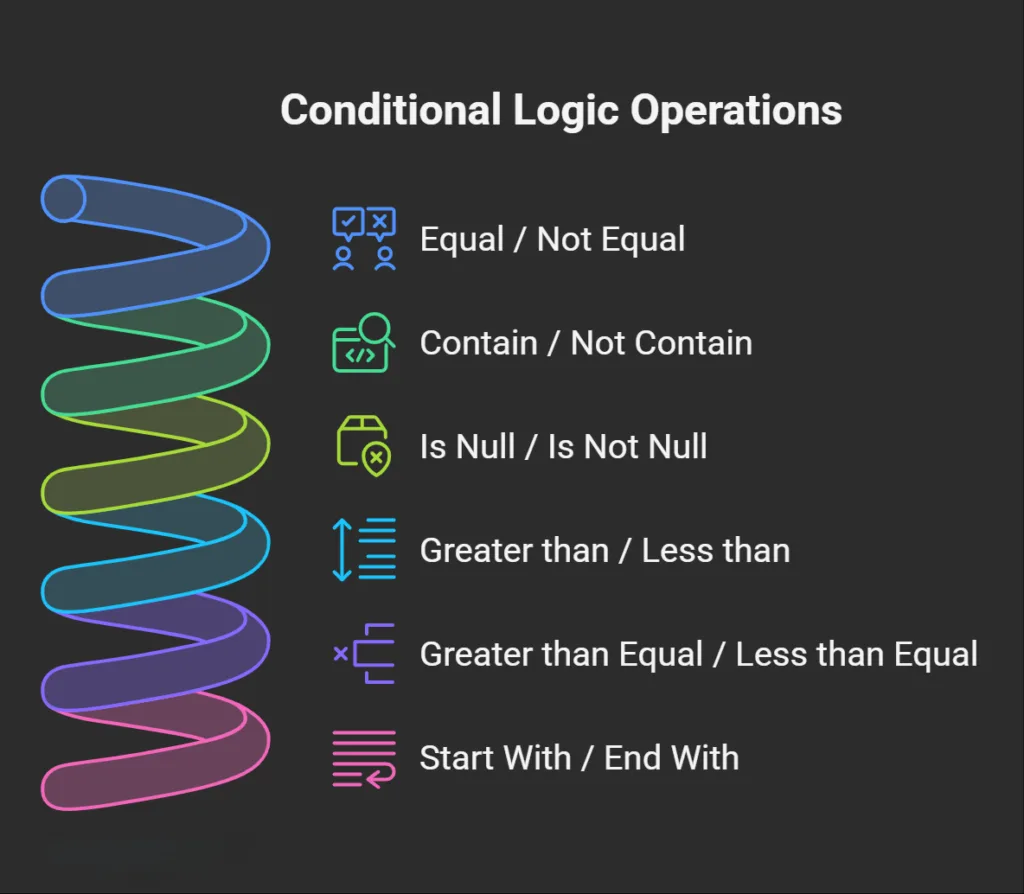
Google Sheets organization improves when integrations send only relevant data. Clean data outperforms comprehensive data by reducing clutter and focusing on useful entries.
Consider these examples for practical application:
- When a budget field exceeds a set value, direct the entry to a Sales Sheet; otherwise, route it to a General Leads Sheet.
- When a “Request a demo” checkbox receives a selection, forward the data to both a Sheet and a CRM; otherwise, limit it to the Sheet.
- When a country field matches a particular value, send the entry to a regional Sheet.
Bit Integrations checks conditions after form submission. The system sends data only if conditions match; otherwise, it sends no data.
Apply conditional logic to maintain Sheets with greater utility and reduced disorder.
Send Elementor Form Data to Other Tools
Bit Integrations does more than act as a Google Sheets connector for Elementor Forms. It opens the door to wider automation across the tools you already use.
Once your form collects data, that information does not have to stop at a spreadsheet. With Bit Integrations, you can automate Elementor form submissions and send them to multiple platforms from a single setup.
Here are some popular ways people use it.
- Automatically send leads to Mailchimp for audience building or to HubSpot as contacts and deals.
- Route submissions to Zoho CRM or Salesforce for lead management and follow-up.
- Get instant lead alerts in Slack, Telegram, or WhatsApp.
- Create support tickets in Zendesk or Freshdesk based on inquiry types.
- Register users in Zoom webinars or add records to Airtable databases.
- Add contacts to ActiveCampaign or ConvertKit for email sequences.
This approach turns a simple form into a full workflow. No need for separate plugins.
Conclusion
Elementor Forms does not include a built-in way to send submissions directly to Google Sheets. As a result, many users end up stuck with manual data entry or forced to pay for yet another plugin or automation tool.
The good news is that a completely free solution is possible. By using Bit Integrations, you can connect Elementor Forms to Google Sheets entirely within WordPress, without any extra subscriptions or monthly fees.
Once the integration is set up and tested, your form data will flow automatically into your spreadsheet. From there, you can easily expand the workflow later by adding filters, notifications, or connections to other tools as your needs grow.
If you’re looking for a simple, no-cost way to sync your Elementor Forms with Google Sheets, Bit Integrations is a practical and reliable option worth trying.
Frequently Asked Questions
Can I connect Elementor Forms to Google Sheets for free using Bit Integrations?
Yes. The free version of Bit Integrations allows you to connect Elementor forms with Google Sheets. It allows unlimited data transfers without charging per submission.
Do I need Elementor Pro to send form data to Google Sheets?
Yes. Elementor Forms is a Pro widget, so you need Elementor Pro installed to collect form submissions and send the data to Google Sheets through an integration plugin.
Can I send unlimited Elementor form submissions to Google Sheets?
Yes. With Bit Integrations, there are no limits on the number of submissions sent to Google Sheets.
Is it possible to send Elementor form data to multiple apps at the same time?
Yes. Bit Integrations can send the same form data to Google Sheets and other tools at the same time, such as CRM platforms, email marketing tools, or messaging apps.
Can I filter which form submissions go to Google Sheets?
Yes. Bit Integrations supports conditional logic. This means you can decide when data should be sent to Google Sheets based on form field values or user selections.
Is the data stored on external servers when using Bit Integrations?
No. Bit Integrations processes automation on your own WordPress server, which gives you more control over data privacy and compliance.
Do I need coding skills to connect Elementor Forms to Google Sheets?
No coding is required. You only need to install the integration plugin, connect your Google account, and map form fields to spreadsheet columns.

Related Blog

Top 10 ClickUp & Asana integrations for WordPress + Setup Guide

Webhooks in Bit Integrations: No More Platform Limitations