

 EN
EN  ES
ES  DE
DE  NL
NL  FR
FR  PT
PT  IT
IT  JA
JA ClickUp vs Asana in 2026: We Tested Both in Real Workflows
Most ClickUp vs Asana comparisons end with the same safe answer: “Both are great; it depends on your team.”
That may be true, but it is not very helpful when you are the one choosing the tool, managing the budget, and trying to make sure your team actually uses it.
So we looked at ClickUp and Asana from a more practical angle: real workflow fit.
We tested both tools across everyday business scenarios, including WooCommerce order tracking, LMS course management, form-based lead workflows, team task management, and client-facing project updates. We also compared how each platform handles views, automation, reporting, collaboration, pricing, and setup complexity.
TL;DR
ClickUp and Asana are both strong project management tools, but they fit different teams. ClickUp suits power users who want depth and value, while Asana suits teams that want a clean, simple setup. The right pick depends on who configures the tool and how complex your workflows are.
For WordPress users: Bit Integrations connects both ClickUp and Asana to WooCommerce, forms, and LMS plugins without code.
Choose ClickUp if you want more control, built-in features (docs, whiteboards, time tracking), 15+ views, and better value per dollar.
Choose Asana if you want a cleaner, easier experience for teams, clients, or non-technical users with faster rollout.
Pricing: ClickUp’s free plan allows unlimited users; Asana’s free plan caps at 2 users and costs more per seat on paid tiers.
Biggest difference: ClickUp trades setup time for flexibility; Asana trades flexibility for simplicity.
ClickUp vs Asana: Core Features Comparison
Choosing based on a feature list alone is how teams end up switching tools six months later. Here is what actually differs between the two.
| Feature | ClickUp | Asana |
|---|---|---|
| Task fields | Status, Priority, Time Estimate, Track Time, Tags, Relationships, Custom Fields | Status, Due Date, Assignee, Dependencies, Attachments |
| Native time tracking | Yes, built-in | Yes |
| AI inside task | Ask Brain (summarize, generate subtasks, find similar) | Asana Intelligence (rules, naming, translation) |
| Views available | 15+ (List, Gantt, Board, Mind Map, Workload, Map, Table, Whiteboard, Embeds) | 5 (List, Board, Timeline, Calendar, Dashboard) |
| Automation logic | Trigger, multi-condition, chained actions | AI prompt and template-based rules |
| Native docs | Yes, ClickUp Docs | No |
| Native whiteboards | Yes, built-in | No |
| Dependency types | Blocking, Waiting On, Linked, Link Doc | Blocking, Waiting On |
| Embed external tools | Any website, Figma, Google Sheets, Docs, Maps & YouTube | Google Docs, Sheets, Slides, Loom, YouTube, Vimeo, Figma, Canva, Miro, Mural, Whimsical, Tableau Looker, Airtable and Dovetail |
| Goals & Objectives & Key results | Available | More mature, connects directly to tasks |
| Free plan users | Unlimited members and guests | 2 users |
ClickUp vs Asana Pricing Comparison- What You Actually Get
Both tools offer a free tier, but what you actually get on each plan is very different. Here is the full pricing breakdown side by side.
ClickUp Pricing (2026):
| Plan | Price | Key Limits |
| Free Forever | $0 | Unlimited users, 60 MB storage,& 5 active rules, and 100 automation executions. |
| Unlimited | $10/month billed per user | Unlimited storage, integrations, and dashboards |
| Business | $19/month billed per user | Advanced automations, workload management, timelines |
| Enterprise | Custom | SSO, advanced permissions, dedicated support |
Asana Pricing (2026)
| Plan | Price | Key Limits |
| Personal | $0 | Up to 2 users, basic tasks, and projects |
| Starter | $13.49 | Timeline, automations, integrations |
| Advanced | $30.49 | Portfolios, workload, goals |
| Enterprise | Custom | Advanced security, admin controls |
ClickUp’s free plan is the most generous in the industry. It allows unlimited team members with real functionality. Asana’s free plan caps at 2 users and removes most useful features, including timeline and automations.
On paid tiers, Asana costs more per user. But the feature quality is high, and the configuration overhead is low. ClickUp delivers more raw capability per dollar.
ClickUp’s free plan covers most of what small teams actually need. Asana’s paid tiers justify the premium only when your team is large enough to absorb the per-user cost.
Who Actually Uses These Tools
These aren’t tools for “any team.” Here’s who gets the most out of each.
Asana is the right fit if you are:
- A marketing team managing campaign timelines and cross-functional handoffs
- An agency handling multiple client projects simultaneously
- A virtual assistant, online business manager, or freelancer who onboards clients into a shared workspace
- An operations team that needs clean, repeatable processes without heavy configuration
ClickUp is the right fit if you are:
- A development or technical team that wants deep workflow customization
- A small team or solo operator on a tight budget (the free plan is genuinely powerful)
- A business trying to consolidate tools like a task manager, docs, a time tracker, and whiteboards into one platform
- An ops-heavy organization with someone internally who owns and maintains the workspace long-term
The wrong choice here doesn’t become obvious on day one. It becomes obvious three months in, when half your team has stopped logging into the tool.
If neither profile describes your team, the constraint is probably category rather than configuration. ClickUp and Asana are two of the five Notion alternatives we tested, alongside Jira for agile sprints, Trello for stage-driven work, and Flowlu for teams that bill clients.
UI & Task Structure – What You Actually See on Day One
ClickUp Task Model
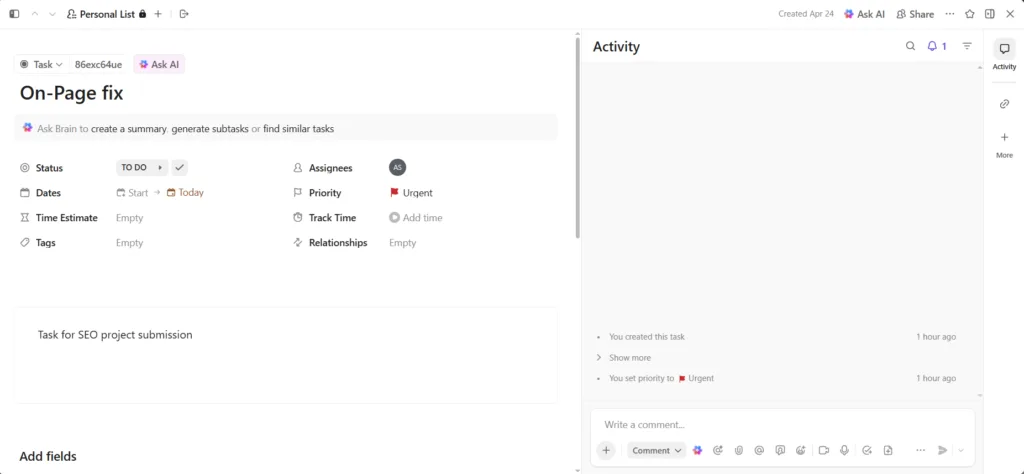
Open any task in ClickUp, and you immediately see what makes it sturdy. A single task surfaces Status, Dates (Start and Due), Time Estimate, Tags, Assignees, Priority, Track Time, and Relationships.
The Status field uses a custom pipeline you configure yourself. You can set priority red as urgent, high, normal, and low. Time tracking is native, with no plugin needed. Relationships let you link tasks as Blocking, Waiting On, or linked to a Doc.
There is also a full “Add fields” section to bolt on custom fields specific to your List.
Notice the Ask Brain prompt at the top. ClickUp’s AI sits directly inside the task. It lets you generate a summary, automatically create subtasks, or find similar tasks without leaving the view. The right panel is a real-time Activity log that tracks every change with timestamps.
This is a serious amount of metadata per task. For technical teams running bug trackers or sprint boards, that is exactly what you want. For a 3-person marketing team, it is overkill that will go unused.
ClickUp Views – 15+ Ways to See Your Work
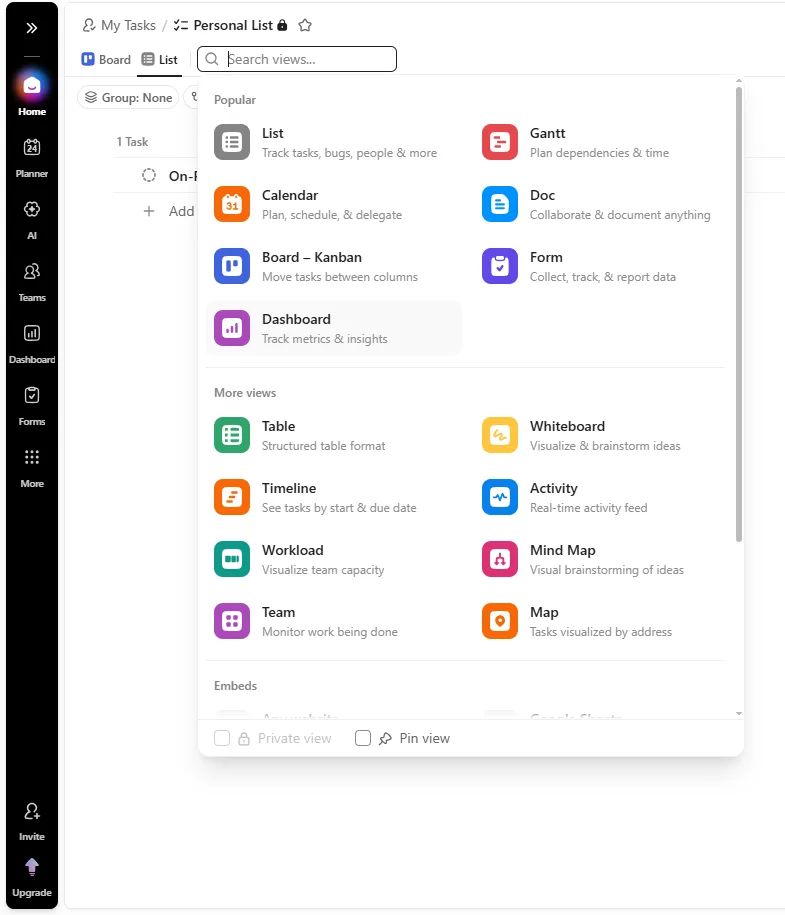
This is where ClickUp has no real competition. The view switcher exposes three tiers.
Popular views: List, Gantt, Calendar, Board (Kanban), Doc, Form, and Dashboard. All standard, but well-executed.
More views: table (structured spreadsheet format), timeline (start-to-due date bars), workload (team capacity heatmap), mind map, activity feed, team monitor, and map. The Map view plots tasks by physical address, which is useful for field teams and logistics operations.
Embeds: Any website, Google Sheets (live sync), Google Docs, Google Calendar, Google Maps, YouTube, and Figma. These are not just links. They render inside ClickUp as live panels.
Those are 15+ view types plus live embeds, all switchable within the same List without duplicating data.
Asana Timeline View
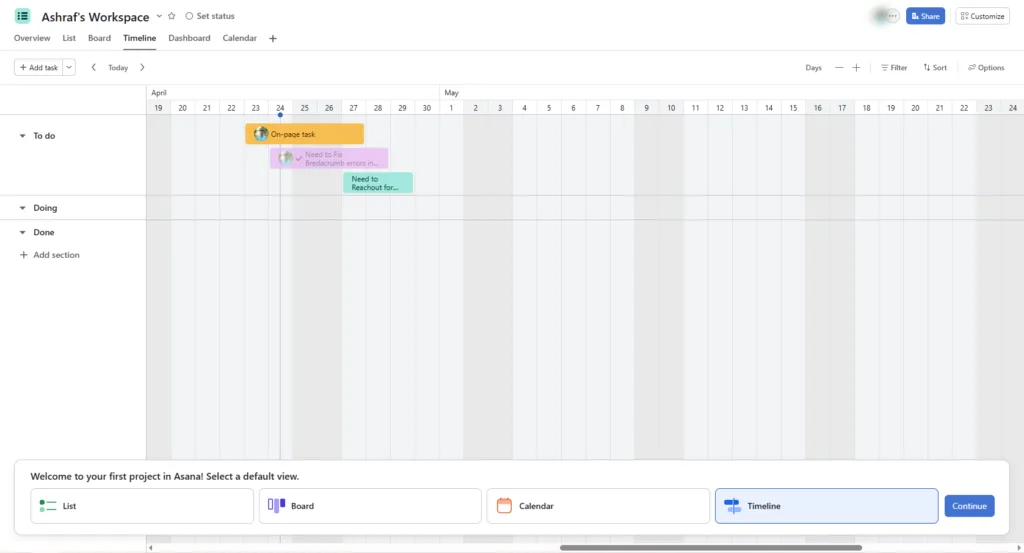
Asana’s Timeline is the cleanest Gantt implementation in the project management space. Tasks render as colored bars, grouped under sections (To do, Doing, Done), plotted across a date axis with Today marked clearly. Colors are assigned per task or assignee.
What stands out is what is missing by design. There is no clutter, no sidebar metadata, and no overlapping panels. You see tasks, dates, and section groupings. Nothing else. The bottom prompt (“Select a default view“) shows Asana actively guiding new users toward the right view from the first session. ClickUp does not do this.
One limitation to note: Asana’s Timeline does not show dependency arrows between tasks unless you are on a paid plan. ClickUp’s Gantt shows dependency arrows on all plans, including free.
ClickUp’s 15+ views give power users genuine flexibility. Asana’s five views are fewer by design; each one is polished and immediately usable without configuration.
Automation: Where the Real Gap Shows
ClickUp Automation Builder
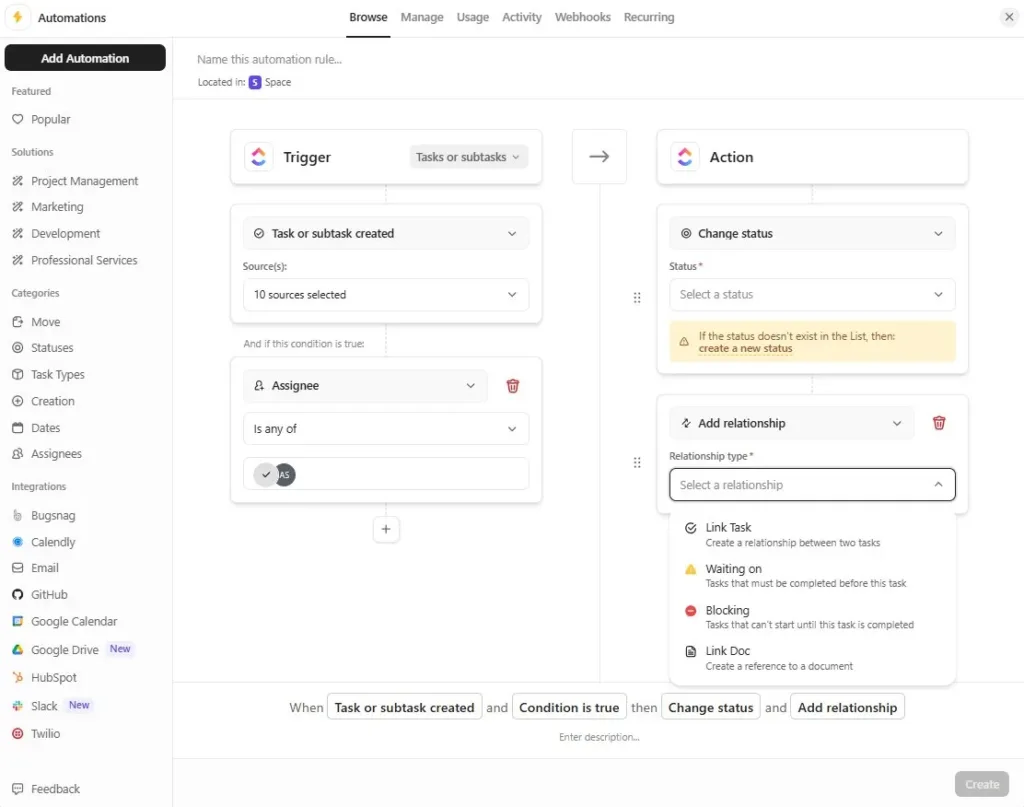
ClickUp’s automation builder follows a strict Trigger, Condition, Action logic chain. The depth here is significant.
In the screenshot, the Trigger is “Task or subtask created,” with a source selector showing “10 sources selected.” That means you can fire this automation from 10 different entry points at the same time, including forms, API, manual creation, and integrations.
The Condition filters by Assignee (“is any of”), so the rule only fires for tasks assigned to a specific person. The actions are chained: Change Status and Add Relationship execute in sequence from one trigger.
The Relationship action expands into four types: Link Task, Waiting On, Blocking, and Link Doc. This lets you build logic like “When a task is created by the dev team, automatically mark it as blocking the QA task and change the status to In Review.” No Zapier required.
The left sidebar shows pre-built solution templates by category: Project Management, Marketing, Development, and Professional Services. Native integration triggers from Bugsnag, Calendly, Email, GitHub, Google Calendar, Google Drive, HubSpot, Slack, and Twilio are all available directly inside the builder.
The bottom bar summarizes the full rule in plain English: “When a task or subtask is created, and the condition is true, then change the status and add a relationship.” This is useful for auditing complex rule chains at a glance.
Asana Rules Builder
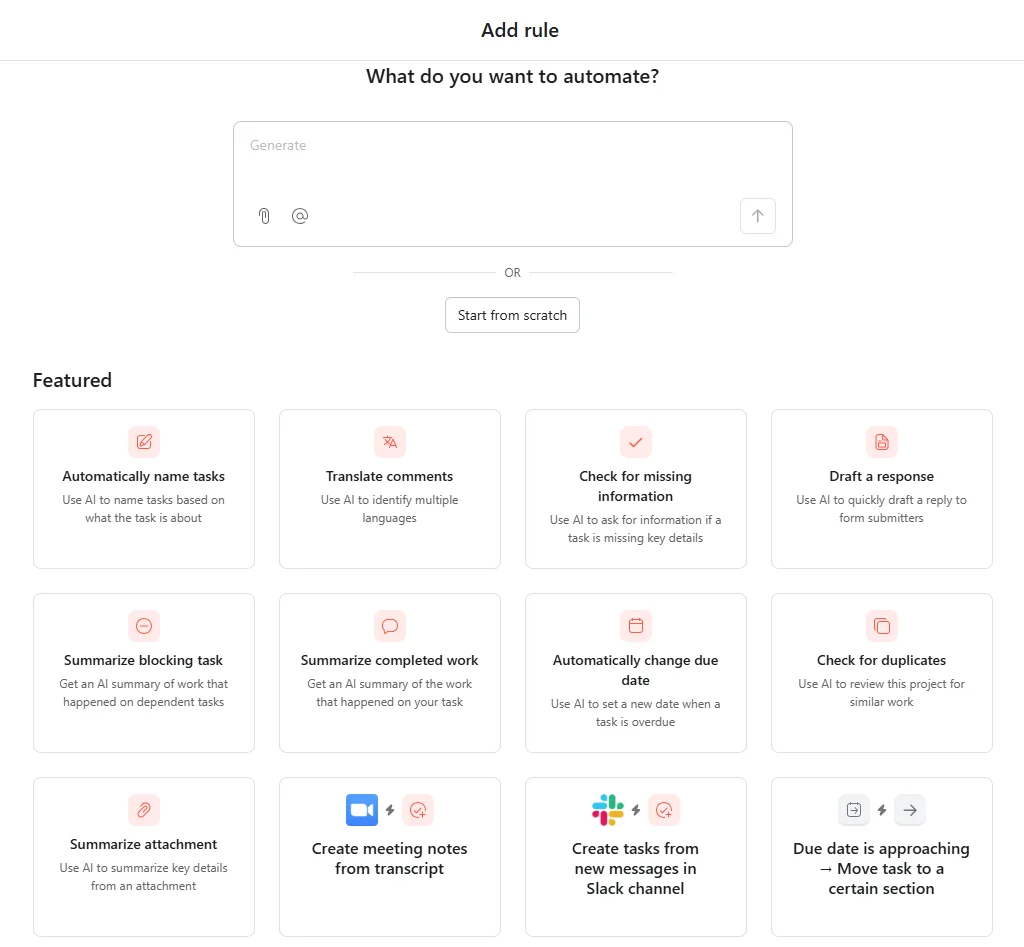
Asana takes the opposite approach. Instead of a flowchart builder, the entry point is a natural language prompt box: “What do you want to automate?” Type it in plain English, and Asana’s AI generates the rule. This is faster for simple automations and requires no technical setup.
Below that, the Featured templates reveal something important: Asana’s automation is now deeply AI-native. Templates include:
- Automatically name tasks. AI names tasks based on their content.
- Translate comments. AI identifies and translates multiple languages.
- Check for missing information. AI flags tasks with incomplete details.
- Summarize the blocking task. AI writes a summary of what is blocking progress.
- Draft a response. AI drafts replies to form submitters.
- Check for duplicates. AI reviews the project for similar work.
Asana is not just automating task routing. It is embedding AI judgment into the workflow itself. You can also create tasks directly from Slack messages, auto-move tasks between sections based on due date, and sync status changes to Microsoft Teams.
One catch: most AI-powered templates require the Advanced plan at $30.49 per user per month. ClickUp Brain is a paid add-on, too, but it works across more plan tiers.
For technical multi-condition logic: ClickUp. For AI-native, no-code automation: Asana. For teams who want to set it up in 10 minutes: Asana.
Connect ClickUp or Asana with WordPress Using Bit Integrations
Both tools support a wide range of third-party integrations. ClickUp supports 1,000+ integrations, and Asana supports 270+ integrations. Quantity matters less than depth and reliability in practice.
Choosing between ClickUp and Asana is only one part of the workflow. The bigger question is, how will your project management tool connect with the rest of your business?
For WordPress-based businesses running WooCommerce stores, online courses, contact forms, or membership platforms, the integration story gets more specific. This is where Bit Integrations becomes relevant.
Bit Integrations natively supports both ClickUp and Asana, so you can connect them with your WordPress site without writing code. That means you can automatically send data from WooCommerce, forms, LMS plugins, CRM tools, email marketing platforms, and other WordPress-based workflows directly into ClickUp or Asana.
For example, you can create a ClickUp task when a WooCommerce order is placed, add a new Asana task when someone submits a lead form, assign follow-up tasks after a course enrollment, or send CRM activity into your project management system.
The best part is that Bit Integrations does not charge extra based on task limits or workflow limits. You can build automation workflows without worrying about paying more just because your site sends more data.
So whether you choose ClickUp for its flexibility or Asana for its simplicity, Bit Integrations helps you connect your project management tool with the WordPress apps you already use.
Footnote: Want to connect your WordPress site to ClickUp or Asana? Check out the ClickUp integration documentation and Asana integration documentation for step-by-step setup guides.
For more practical examples, explore these ClickUp and Asana integrations for WordPress and follow the step-by-step setup guide.
Final Verdict
Neither tool is objectively better. They are built on different philosophies.
Asana is built for clarity. Fewer features, executed well, with an interface that stays out of your way. ClickUp is built for consolidation. Everything in one place, infinitely configurable, with the complexity that comes with that promise.
The real decision point is who sets up the tool. If it’s an operations manager or developer who enjoys configuring systems, ClickUp rewards that investment. If it’s going directly into the hands of a non-technical team or a client, Asana’s simplicity prevents abandonment.
Whichever you choose, if you are running a WordPress-based operation, Bit Integrations connects both tools to your forms, WooCommerce store, LMS, and more. Your project management tool stays in sync with the rest of your stack automatically.
Frequently Asked Questions
Is ClickUp really free for unlimited users?
Yes. ClickUp’s Free Forever plan has no user cap, which is genuinely rare in this category. The limit is 5 active rules and 100 automation executions.
Can I migrate my projects from Asana to ClickUp or ClickUp to Asana?
Both tools support CSV import. ClickUp also has a dedicated Asana importer that pulls tasks, assignees, and due dates. Neither migration is perfect; custom fields and automations rarely transfer cleanly and usually need manual rebuilding.
Does Asana have a time tracking feature?
Yes! Asana has native time tracking features available on Advanced, Enterprise, and Enterprise Plus plans.
Which tool handles client-facing workspaces better?
Asana. Guest access is cleaner, the interface is less exhausting for non-daily users, and the Timeline view communicates project status without requiring any explanation.
Is ClickUp Brain (AI) worth the extra cost?
It depends on usage. If your team creates a high volume of tasks and documentation, Brain’s ability to auto-generate subtasks, summarize tasks, and search across your workspace saves real time. For occasional use, it’s hard to justify as an add-on.
Which tool has better automation for non-technical users?
Asana. Its natural language rule builder and AI-generated automation templates require no technical knowledge. ClickUp’s automation is more powerful but expects users to understand trigger-condition-action logic.
Can both tools connect to WordPress?
Not natively. You need an integration plugin like Bit Integrations to link either tool to WooCommerce, contact forms, or LMS platforms. Once connected, task creation triggers automatically from form submissions or orders.
Which tool is better for a solo freelancer?
ClickUp on the free plan. It gives one person access to docs, task views, time tracking, and basic automations at no cost. Asana’s free plan is limited to two users and strips out most useful features, making it a poor fit for solo use.

Related Blog
5 Best Notion Alternatives in 2026 – Tested and Reviewed

Paymentform.io Review: Collect Payments Online Without a Website


