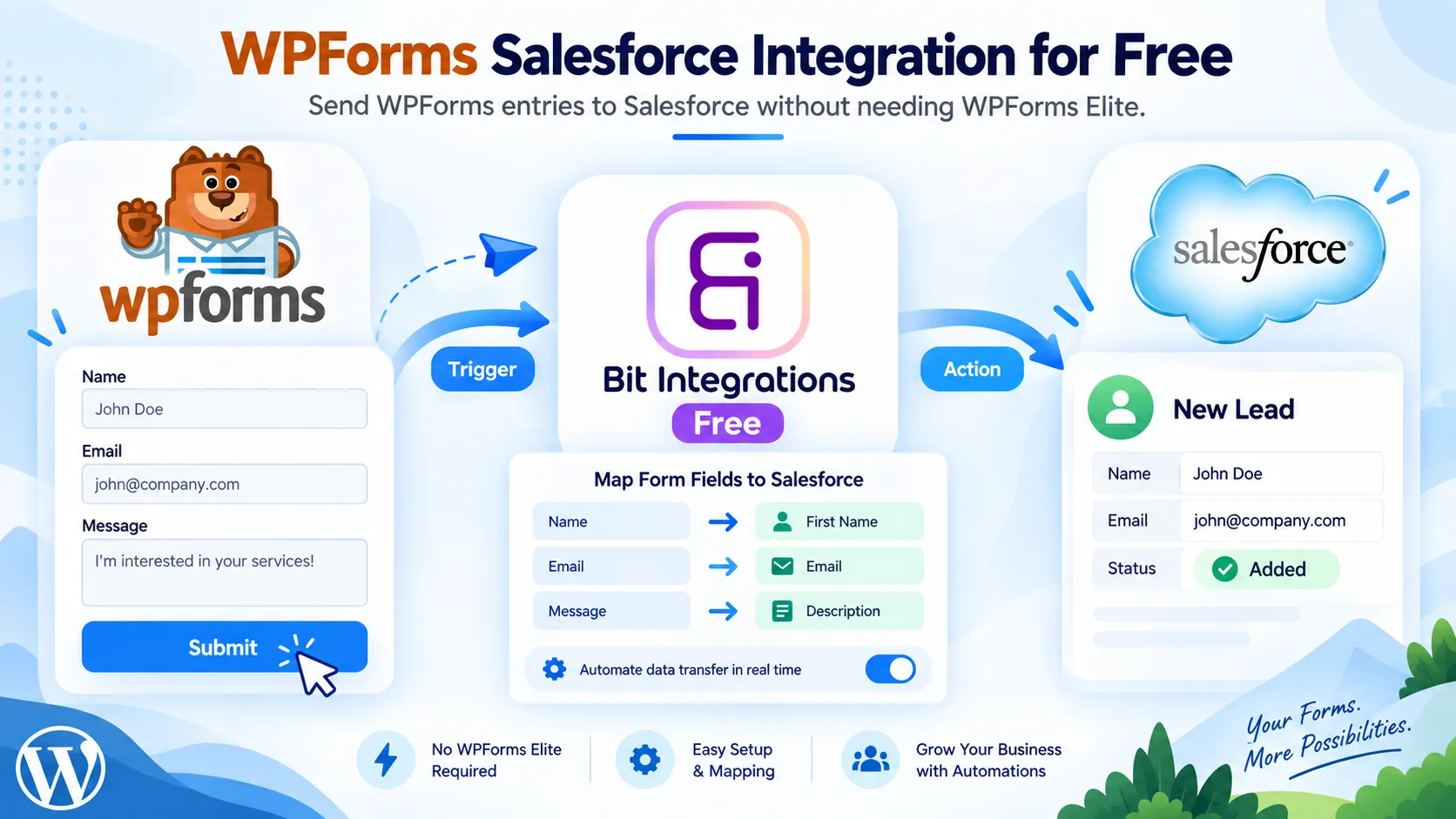



Free WPForms Mailchimp Integration: Connect WPForms Lite and Basic to Mailchimp
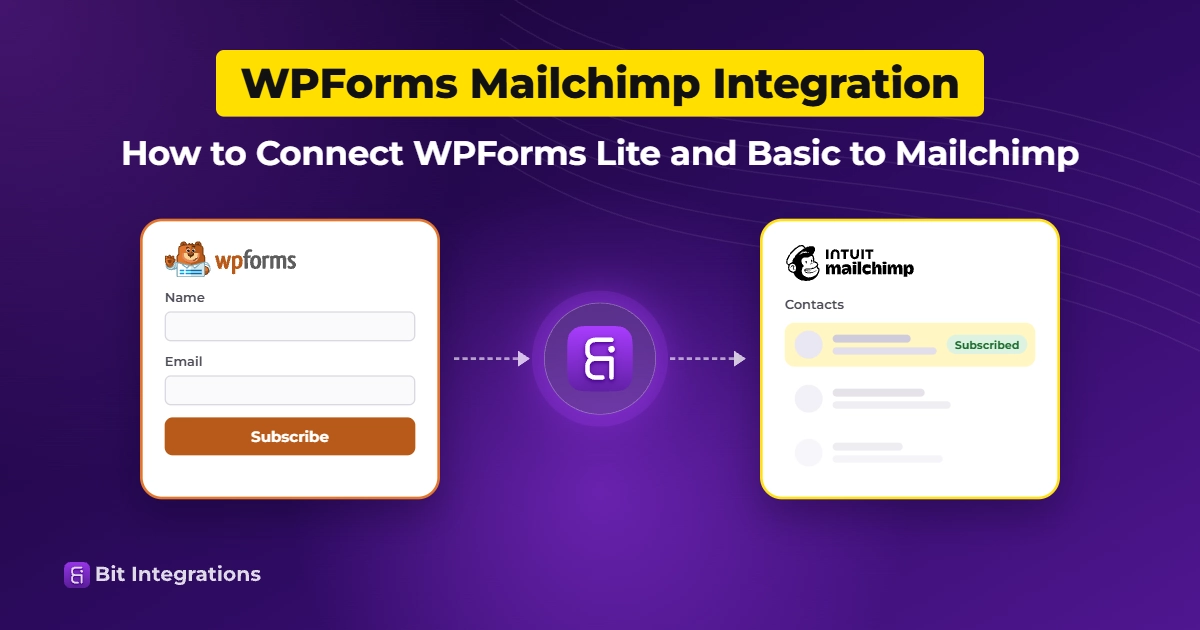
The native WPForms Mailchimp integration requires the Plus plan or higher. On WPForms Lite or Basic, you can still send entries to a Mailchimp audience with an integration plugin that listens for WPForms submissions.
Below, you’ll set one up with the free version of Bit Integrations, test it, and fix common Mailchimp errors.
TL;DR
- The WPForms Mailchimp add-on needs Plus or higher. Lite and Basic include only Constant Contact for email marketing.
- WPForms’ Zapier and Make add-ons start at Pro, so they can’t help on Lite or Basic.
- MC4WP sends name and email from any WPForms plan at no cost. The free version of Bit Integrations adds custom field mapping, tags at signup, double opt-in, and conditional logic, nd tag updates on existing contacts to the list of free features.
- Mailchimp for WooCommerce syncs store customers, not form entries.
- WPForms paid plans and Bit Integrations’ free triggers and actions don’t cap submissions or runs. Your Mailchimp plan does: the free plan pauses sending once you pass 250 contacts.
Does WPForms Have a Native Mailchimp Integration?
Yes. WPForms has a Mailchimp add-on, and the WPForms Mailchimp add-on documentation lists a Plus license or higher as a requirement. Lite and Basic don’t include it.
The addon can subscribe, unsubscribe, archive, or delete contacts, record events, add or remove tags, and send double opt-in emails. If you already pay for Plus or higher, use it: it lives inside the form builder and needs no extra plugin.
Lite and Basic include Constant Contact as their only email marketing integration. The WPForms pricing page also places the Zapier and Make add-ons on Pro and above, so you can’t route Lite or Basic entries through Zapier either.
Note: Connect WPForms to Google Sheets, WooCommerce, CRM, email, and more platforms for free
How Can You Connect WPForms to Mailchimp Without the Plus Plan?
On Lite and Basic, three WordPress plugins can send WPForms entries to Mailchimp. Each one carries a different limit.
| Method | WPForms plans | What reaches Mailchimp | Limit to know |
| WPForms Mailchimp addon | Plus, Pro, Elite | Contacts, tags, groups, notes, events | Needs a paid WPForms plan |
| MC4WP | All plans | Name and email, sent to the audience you pick | Premium features target MC4WP’s own forms and WooCommerce |
| Bit Integrations (free version) | All plans | Any mapped field, tags at signup, double opt-in, updates to existing contacts | Add Language and Add GDPR utilities need Pro |
| Zapier or Make | Pro and Elite | Depends on your Zap or scenario | Needs WPForms Pro, plus the platform’s own task limits |
If you only need name and email in one audience, MC4WP covers it. Choose Bit Integrations when you need extra merge fields, tags at signup, or rules that skip some entries.
For platforms beyond Mailchimp, see our roundup of free email marketing integrations that work with WPForms Lite.
Why Mailchimp for WooCommerce Isn’t a WPForms Connector
Mailchimp for WooCommerce is Mailchimp’s official plugin for WooCommerce stores. It syncs customers and orders for purchase-based campaigns and abandoned cart emails, and it doesn’t read WPForms submissions.
What You Need Before You Start
- A published WPForms form with an Email field. Our test used the Simple Contact Form template, which collects first name, last name, email, and a message.
- A Mailchimp account with at least one audience. Create the Mailchimp tags you plan to apply ahead of time, since Bit Integrations lists existing tags.
- The free version of Bit Integrations from WordPress.org, installed and active.
- Access to your Mailchimp account settings, where you’ll register an app.
How to Set Up the WPForms Mailchimp Integration with Bit Integrations
Our test sent entries from a WPForms Simple Contact Form to a Mailchimp audience and tagged each new contact.
Step 1: Create a new integration
In your WordPress dashboard, open Bit Integrations and click Create Integration.

Step 2: Select WPForms as the trigger.
Type “WPForms” in the Search Trigger box and click the WPForms card. It’s a free trigger, so it has no Pro badge.

Step 3: Choose the form to connect.
Pick your form from the Select a Form/Task Name dropdown and click Next. The dropdown takes one form, so create a separate integration for each extra form.

Step 4: Select Mailchimp as the action.
On the Please select an Action page, search for “Mailchimp” and click the card.

Step 5: Connect your Mailchimp account.
Bit Integrations connects through a Client ID and Client Secret from an app you register in Mailchimp.
- Name the integration, keep + Add new connection selected, and name the connection.
- Copy the Callback / Redirect URL.

- In Mailchimp, click your profile icon, choose Profile, then Extras > Registered apps. You can also open admin.mailchimp.com/account/oauth2/. Click Register An App.

- Fill in the app name, description, company, and website. Paste the URL from Bit Integrations into Redirect URI and click Create.

- Copy the Client ID and Client Secret. Mailchimp shows the secret only once, so paste both into Bit Integrations before you click Done.

- Back in Bit Integrations, paste both values, click Authorize, and click Next once the connection succeeds.
Bit Integrations saves this as a reusable connection, so your next Mailchimp integration can skip this step. The Bit Integrations Mailchimp documentation covers the app registration in more detail.
Step 6: Choose the module, audience, and field map
- Module: choose Add a member to an audience.
- Audience List: pick your audience.
- Tags: select the tags for each new contact. Our test applied “Bit Integrations leads.”
- Map Fields: Bit Integrations locks Mailchimp’s required Email field in the first row. Select your form’s Email field beside it, match First Name and Last Name, and click + to map other fields to existing merge fields.

Step 7: Set utilities and conditional logic, then save
| Utility | What it does | Plan |
| Add Address Field | Sends a mapped address. Mailchimp expects address, city, zip, and state together. | Free |
| Double Opt-in | Mailchimp emails a confirmation link before it subscribes the contact. | Free |
| Update Mailchimp | Updates the contact if the email already exists in the audience. | Free |
| Add Language | Sets the contact’s language. | Pro |
| Add GDPR | Sends GDPR marketing permissions. | Pro |
Add Language and Add GDPR need Bit Integrations Pro.
Tick Conditional Logic to send only the entries that match a rule you set. This option is free. Click Next, then Save & Finish.
Which Mailchimp Action Should You Use?
Use Add a Member to an Audience for new signups. The two tag modules change tags on contacts who already exist in your audience.
| Module | Use it when | Plan |
| Add a member to an audience | A form should create a subscriber, or update one with Update Mail Chimp on | Free |
| Add tag to a member | A second form, such as a webinar signup, should tag an existing subscriber | Free |
| Remove tag from a member | A form, such as a cancellation request, should clear a tag | Free |
You can see every supported pairing on the WPForms and Mailchimp integration page. For tags driven by purchases, courses, or memberships, read our guide to tagging Mailchimp contacts from other WordPress events.
How to Collect Consent Before Adding Contacts
Our test form had no consent field, so add one before you go live. Use a checkbox field such as “Send me the newsletter,” unchecked by default, and add a conditional logic rule so the integration runs only when a visitor ticks it.
Turn on Double Opt-in to have each subscriber confirm by email. If your audience uses Mailchimp’s GDPR fields, the Add GDPR utility needs Pro. This isn’t legal advice, so check the email rules where your subscribers live.
How to Test the Integration and Confirm the Subscriber
Submit your live form with an email address you control, then check two places.
- Bit Integrations Timeline. Each run shows Success or Error. Click the eye icon, then the Response Output tab, to see Mailchimp’s reply with the contact’s status and merge fields.
- Mailchimp audience. Open Audience > Contacts, search for the test email, and confirm the name fields and tag. With Double Opt-in on, the contact stays pending until they confirm.
In our test, the Timeline logged the run as Success with the status “subscribed,” and Mailchimp recorded the first and last name as merge fields.

The contact then appeared in the audience list with both name fields filled in.

Before you go live, submit an email that’s already in the audience, once with Update Mail Chimp on and once with it off. Then submit with the consent box unticked and confirm the Timeline logs no run.
To get an email when a run fails, turn on failure alerts before you create the integration.
Final Verdict
If you’re on WPForms Plus or higher, use the native Mailchimp add-on. It works inside the form builder and needs no extra plugin.
On Lite or Basic, choose based on what you need to send. MC4WP handles name and email for a single audience. Bit Integrations fits when you need custom merge fields, tags, double opt-in, or conditional rules.
Its free version covers every step in this guide, and only the Add Language and Add GDPR utilities need Pro.
Whichever method you pick, submit a real test entry and confirm the contact in Mailchimp before the form goes live.
To send the same entry to a spreadsheet or CRM, follow our guide to automating WPForms entries. The WPForms integrations guide compares free methods with paid add-ons.
Frequently Asked Questions
Can one WPForms form send entries to two Mailchimp audiences?
Yes. Create a second integration with the same form as the trigger, then pick the other audience in the Audience List field. Each integration sends to one audience, and both run on every submission.
Do I need a paid Mailchimp plan?
No. You can register the app and connect to Mailchimp’s Free plan, as long as you stay within its contact and send limits.
What if I upgrade to WPForms Plus later?
You can move to the native add-on or keep Bit Integrations. Run only one of them on each form, or every submission will reach Mailchimp twice.
Can I apply different tags based on a visitor’s answers?
Yes. Create one integration per tag, and give each one a conditional logic rule on the relevant field, such as an “Interest” dropdown. Only the integrations whose rules match will run and apply their tags.
How do I send a custom field, like phone or company, to Mailchimp?
Create the field in your Mailchimp audience first, since Bit Integrations lists only the merge fields that already exist. Then click the refresh icon next to Map Fields, click +, and match your WPForms field to the new Mailchimp field.
Can I connect more than one Mailchimp account?
Yes. Bit Integrations saves each authorized account as its own connection. Pick the one you need from the Mailchimp Connections dropdown when you set up an integration.
Will entries submitted before I set up the integration reach Mailchimp?
No. The integration runs on new submissions only, so older entries stay in WordPress. To add past contacts, export them and import the file into your Mailchimp audience.

Related Blog
WPForms HubSpot Integration Without Elite: Connect WPForms to HubSpot for Free
Need WPForms Elite for CRM Integration? The Cost-Saving Alternative Most Users Miss